Start with the message shown by the tool. Keep a tab with unsaved changes open, and export a backup before deliberately clearing or replacing data. Most problems fall into the following groups.
I cannot find my diagrams
- Check that you are using the same website address, browser and browser profile as before. A different origin or private window has an independent workspace.
- In Projects, select Diagrams, clear the project search and tag filters, and expand folders.
- If the diagram opens but objects seem missing, use Fit, clear canvas filters, expand collapsed groups, and return from semantic overview to Details.
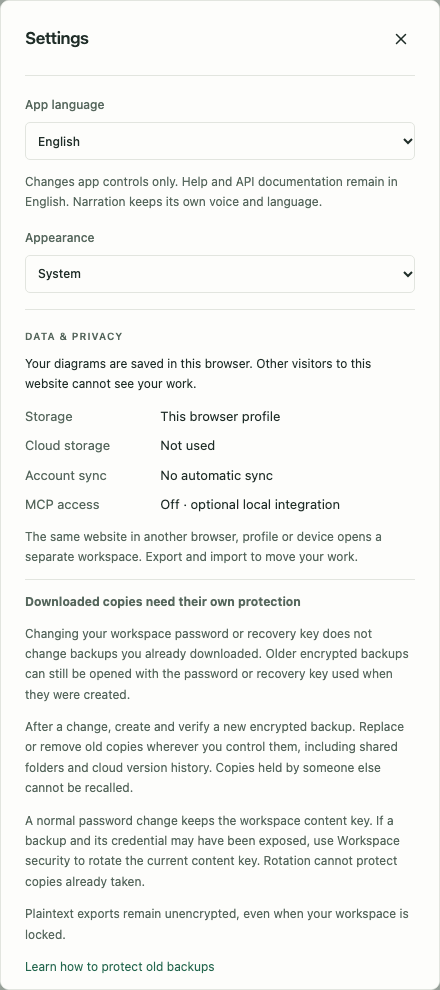
- If site data was cleared, restore a previously exported backup. There is no server-side copy to recover from.
Storage, backup and restore explains how to prevent accidental loss and move work between browsers.
Saving says Error or Conflict
| Message or situation | Next step |
|---|---|
| Saving… | Let the pending transaction finish before closing the tab |
| Storage full / quota error | Keep this tab open; export what you can and remove unneeded local history or data deliberately |
| Another tab changed the project | Review Save local copy, Use saved version and Replace saved version; choose explicitly before closing |
| A restore preview warns that work will be replaced | Export a current backup first, then choose Merge or confirm Replace deliberately |
| Browser storage is unavailable | Use a browser/profile that supports IndexedDB and permits this site’s local storage |
“Saved” refers to this browser’s IndexedDB, not a file, cloud account or synchronization service. Detailed storage procedures .
An import failed or looks incomplete
| Format | Check first |
|---|---|
| CSV | Headers, separator, number format, grouping/filters and row/cell limits; inspect Original values before cleaning |
| SQL SELECT/WITH | Supported logical query constructs, scoped aliases and unresolved references; the tool never queries the database |
| SQL schema | CREATE/ADD definitions rather than the final state of every migration; review import notes |
| Source code | Correct language, single-file declarations versus project overview, Focus filter and structural-analysis warnings |
| draw.io / Visio | A supported .drawio/.vsdx file and the intended page; advanced shapes or waypoints may be approximated |
| Native JSON | A valid Visual Nerve export with consistent object IDs and references |
| Markdown | Headings/lists and recognized semantic content; it is not the full-fidelity backup format |
Default local imports are limited to 50 MiB. Settings can raise the limit to 1024 MiB, but only imports up to 50 MiB are guaranteed; format-specific limits still apply. Increasing the file limit does not remove a row limit, object limit or analysis deadline. API/MCP payloads remain limited to a 32 MiB envelope. Import settings .
A COBOL program became one file card
Choose Declarations and dependencies, then preview again. A single script/file uses this detail level automatically; an explicit File overview selection intentionally creates file cards. Recognized COBOL paragraphs and file resources become separate objects. Inspect unresolved relationships rather than assuming full compiler analysis. Re-import an old diagram to apply newer analysis behavior. Code guide .
I cannot see all of a code object’s text
Scroll its card body in 2D, select it and drag a corner resize handle, or inspect Properties. Move by the card header. Exported/3D card faces show the top at the saved size, so enlarge the card before exporting. A file overview retains up to 200 declaration names per file; use declarations for individual objects. Reading code cards .
The 3D view is wrong or unavailable
Return to 2D to inspect the canonical overview. Use Fit or a named camera orientation rather than guessing where the camera is pointing. Move / Rotate / Scale change the camera; Move objects changes selected objects. A camera rotation should not become a tilted object in the 2D diagram.
If the module failed to download, restore the connection and choose Reload to retry 3D. Pending edits must save first. If WebGL is unavailable, use the object list and Return to 2D. For very large scenes, view limits are explicit; narrow filters rather than expecting every card to have a detailed 3D face simultaneously. 3D controls and limits .
Narration, preload or video is slow
- The first voice use downloads fixed neural assets; subsequent uses can reuse their browser cache. Preload reports download/synthesis progress rather than a promise that every step is instantaneous.
- Use Settings to select or preview the voice. Alan is the default English voice; choose Swedish NST for Swedish narration. Description text is processed locally.
- Check the error message if an asset download or local synthesis fails. Clear downloaded voices deliberately when recovering a bad cached model, then try again while online.
- Keep the tab visible for video export. Editing, manually moving the camera or closing the player cancels export.
- A video that exceeds its time, size or visible-object limits must be shortened or narrowed. The tool reports failure rather than silently dropping content.
- If a downloaded file looks different in a player, check the actual format and try a current browser/player. MP4 is preferred; supported WebM can be used as a fallback.
Narration, preload, storyboard and video includes the exact workflow and limits.
Simulator results surprised me
- Confirm the selected model/scenario, duration, seed and demand multiplier.
- Inspect arrivals and processing units. A per-hour rate is not a per-day count; UI times in minutes are converted to seconds in the semantic model.
- Inspect shared resources. Increasing one Work node’s parallel capacity cannot overcome a separate staff/counter constraint.
- Check patience, accepted particle types, routing and overflow outcomes.
- Review actual queues, utilization and events; compare the whole system rather than a single revenue stream.
- Account for paid capacity and investments. More throughput can also mean more cost.
- Compare runs with the same seed and duration. MAX and animated execution use the same engine; animation speed does not improve business results.
Live capacity cards are a 2D visualization of one logical node’s units, not independently editable simulation nodes. Build, validate, replay and compare simulations .
API or MCP cannot connect
| Error / symptom | Likely cause and action |
|---|---|
| Waiting / connection error | Start the optional local bridge; check exact website allowed-origin, loopback address, TLS trust and local-network browser permission |
| 503 | No active, connected browser workspace with the requested access; keep the workspace open |
| 401 | A configured token is missing or does not match; check the client header and browser token |
| 403 | Consent/access does not permit the command, or a write needs Read + write |
| 409 | A version changed, a result is not ready or execution conflicts; read the message, refetch or wait as appropriate |
| 422 | Read the structured validation error and correct the supplied values/references |
| Request reached the wrong workspace | Use the workspace identifier in Storage details and the request’s workspace target |
| Updated features are absent from tool discovery | Restart the updated bridge binary and reconnect the MCP client |
The website address is not the local MCP server address. JavaScript opens a connection to an already running process; it does not install or start that process. Complete API/MCP setup .
A control is hard to find on mobile
Open Projects for the diagram list, select a card and tap Edit for properties, or use Diagram actions for advanced tools. Simulator Simulation details contains the longer run/metrics/replay panels. The player starts compact; Expand player opens its full controls. Panels scroll within the screen. First diagram and mobile navigation .
Reporting a reproducible problem
Use Report an issue on GitHub for an ordinary product bug. Issues, comments and attachments are public. The link opens the issue chooser; it does not upload your diagram, source files or diagnostics automatically.
Record the steps, expected result, actual result, browser/version, view (2D/3D), document type and whether a fresh sample reproduces the problem. Include the error message after removing private details. A screenshot of the relevant controls often helps when it uses invented data and contains no private content.
Do not attach full workspace backups, original project archives, raw HAR/network captures or unredacted console logs. Review screenshots, identifiers, file paths, SQL literals, CSV values and URLs before sharing them. In particular, a local bridge WebSocket URL may include an integration token. Replace credentials and personal or business data with dummy values. Privacy .
For ordinary questions or private inquiries, email hello@visualnerve.com . Share only the information needed to explain the issue, with private data and credentials removed. The link does not attach your workspace or send diagnostics automatically.
For a suspected vulnerability, follow the private security reporting guidance instead of posting exploit details in a public issue.
Start again from Help home , or use Search help for the specific button or format.