You can use every normal Visual Nerve workflow through the UI without AI, MCP or a backend. The optional local bridge lets an external client read and edit the same workspace, create diagrams, analyze supplied input, control presentations and run simulations.
The bridge forwards commands to your connected browser. It has no separate diagram database, cloud copy or simulation engine. Browser-owned IndexedDB and the shared validated model remain authoritative. MCP is a standard protocol: Codex, Claude Code, Cursor, Gemini CLI and other compatible local clients share the same tools, resources and permissions.
Unlocking and tool access are separate permissions
The dedicated encrypted app surface at https://app.visualnerve.com/ requires a password in the browser before its workspace opens. On the first visit, create the password and keep the recovery key separately. Later visits unlock that browser’s local vault. No account, SSO service or mandatory backend performs this step.
Unlocking does not enable MCP or restore a previous tool grant. After each encrypted-session unlock, choose Read only or Read + write again in Settings. An agent cannot supply a password, use a recovery key, unlock the vault, change its password or change session limits through API/MCP. Never paste those credentials into an agent prompt or tool request.
The encrypted app origin is separate from an existing legacy workspace at www.visualnerve.com or a staging origin. An old origin’s diagrams do not move or become encrypted automatically. For a complete move, use Export encrypted transfer and Transfer existing workspace
; review any readable legacy backup before sharing it. When connecting this app, use its exact https://app.visualnerve.com origin in the bridge’s --allowed-origin argument.
Discover security state safely
Use the existing visual_nerve_request tool:
{ "path": "/workspace/security", "method": "GET" }
The corresponding REST route is GET /api/v1/workspace/security. It returns safe metadata from the connected browser, including type: "workspace-security", schemaVersion: 1, mode: "encrypted" or "legacy", and the current session state. An encrypted response identifies vaultSchemaVersion: 1 and cipher: "AES-256-GCM"; the logical workspace schema remains independently versioned at 8. It contains no records, vault ID, keys, credentials, expiration timestamps or integration grants, and grants no content access. uninitialized describes a session that has not initialized its vault, rather than proving that no vault is saved.
| Situation | Response and next step |
|---|---|
| Connected encrypted browser is locked | Content requests return 423 with code: "WORKSPACE_LOCKED". Unlock in the browser, check access and submit a fresh request. |
| Browser is disconnected or integration is unavailable | 503 keeps its existing meaning. Open/reconnect the browser; a disconnected bridge cannot determine vault state. |
| You only need the contract | visual_nerve_api_docs and documentation resources work without a connected or unlocked browser. |
Static bridge /api/v1/health reports connectivity, not the browser’s lock state. The security-status route still needs a browser connection even though it can safely report a locked state.
The health response’s connected count includes restricted control connections; it does not confirm permission to read diagrams. After choosing a fresh Settings grant, wait for its encrypted preference to finish saving and check that an allowed read, such as GET /diagrams, succeeds before sending writes. During this transition a read can briefly return 403 asking for a fresh grant or 503 while reconnecting. Repeat the safe read to check readiness; do not repeat a write as a connection test.
A connection that was already authorized and open can remain as a restricted control connection when the workspace locks. It exposes safe status and returns 423 WORKSPACE_LOCKED for content. It does not reconnect after a network loss, and a fresh locked page never connects automatically. Explicit Off closes it. After human unlock, the retained connection still has no content or lock permission until a fresh Settings grant.
An authorized tool with Read + write can explicitly lock the encrypted workspace through the same request tool:
{ "path": "/workspace/lock", "method": "POST", "data": {} }
POST /api/v1/workspace/lock accepts only an empty object or no arguments. It waits for pending saves, checks the current grant again, locks the shared vault session and returns safe security metadata. If saving fails, it does not silently discard edits. Calling it on an already-locked retained connection only reports that local locked status; it does not revoke again. A concurrent grant or saved-data change produces 409, rather than locking from a stale authorization snapshot; the current session remains available. Inspect the saved state and grant before issuing a new request. Read-only access cannot lock an unlocked workspace. No tool can unlock it. If several tabs share a workspace, the local bridge prefers a content-enabled tab and never retries a dispatched write against another tab.
Session timer is enabled by default. At startup or in Settings → Workspace security, you can turn it off to disable both inactivity and maximum-session expiration. Manual lock, closing/reloading the page and cross-tab revocation still end the unlocked session. Only the human UI can change this choice; there is no API/MCP policy endpoint. When the timer is on, Settings controls inactivity and maximum-session limits. Only human interaction with the app renews inactivity; API/MCP requests, particle animation and background jobs do not keep it unlocked. Locking cancels jobs and invalidates in-flight requests, including requests whose results arrive after a later unlock. Other tabs sharing the vault observe revocation; each tab must obtain its own human-unlocked session. Do not assume that a simulation or export continued after lock.
Encryption protects saved records while locked. An authorized API/MCP request, diagram export or AI handoff releases readable information intentionally. GET /workspace/export is a readable semantic backup for authorized tools; the browser’s encrypted backup download and its reviewed restore flow are separate actions. Changing the live password does not update downloaded backup files: older copies retain their own password and recovery credentials. Security and recovery boundaries
.
Understand the addresses
| Address | Purpose |
|---|---|
https://app.visualnerve.com/ |
Encrypted browser workspace where your diagrams and Settings live |
https://app.visualnerve.com |
Exact app origin allowed by your bridge; use it without a path |
ws://127.0.0.1:47417/bridge or trusted wss://…/bridge |
Browser-to-local-service WebSocket connection |
http://127.0.0.1:47417/mcp or matching https://…/mcp |
Local MCP server address for any compatible client |
http://127.0.0.1:47417/api/v1 or matching https://…/api/v1 |
Local REST API base |
127.0.0.1 means the computer where the connecting software runs. It remains local even when the app was downloaded from a public domain. JavaScript opens a connection to the bridge; it does not install or create that native process. A client on another machine does not reach your computer by using its own 127.0.0.1.
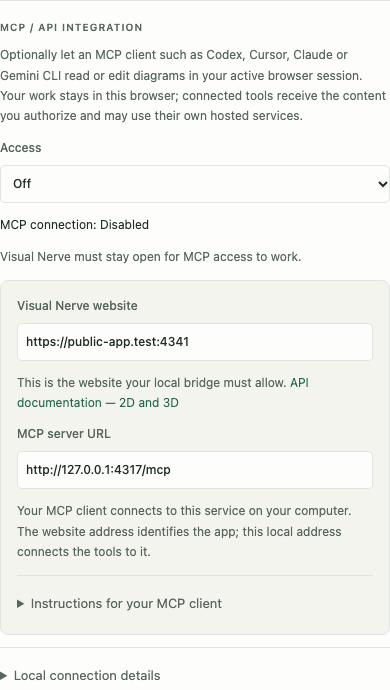
Settings displays the Visual Nerve website, API reference and local MCP server URL separately. Its saved WebSocket connection determines the matching HTTP(S) MCP address. Use that MCP URL for your client; it is shared across vendors. Do not substitute the public website domain or the browser WebSocket /bridge for this service.
Start the optional process
The bridge is a separate native executable. Opening the website or copying a Settings prompt does not install it. Run it on the host where the intended browser and local client can both reach its loopback listener.
Recommended setup for a hosted workspace
- Open Settings → MCP / API integration and copy the connection instructions to your local agent, or follow them in a terminal. The instructions use this workspace’s exact origin and saved local address.
- If the bridge is missing, download the linked
visual-nerve-bridge-setup.shfile and inspect it before running it. Do not pipe an unread download into a shell. - Run the supplied command. Setup downloads a private Go toolchain, verifies its SHA-256 checksum and the release’s source ZIP, builds the native bridge and matching API schema, then starts it. No existing Go installation, git checkout, Node or unzip is needed. The first run needs internet and may take a few minutes.
- Check the reported health and MCP address. In this browser, unlock your workspace and choose Read only or Read + write. The installer cannot choose that grant for you.
For the production app with its default connection, the command after download is:
bash ./visual-nerve-bridge-setup.sh \
  --origin https://app.visualnerve.com --addr 127.0.0.1:47417
The script uses curl, wget or Python 3 to download over HTTPS. If none is available, first install a downloader with your operating system’s package manager, with administrator approval where required. If you already have the setup file, --install-system-deps explicitly permits installing missing curl/CA prerequisites with a supported package manager. It does not silently request system changes during ordinary setup. Network or certificate failures must be corrected; do not disable certificate verification.
Setup stores its own files under ~/.local/share/visual-nerve/bridge by default. It does not change shell profiles, install a login service or access browser documents. --install-dir selects another dedicated absolute directory. Keep using the same directory for setup, status and stop:
bash ./visual-nerve-bridge-setup.sh --status
bash ./visual-nerve-bridge-setup.sh --stop
Rerunning setup reuses a healthy matching process. A changed release or configuration can restart only the process owned by that installation. A busy port belonging to anything else produces a diagnostic; setup does not kill that process or search for another port. Save the latest reviewed setup file when upgrading. Stopping the bridge disconnects tools; it does not delete diagrams. There is no automatic restart after a computer reboot: run setup again when needed.
The initial installer starts HTTP on an explicit loopback address. If Settings already uses HTTPS/WSS, preserve that connection and follow the trusted-certificate instructions below; do not downgrade it. Native Windows shells are unsupported: use Linux/WSL or macOS. Windows Chrome reaching a WSL listener still depends on the machine’s networking configuration.
Build manually from a source checkout
If you already have visual-nerve installed, locate that executable and check its identity/version through health after startup. Otherwise, locate a real Visual Nerve source checkout or clone the repository into a directory you choose. Do not assume a path such as /home/<name>/visualnerve/bin/visual-nerve exists.
For the hosted workspace, install Go 1.26+ and run this from the confirmed repository root:
./scripts/build-bridge.sh
./bin/visual-nerve --static ./bin/bridge-docs --bridge \
  --addr 127.0.0.1:47417 \
  --allowed-origin https://app.visualnerve.com
This bridge-only build supports Linux, WSL and macOS. It creates a native executable for that environment and the matching bin/bridge-docs/openapi.yaml; it does not need Node, npm, Hugo or a website build. Initial Go dependency/toolchain download may need internet. The schema file is required for complete OpenAPI and endpoint discovery; keep it with the executable when moving the bridge package. The bridge-only package does not serve a local editor or Help website: use the hosted app and API reference. Keep the process running while using MCP.
Open https://app.visualnerve.com/, unlock in the browser and configure integration access there. The exact --allowed-origin is https://app.visualnerve.com, without a path. The public website’s former /app path redirects to the app root; /app on the isolated app returns 404. Routing never migrates origin-bound records; restore an existing backup or encrypted transfer explicitly.
If you also want to build the website locally, follow the repository build instructions
. ./build.sh requires Go, Node, npm and Hugo and produces public/ plus the executable. A local source-development build retains its development-only http://127.0.0.1:47417/app/ editor. Preview, local development and production have separate browser storage.
Browser local-network and secure-connection rules vary. Grant local-network permission when requested. If the browser requires secure local WebSockets, start the bridge with --tls-cert and --tls-key pointing to a certificate/key trusted by that browser for the chosen loopback hostname. Use matching wss://…/bridge and HTTPS client addresses. Do not disable certificate verification.
Changing the local development listener also changes its browser origin. Existing work at http://localhost:4317 or http://127.0.0.1:4317 stays at that exact origin. Keep using the old explicit --addr 127.0.0.1:4317 if available, or export there and import at the new origin. Do not clear its storage. The hosted https://app.visualnerve.com origin does not change when its local bridge port changes, so those workspace records remain in place.
Choose a dedicated local port
New setups use 47417, Visual Nerve’s product default. It is not an official MCP or RFC-assigned port. MCP /mcp, the browser WebSocket /bridge and REST /api/v1 share each listener; different clients do not need separate ports. Existing saved connections using 4317 stay unchanged.
Port 4317 is registered for OpenTelemetry and is its gRPC default ; 4318 is used by OpenTelemetry HTTP. Neither is a reserved Visual Nerve port. No port, including 47417, is guaranteed to be free. Leave an unrelated telemetry service running.
Bridge 0.11.1 introduces compatibility startup so an upgrade can retain a working legacy connection:
| How you start the executable | Listeners |
|---|---|
--bridge, with no --addr and no nonempty VISUAL_NERVE_ADDR |
Primary 127.0.0.1:47417, plus 127.0.0.1:4317 if available |
--bridge --addr 127.0.0.1:47417 |
Only the explicit 47417 listener |
--bridge --addr 127.0.0.1:4317 |
Only the explicit legacy listener |
--bridge with a nonempty VISUAL_NERVE_ADDR |
Only the configured listener; an explicit --addr takes precedence |
The optional legacy listener uses the same bridge state, access checks, browser connections and operation receipts as the primary listener. If 4317 is busy, the bridge warns and skips it; if the primary listener is busy, startup fails. Static-only mode does not add a compatibility listener. There is no automatic port search, client fallback or process termination. The explicit setup command above chooses only 47417.
The isolated app permits only explicitly approved loopback WebSocket ports. This release prepares 47417 for new setups and retains 4317 for existing connections. Both the app package and its HTTP response policy must allow a port; changing Settings alone cannot override CSP. An older live release may still allow only 4317 until the coordinated manual app/policy deployment. Existing saved addresses are preserved; switch the listener, browser connection and client together only after that rollout.
For an approved port, use the same hostname, port and TLS choice in all three places: the bridge’s --addr, the browser’s saved /bridge WebSocket URL and the client’s HTTP(S) /mcp URL. For stdio, --mcp-url selects that existing listener. For example, an existing 4317 setup uses:
["--mcp-stdio", "--mcp-url", "http://127.0.0.1:4317/mcp"]
Other ports require a reviewed app-build and HTTP response-policy update before use. A wildcard or an unrestricted network bind is not needed.
Upgrade an existing 4317 connection
Use bridge 0.11.1 or newer for the compatibility behavior above, together with the updated browser app. Updating the website alone does not update the executable.
A working legacy connection can remain on 4317. Start the updated bridge with an explicit --addr 127.0.0.1:4317, or use the default compatibility startup above when 4317 is available. Keep the saved browser and client URLs explicit. Updating the website does not replace, restart or reconfigure your local executable.
To move to 47417 deliberately:
- Build/update the executable and start its 47417 listener. Check its JSON health from both the client environment and the browser host. Confirm the app’s deployed policy allows the port.
- Open Settings → MCP / API integration. For a saved 4317 connection, select Use port 47417.
- The action turns MCP Off, clears the session’s integration token and changes only the saved port. Your hostname and
ws/wsschoice remain the same. It does not grant access to a new listener automatically. - Update the MCP client’s HTTP URL or stdio
--mcp-urlto the exact URL now shown in Settings. Re-enter a required integration token through its protected local fields, then select Read only or Read + write again. - Check Connected, initialize the client and rediscover its tools. If anything fails, inspect the actual listener and saved address; do not assume the application switched back.
The hosted browser origin stays https://app.visualnerve.com, so your IndexedDB workspace is unchanged. You do not need to clear cache or export and reimport a backup for this port change. Moving a locally hosted editor to another origin remains a separate data-transfer decision.
If your bridge uses an integration token: the 0.11.1 browser update binds that optional session token to the exact saved connection URL. Older tokens without an address binding are cleared, so enter the token once again and save the connection. It is never forwarded to a different hostname, port or TLS scheme. This does not change your workspace password, diagrams or cache.
Manually editing the connection address also turns access Off and requires a fresh grant. If another tab changes the saved address while you are granting access, the grant is rejected: review the current address before enabling it again. This prevents a token or permission approved for one destination from silently being used for another.
Verify the listener before connecting
Before sending a token or workspace command, inspect the exact health URL in Copy MCP instructions. For the new default:
curl --fail-with-body --max-time 5 -i http://127.0.0.1:47417/api/v1/health
A valid Visual Nerve bridge returns HTTP 200, application/json and fields including:
{
  "status": "ok",
  "storage": "indexeddb",
  "bridge": true,
  "version": "0.11.0",
  "connected": 0,
  "tools": ["visual_nerve_request", "visual_nerve_api_docs"],
  "capabilities": ["operations-v1", "endpoint-docs-v1"]
}
This is an abbreviated example; current health includes additional capabilities. connected: 0 is valid before the browser connects. bridge: false means the Visual Nerve server was started without --bridge. The version and tool/capability list identify the software contract; they do not authenticate against malicious local software or grant access to diagrams.
An empty response, HTTP/0.9 error, connection reset, protobuf/binary payload or unrelated service is not successful health. Do not retry with --http0.9, accept arbitrary bytes as HTTP, send tokens, or keep repeating MCP commands against that listener. These symptoms can mean the wrong service, protocol or address; they do not identify a process on their own.
Inspect the listening process on the actual client host, using the configured port. Examples for the new default:
| Environment | Read-only inspection |
|---|---|
| Linux / WSL | ss -ltnp '( sport = :47417 )' |
| macOS | lsof -nP -iTCP:47417 -sTCP:LISTEN |
| Windows PowerShell | Get-NetTCPConnection -LocalPort 47417 -State Listen |
If another service owns the port, leave it running unless you explicitly intend to stop it. If the executable is missing, build or install Visual Nerve on that host; a binary on another computer does not solve the missing local process. Once valid health works, continue with tool discovery below.
Check the client and browser host separately
127.0.0.1 refers to the connecting network environment. A client in WSL, a Windows browser, a container and a remote Mac can reach different listeners at the same numeric address. Test health from the client shell and open the same health URL directly in a separate browser tab on the browser’s host. Both must reach the intended Visual Nerve process.
If Codex runs in WSL and Chrome runs on Windows on the same test computer, check the WSL shell and Chrome separately; the machine being the same does not prove the listener is the same. Do not substitute the health result from a separate Mac.
Windows Chrome can reach a WSL-hosted service through localhost forwarding when that environment supports and enables it. Verify it on the actual computer; forwarding is not guaranteed by Visual Nerve or by a successful request inside WSL. The reverse direction depends on WSL networking mode; mirrored networking and NAT differ. Follow Microsoft’s WSL networking guidance
. Docker uses separate container networking and forwarding; a passing Docker/Chrome test does not prove Windows/WSL reachability. Visual Nerve’s integration deliberately remains loopback-only: do not bind it to 0.0.0.0, substitute a LAN address or disable origin checks to make a mismatched setup appear to work.
A bridge on a remote Mac is not available through a Linux/WSL client’s own loopback. Similarly, a phone’s loopback is not its nearby laptop. The normal UI continues working without MCP; put the bridge and client in a compatible local environment before enabling the connection.
Enable the browser connection
- Keep the intended Visual Nerve workspace open and accept local storage.
- Open Settings → MCP / API integration. On mobile, start from Diagram actions → Settings.
- Select Read only for inspection, or Read + write for editing and run/playback controls.
- Check MCP connection: Connected.
- If needed, expand Local connection details, enter the local WebSocket address and optional token, then choose Save connection.
- Use the displayed MCP server URL in your chosen client. Expand Instructions for your MCP client and choose Copy MCP instructions for a setup note describing the same API and tools for any compatible agent.
Access is Off by default. Read only permits GET inspection and supported exact unsaved previews, exports and comparisons. It does not grant general permission to POST or edit. Read + write additionally permits mutations, saving models and controlling simulations/presentations. Turning access Off closes the browser connection.
Access changes and Save connection take effect in the open workspace without a page reload. If the local process is unavailable or the browser temporarily blocks a connection, Visual Nerve retries every few seconds while access remains enabled. Start the bridge and grant any requested local-network permission, then watch for Connected. If it stays on Error, verify the listener , then check the exact allowed origin, approved port, trusted local certificate and browser permission. A WebSocket error cannot identify the process or distinguish these causes by itself; an invalid address must be corrected and saved. Turning access Off also cancels connection retries.
If the bridge uses VISUAL_NERVE_BRIDGE_TOKEN, the browser’s Integration token must match it. That token lasts for the browser session and is excluded from backups and copied setup instructions. Configure the client’s matching Authorization header through protected local settings or supported environment-variable references. Do not put real tokens in shared configuration files or prompts. Choose the tools you grant access to, since they receive the content you ask them to inspect.
Configure your MCP client
Check the bridge and discovered tools
The app, the local bridge executable and your MCP client are three separate programs. Updating the website does not update a bridge binary already running on your computer. Your client’s version also does not identify the bridge version.
Before giving an agent workspace commands:
- Verify the local
GET /api/v1/healthaddress shown in the copied instructions returns the Visual Nerve JSON described above. The current bridge reports version 0.11.0, both MCP tool names, and the capabilitiesoperations-v1,endpoint-docs-v1,fork-join-v1,async-svg-export-v1,exchange-export-v1,collaboration-v1,collaboration-document-v1,analytics-v1,ibm-flowcharting-v1,standard-notations-v1andinfrastructure-resources-v1. Health contains public transport metadata; it does not read diagrams or unlock the workspace. - Reconnect or initialize the MCP client, then inspect its discovered tools. It should show both visual_nerve_request and visual_nerve_api_docs. A client can retain an old tool list until you reconnect it.
- Ask the agent to read the compact guide before making commands. For a particular endpoint, it can request a smaller contract containing that operation and every referenced schema:
{
  "name": "visual_nerve_api_docs",
  "arguments": {
    "document": "endpoint",
    "path": "/nodes/{nodeId}",
    "method": "PATCH"
  }
}
Use the exact OpenAPI template path, including {nodeId} rather than an individual node’s UUID. The guide, endpoint contract and full OpenAPI work without a connected browser.
If these tools or capabilities are missing, stop the old bridge, replace or rebuild the executable from the current repository using its build instructions , then restart it with your existing port, allowed origin and protected token settings. Reconnect the MCP client and refresh its tool discovery. Re-enable browser access if its grant has ended. Connected only confirms the browser transport; it does not prove that the client has current tools. Settings now shows an update reminder when the bridge cannot advertise the current capabilities. The reminder does not prevent normal UI editing.
Older browser tabs and older bridge binaries can still perform one-shot commands, but do not provide the current retry protection. Refresh the app when saved work permits, update the bridge and rediscover the tools before using operation IDs.
Recover an uncertain write without creating it twice
A transport timeout is not a rollback. A command can take longer than the bridge’s response deadline and still commit in IndexedDB. Do not issue the same creation with a new ID simply because you received 504.
For work that must survive a lost response, reserve its operation ID before sending it:
{ "path": "/operations", "method": "POST", "data": {} }
The response contains an opaque operationId and state: "reserved". Use that ID as an argument on the subsequent write:
{
  "path": "/diagrams",
  "method": "POST",
  "data": { "name": "Delivery process", "type": "process-simulator" },
  "operationId": "<the reserved operationId>"
}
REST callers reserve with POST /api/v1/operations and pass the returned ID in the X-Visual-Nerve-Operation-Id header. Successful writes keep their normal response body. A write without an explicit ID receives one automatically from the current bridge; REST exposes it in the response header and MCP in structuredContent.operationId. Reserving first gives you the ID even if the entire later response is lost.
After 504 with code: "OPERATION_OUTCOME_UNKNOWN", inspect the operation through the same request tool:
{ "path": "/operations/<operationId>", "method": "GET" }
| State | Meaning and next step |
|---|---|
reserved |
The command has not started in this browser. Send the intended write with this ID. |
running |
The command is still being handled. Poll status; do not start a second copy. |
succeeded |
The browser handled the command successfully. Inspect its result or reread saved data. |
failed |
The browser returned an error. Inspect that response and saved state before preparing a corrected operation. |
unknown, expired or unavailable authority |
The retained transport information cannot prove the outcome. Reread saved data and current versions before issuing new work. |
An invalid browser acknowledgment can also produce 502 OPERATION_OUTCOME_UNKNOWN. failed reports a browser command error, without guaranteeing rollback of every multi-phase runtime side effect. This is at-most-once command execution within retained browser/grant scope, not exactly-once transactions across page or bridge lifetimes.
Retrying an identical write with the same ID reuses its in-flight or retained result. Changing the method, path or body under that ID returns 409 OPERATION_CONFLICT. The bridge binds an operation to one browser tab, origin, workspace and access grant; it never moves an ambiguous write to another tab. Turning MCP Off, locking, reloading, changing the connection or starting a fresh grant can end this protection. A restarted bridge rejects IDs from its previous process. These errors do not prove that an earlier write failed.
This is bounded session protection, not a permanent transaction log. Browser operation records expire after 15 minutes when inactive, are limited to 256 entries and retain up to 8 MiB of response text. Large results or older response bodies may be dropped while their status remains available. If resultAvailable is false, read the saved model; never execute the write again just to recover its response. The bridge keeps up to 1,024 routing records in memory, with the same retention period, and stores no request/result bodies or application database. Active operations are not evicted to make room for new ones; new work can receive an explicit limit error. Operation records are absent from backups and are cleared when the browser grant ends.
The following direct HTTP examples connect to an already running bridge on this computer. They do not start it, grant browser access or unlock an encrypted workspace. Replace the URL if your saved connection uses a different loopback hostname, port or trusted HTTPS. Merge settings into the client’s existing configuration rather than replacing other servers.
These examples follow current official client documentation. They do not claim that every client version, account policy or vendor GUI has been tested. Keep normal tool confirmations enabled. On a remote host or inside a container, loopback identifies that host or container, not automatically the computer running Visual Nerve.
Codex
Register the HTTP bridge and inspect the configured entry:
codex mcp add visual-nerve --url http://127.0.0.1:47417/mcp
codex mcp list
Alternatively, add or edit its entry in ~/.codex/config.toml. A longer tool timeout accommodates the project’s bounded ZIP scan:
[mcp_servers.visual-nerve]
url = "http://127.0.0.1:47417/mcp"
tool_timeout_sec = 180
The URL selects Streamable HTTP; a command entry selects stdio. Use the configuration for the host running Codex. Official Codex MCP configuration .
Claude Code
Use the local Claude Code CLI, selecting HTTP explicitly:
claude mcp add --transport http --scope user visual-nerve http://127.0.0.1:47417/mcp
claude mcp get visual-nerve
Check /mcp in the Claude Code session before asking it to use the tools. Official Claude Code MCP setup
.
Cursor
For the local Cursor IDE, add this entry to ~/.cursor/mcp.json or the project’s .cursor/mcp.json:
{
  "mcpServers": {
    "visual-nerve": {
      "url": "http://127.0.0.1:47417/mcp"
    }
  }
}
Review the server and tools in Cursor’s MCP settings. This URL entry selects the HTTP connection. Launching the bridge with --bridge as a command is not a stdio configuration. Official Cursor MCP configuration
.
Gemini CLI
Use Gemini CLI, running locally, with HTTP selected explicitly:
gemini mcp add --transport http --scope user visual-nerve http://127.0.0.1:47417/mcp
gemini mcp list
Alternatively, merge this entry into ~/.gemini/settings.json or the project’s .gemini/settings.json:
{
  "mcpServers": {
    "visual-nerve": {
      "httpUrl": "http://127.0.0.1:47417/mcp",
      "timeout": 180000,
      "trust": false
    }
  }
}
Use httpUrl, not url: Gemini CLI uses url for the older SSE transport. Keep trust: false so its tool confirmations remain enabled. Check /mcp in the session. This configuration does not add a connector to the Gemini website or a cloud-hosted agent. Official Gemini CLI MCP configuration
.
Claude Desktop
Visual Nerve includes a native stdio adapter for local clients. It forwards newline-delimited MCP messages to the same already-running HTTP bridge; it does not start a bridge, open a browser, store diagrams or grant access. Start the bridge and enable the browser connection first.
In Claude Desktop’s local developer configuration, merge an entry like this into claude_desktop_config.json:
{
  "mcpServers": {
    "visual-nerve": {
      "command": "/ABSOLUTE/PATH/visual-nerve",
      "args": ["--mcp-stdio", "--mcp-url", "http://127.0.0.1:47417/mcp"]
    }
  }
}
Replace the command with the absolute path to your newly built executable. The usual configuration locations are ~/Library/Application Support/Claude/claude_desktop_config.json on macOS and %APPDATA%\Claude\claude_desktop_config.json on Windows; use a binary for the OS running Desktop and escape Windows backslashes in JSON. Restart Desktop after updating the entry. Official local MCP configuration guide
, Claude Desktop local setup
.
Replace the example’s --mcp-url value with the exact MCP URL saved in Settings, including 4317 or trusted HTTPS if that is your existing connection. Omitting it uses the adapter’s 47417 default; it does not inspect browser Settings or try a legacy port. The adapter accepts only loopback HTTP(S) URLs with an explicit port and /mcp path. TLS uses normal system trust; the adapter does not bypass certificate validation. If the bridge requires a token, supply its matching VISUAL_NERVE_BRIDGE_TOKEN through the adapter’s protected local environment, not the URL or shared example. Closing Desktop ends its adapter, not the shared bridge. Frames are limited to 32 MiB, with eight active and eight pending requests. Saturation stops the adapter rather than buffering indefinitely. Interrupted mutations can have an unknown outcome and are not automatically retried; inspect saved state before repeating them. No vendor GUI compatibility test is claimed here.
Claude Desktop’s local setup is separate from its remote custom connectors. A remote connector connects from Anthropic’s infrastructure even when configured through Desktop, so it cannot reach this loopback-only bridge. Do not substitute a remote connector for the local command above. Claude’s remote-connector network requirements .
Discover documentation before sending commands
Every client discovers the same standard MCP tools and resources. The connection uses JSON-RPC 2.0; clients perform initialization, then tools/list and resources/list. Visual Nerve exposes visual_nerve_request for semantic commands and visual_nerve_api_docs for the bundled contract. Ask the client to call visual_nerve_api_docs first:
{ "document": "guide" }
The compact guide explains native diagrams, optional 3D, simulations and the other workflows. Request the complete exact contract when you need schemas:
{ "document": "openapi" }
Calling without arguments also returns the compact guide. The same documents are available as MCP resources at visual-nerve://docs/guide and visual-nerve://docs/openapi.
Documentation discovery does not require a connected browser or content grant. Workspace commands do. The interactive API reference is a public read-only reference when hosted on the website; its local version can use Try it out against the local origin. Download OpenAPI for the bundled contract.
After updating the local executable, restart it and reconnect the MCP client to refresh discovered tools. Updating public app files is separate from updating this local process.
Export a vector diagram through MCP
For a small diagram, the existing export endpoint with format: "svg" returns a string. For large diagrams, use background SVG export
to start a job, poll progress and retrieve bounded result chunks:
{
  "path": "/export",
  "method": "POST",
  "data": {
    "diagramId": "YOUR_DIAGRAM_ID",
    "format": "svg",
    "scope": "complete"
  }
}
The response is an SVG XML string, which the client can save as a .svg file. Read-only access is sufficient. The connected browser renders the same 2D scene as the UI export; the bridge does not create a separate copy of the model. For scope: "selected", include nodeIds containing the saved node UUIDs. scope: "viewport" uses the saved 2D viewport and the browser’s canvas size, including while exploring in 3D. Sharing and exports
explains appearance, font handling and what visual files preserve.
Send a workspace command
Use visual_nerve_request with paths that omit /api/v1:
{ "path": "/diagrams", "method": "GET" }
The tool’s structured result contains status and body. Failed commands also report isError. REST uses the same command path with /api/v1 in the URL, for example GET http://127.0.0.1:47417/api/v1/diagrams.
Do not send /api/docs or /api/openapi.yaml through visual_nerve_request; they are HTTP documentation routes, not browser graph commands. Use the documentation tool or normal HTTP links for those.
When several distinct workspaces are connected, pass workspaceId with MCP requests, or X-Visual-Nerve-Workspace with REST. Find the ID under Settings → Data & Privacy → Storage details. Multiple tabs of one browser/origin share one workspace and use transactional version checks.
Preview code, then save it deliberately
Discover supported language IDs with GET /code/languages. This read-only preview analyzes a supplied script without executing it or saving a project:
{
  "path": "/code/preview",
  "method": "POST",
  "data": {
    "name": "Invoice calculation",
    "files": [
      {
        "path": "billing.py",
        "language": "python",
        "content": "def calculate_total(amount, tax):\n    return amount + tax\n\ndef invoice():\n    return calculate_total(100, 25)\n"
      }
    ],
    "mode": "symbols"
  }
}
Inspect returned objects, counts, warnings and syntax/heuristic/unresolved relationships. Use the same data with POST /code/diagrams to save and open the graph; that requires Read + write. Omitting mode matches the UI: one file defaults to declarations (symbols), multiple files to file overview (files).
Original source is temporary. Saved diagrams retain recognized identifiers, paths, source lines and relationship evidence rather than complete code. See code visualization
for capabilities and bounds. SQL preview uses POST /sql/preview with {sql,name?}; creation uses /sql/diagrams. Draw.io/Visio uses /diagram-files/preview and a selected-page /import. These share the browser’s importers and validation.
Inspect a code or documentation ZIP
Use /code/project/preview with strict base64 ZIP bytes. Read only can inspect the unsaved result; /code/project/diagrams requires Read + write and opens the saved graph.
{
  "path": "/code/project/preview",
  "method": "POST",
  "data": {
    "name": "Service project",
    "data": "<BASE64_ZIP_BYTES>",
    "mode": "folders"
  }
}
Choose files, symbols or folders. Folder nodes expose semantic projectDirectory metadata, combined dependencies expose codeRelation.occurrences, and codeAnalysis.project explains scan counts. Code and internal Markdown links use the same browser analysis as the UI. The 32 MiB envelope includes base64, so compressed archives must be below approximately 24 MiB and may need to be smaller. ZIP scan permits 120 seconds, followed by 30 seconds for analysis; these exact bridge routes allow 165 seconds. See ZIP project help
for exclusions, supported links and limits.
Rename and fill an object
Read the object through GET /nodes/{nodeId} and use its current version to change its title or background:
{
  "path": "/nodes/<nodeId>",
  "method": "PATCH",
  "data": {
    "version": 7,
    "title": "Validate records",
    "backgroundColor": "#E8F5EE"
  }
}
These ordinary node fields work with IBM symbols and other cards in 2D and 3D. backgroundColor is an optional six-digit hex fill; color remains the separate accent and outline. Omission in a partial update preserves the fill. Explicit null in PATCH or existing-node bulk upsert clears it so the current theme supplies the background. New or complete records accept a valid color or omission. Invalid values fail validation without applying the edit. UI renaming uses the same saved title; see in-place editing
.
Create and review a standard notation diagram
Bridge/browser 0.11.0 advertises standard-notations-v1 through the same visual_nerve_request and visual_nerve_api_docs tools. Update the local bridge and rediscover its tools
if this capability is missing; updating the website alone does not update the executable. The collection guide
compares HIPO
, Yourdon–DeMarco and Gane–Sarson DFD
, UML
and BPMN
.
With a connected browser and Read only access, discover collections and inspect the chosen catalog:
{ "path": "/notation/collections", "method": "GET" }
{ "path": "/notation/collections/uml", "method": "GET" }
The first returns five collection records. The second includes supported diagram kinds, node symbols, relationship connectors, applicable properties and primary sources. Exact /notation/collections/uml/symbols and /notation/collections/uml/connectors paths return the corresponding arrays. Choose actual catalog IDs and property combinations; a graphical notation does not imply executable simulation or complete UML/BPMN conformance.
With Read + write, create one of the 21 supported notation examples:
{
  "path": "/diagrams",
  "method": "POST",
  "data": { "name": "Order domain", "template": "uml-class" }
}
Creation returns the saved Diagram. Notation examples use the ordinary freeform type and reject mode. Omit notation to use the template’s profile; a supplied profile must match it exactly. To inspect the resulting graph and its actual node IDs and versions, use the returned diagram ID:
{ "path": "/diagrams/<diagramId>", "method": "GET" }
Review the saved draft with Read only access:
{
  "path": "/diagrams/<diagramId>/notation/validate",
  "method": "POST",
  "data": {}
}
This exact POST accepts an omitted body or exactly {} and returns {diagramId,baseVersion,issues} without editing the graph, changing versions or allocating an operation receipt. Do not attach an operationId to this read command. Each issue supplies code, path, message and severity; incomplete or mixed draft semantics can be saved, while malformed notation and dangling references fail normal graph validation.
To edit a class from the example, read its current version and use ordinary node PATCH:
{
  "path": "/nodes/<nodeId>",
  "method": "PATCH",
  "data": {
    "version": 7,
    "notation": {
      "collection": "uml",
      "symbol": "class",
      "compartments": [{ "id": "attributes", "lines": ["orderNumber: String"] }]
    }
  }
}
Replace the example ID and version with saved values. diagram.notation is an optional collection/family profile; node and edge notation retain their actual symbols and structured properties. Omission in PATCH preserves the saved field; a supplied notation object replaces it as a whole. notation:null clears it only in a versioned PATCH or an existing external-ID bulk upsert. Complete/new/import/replacement records reject null, unsupported fields or invalid references with atomic 422 INVALID_NOTATION. A node cannot save both notation and IBM flowchartSymbol; clear the alternate field with null in the same partial edit when switching. Titles, native types, backgrounds and owners remain independent. Read the graph again before subsequent edits; moving hosts also updates attached objects’ positions and versions.
New collaboration rooms containing notation pin document contract 3, retained after notation is cleared. Existing version-1/2 rooms reject notation additions with 409 COLLABORATION_NOTATION_REQUIRED. Refresh all participants and have the human create a new room; older clients reject contract 3 before applying its graph. Owner authority, Viewer/Editor roles and local MCP grants still apply. Process Simulator and Time Series & Signal Analysis keep their specialized tools. Native JSON, copies, encryption, history and backups preserve notation; visual exports are not UML XMI or BPMN XML interchange.
Create and edit an IBM flowchart
The Classic Flowcharting template provides an editable starting set based on the IBM GX20-8020 stencil. Its symbols can also be applied to objects in blank diagrams and ordinary templates, including Mind Map, Timeline, Process Map, architecture and responsibility diagrams. The template is optional, and the same saved objects appear in 2D and 3D. Discover the catalog through the existing request tool:
{ "path": "/flowchart/symbols", "method": "GET" }
The response is an array of 43 entries: 32 completed revised symbols, two raw stencil outlines, four arrowheads and five original forms. Exactly 26 have physicalCutout: true, scoped to the revised stencil. Each entry supplies its ID, label, ordinary node type, category, construction, revision membership and vector geometry. GET /flowchart/stencils returns the original 25-hole and two revised 26-hole inventories as physicalCutoutSymbolIds arrays; the original record’s symbolLabels supplies historical names such as Processing/Annotation and Online Keyboard for shared IDs. These reads need an accepted, connected browser and either Read only or Read + write access.
Create an editable diagram with Read + write:
{
  "path": "/diagrams",
  "method": "POST",
  "data": { "name": "IBM workflow", "template": "ibm-flowcharting" }
}
The response is the saved Diagram with HTTP 201. Read its graph through GET /diagrams/{diagramId}. Classic Flowcharting retains the ibm-flowcharting template ID and uses the ordinary flowchart type; it does not start a simulation.
To change an existing object’s symbol, read it first and send its current version:
{
  "path": "/nodes/<nodeId>",
  "method": "PATCH",
  "data": { "version": 7, "flowchartSymbol": "ibm-magnetic-disk" }
}
Replace the example ID and version with saved values. The optional flowchartSymbol chooses appearance while retaining the existing nodeType. Omission in a partial update preserves it; explicit null in PATCH or existing-node bulk upsert removes it. New or complete objects accept a catalog ID or omission. Unknown IDs and invalid values fail validation. Use completed Sort or Magnetic Tape for their meaning; their aperture choices reproduce the bare stencil outlines.
In the ordinary editor, IBM symbols adds a new glyph and IBM flowchart symbol in Properties changes a selected object; Default node appearance clears it. Process Simulator and Time Series & Signal Analysis retain their own tools, while existing saved symbols can still be changed or cleared in Properties. This browser tool distinction does not restrict the optional API field by diagram type.
Native JSON and backups retain the ID; the shared catalog supplies 2D, 3D and SVG geometry. Existing permissions, version checks and operation recovery
apply. Direct REST uses the same paths prefixed by /api/v1; discover the complete schema in the API reference
.
Create ordinary diagram cards in 3D
Create a spatial diagram through visual_nerve_request:
{
  "path": "/spatial-diagrams",
  "method": "POST",
  "data": { "name": "Truck lifecycle", "type": "mindmap" }
}
Read the returned graph’s diagram.id and diagram.version. Replace DIAGRAM_UUID with that ID, and use baseVersion: 7 only if the latest read returned version 7:
{
  "path": "/diagrams/DIAGRAM_UUID/bulk",
  "method": "POST",
  "data": {
    "baseVersion": 7,
    "upsert": true,
    "nodes": [
      { "externalId": "truck", "title": "Truck lifecycle", "x": 0, "y": 0 },
      { "externalId": "build", "title": "Manufacturing", "x": 350, "y": -120 },
      {
        "externalId": "service",
        "title": "Operation and service",
        "x": 350,
        "y": 120
      }
    ],
    "edges": [
      {
        "externalId": "truck-build",
        "sourceExternalId": "truck",
        "targetExternalId": "build"
      },
      {
        "externalId": "truck-service",
        "sourceExternalId": "truck",
        "targetExternalId": "service"
      }
    ]
  }
}
baseVersion is the actual integer version from your latest read. Stable externalId values support repeatable upsert; they are distinct from local UUIDs. Ordinary node coordinates and dimensions remain useful for 2D. Add descriptions for explanation and use validated spatial metadata only when independent depth is needed.
3D is relief of the same styled cards and relationships, not a separate 3D-model format. Keep a readable 2D layout for toggling back and PNG/PDF/SVG. 3D diagrams explains placement, camera controls and native appearance.
Inspect and change semantic simulation properties
Start with GET /simulation/capabilities and GET /diagrams?type=process-simulator. Read GET /diagrams/DIAGRAM_UUID/simulation for nodes, flow edges, particle types, shared resources, improvements, scenarios, defaults, economics and retention.
A visible capacity card such as Counter 2 is a read-only projection of one logical Work node/resource. Change semantic capacity on that logical ID rather than inventing a second model from canvas coordinates. Read its canonical IDs after creation.
To change a Work node’s capacity, first read the diagram’s latest version, then send:
{
  "path": "/diagrams/DIAGRAM_UUID/simulation/nodes/WORK_NODE_UUID",
  "method": "PATCH",
  "data": { "baseVersion": 7, "value": { "work": { "capacity": 3 } } }
}
Use 7 only if the latest graph read returned that version. The nested patch preserves processing time and other Work settings. The returned graph contains the new diagram version for the next edit. The UI displays the same model, and the same engine uses its new capacity on the next run.
Entity collections also support particle types, resources, edges, improvements and scenarios. API model time units are seconds, with arrivals and operating costs per hour in the model currency. UI fields may show minutes where labelled. Process Simulator explains shared resources, queues, scaling, economics and scenario isolation.
Plan infrastructure through the existing simulator
Bridge/browser 0.11.0 advertises infrastructure-resources-v1. Read GET /simulation/capabilities: its compatibility schemaVersion:1 remains, while supportedModelSchemaVersions:[1,2] and infrastructure.requiredModelSchemaVersion:2 identify the execution boundary. Typed models need schemaVersion:2 and infrastructure:{schemaVersion:1} together; older engines reject version 2.
The infrastructure guide explains API & Compute Capacity, Network & Multi-Site Capacity, Energy & Power Capacity and Datacenter Capacity, including CPU/RAM leases, shared link serialization and actual energy delivery. Discover exact fields through visual_nerve_api_docs before requests:
{
  "document": "endpoint",
  "path": "/diagrams/{diagramId}/simulation",
  "method": "PUT"
}
Use the same visual_nerve_request tool, pinned workspaceId, simulation model/entity CRUD, asynchronous runs and comparison routes. Direct POST /diagrams accepts template:"api-compute-capacity", "network-multi-site-capacity", "energy-power-capacity" or "datacenter-capacity"; these use process-simulator and reject mode or a different supplied type. state/result.infrastructure contains resource-keyed CPU, RAM, link and energy counters; individual resource GET keeps generic capacity/busy/queue/utilization/cost metrics. Versioned PATCH preserves omission, recursively merges objects, removes optional fields with null and replaces arrays. Complete/new values reject null; invalid assumptions reject atomically with structured 422 SIMULATION_INFRASTRUCTURE_INVALID.
Finite-horizon runs can retain unfinished work. Until-complete fails with SIMULATION_INFRASTRUCTURE_STALLED when no future event can make progress. Read only permits inspection/comparison; model/run mutation requires Read + write. Live rooms currently reject infrastructure models until a compatible collaboration contract exists. Share an explicit native JSON export or encrypted backup instead.
Run without animation and collect a result
For an existing configured simulator:
{
  "path": "/diagrams/DIAGRAM_UUID/simulation/runs",
  "method": "POST",
  "data": {
    "durationSeconds": 86400,
    "seed": 12345,
    "demandMultiplier": 1.0,
    "animated": false,
    "speed": "max"
  }
}
The response returns an asynchronous run with an id. Poll /diagrams/DIAGRAM_UUID/simulation/runs/RUN_ID for status, then read /result. Reading a result before it is available can return 409. Inspect live /state, /metrics, /queues, /bottlenecks, /nodes, /resources, /particle-types and paged /events beneath that run.
Pause, resume, stop and reset use POST to the matching run action with exact {}. Replay seek uses POST /seek with {timeSeconds} after pausing or completing. Model/run changes need write access; inspection and exact scenario comparison permit read access.
Headless means no active canvas or animation loop is required. The browser must still remain connected and open for IndexedDB and worker execution. Closing it ends execution. A run freezes its model, scenario, seed and options; later edits do not rewrite that result.
Automate a demand stress test
Client-side pseudocode for sequential runs:
Read the simulator and choose a fixed seed and duration.
For multiplier in [1.0, 1.1, 1.2, 1.3, 1.4, 1.5]:
    POST /diagrams/DIAGRAM_UUID/simulation/runs
        {durationSeconds:86400, seed:12345,
         demandMultiplier:multiplier, animated:false}
    Save the returned run id.
    Poll the run until completed, stopped or failed.
    Read its result; retain status and any error with the metrics.
Compare the completed runs using their distinct run ids.
Use POST /diagrams/DIAGRAM_UUID/simulation/compare with {runIds:[...]} to compare 2–20 distinct runs from that diagram. Inspect throughput, queue length/waiting, utilization, TTR, revenue, costs, contribution and abandonment across demand. Do not treat a failed safety-limited run as a successful completed scenario.
Using the same model, scenario, seed and duration produces the same deterministic business metrics whether controlled by UI, API or MCP, and whether animated or MAX. Demand multipliers and scenario changes intentionally change those inputs.
Review versions, errors and limits
Single-node edits use the latest node version; graph/model writes generally use the latest diagram baseVersion. Read before writing. Bulk upsert matches stable external IDs, not UUIDs. Validation and transactional writes prevent partial mutations from invalid requests.
| Status or symptom | Meaning and next action |
|---|---|
| Waiting / Error in Settings | Start the bridge; check exact app origin, local URL, TLS trust and browser local-network permission. |
| 503 | No available connected/granted browser, disabled bridge or disconnection; keep the intended workspace open. |
| 401 | A configured bridge token is missing or does not match; check the client header and browser token. |
| 403 | Access/consent does not permit the command; a Read only client cannot edit or run. |
| 404 | The referenced object/run/route does not exist in the targeted workspace. |
| 409 | Stale version, unavailable-yet result or competing execution; read the error, refresh or wait as appropriate. |
| 422 | Invalid fields, references or model assumptions; correct the structured validation details. |
| 428 | A required simulation version was omitted. |
Simulation validation can return error, code and issues with semantic field paths. It does not require guessing from graphic positions. Workspace request/response and WebSocket envelopes are 32 MiB regardless of Settings’ local import limit. Expensive analysis and runs have their own bounds; discover simulation execution ceilings through capabilities.
Ordinary diagram evidence excludes raw code/source scripts. An explicit CSV measure-evidence request can return original cells to the requesting client; ask for that only when needed. Unsent question/app-brief previews do not publish data to an external service. Rendering exports or final video downloads happen in the connected browser.
For complete schemas use the API reference . For connection and import recovery use troubleshooting ; for permissions and backups use Settings .
Parallel processes through the API
GET /simulation/capabilities exposes fork and join node types and the parallel contract. Read the current model and canonical IDs before editing. Configure a complete block in one versioned PUT /diagrams/{diagramId}/simulation with {baseVersion,model}; creating an unpaired node through individual CRUD is rejected. The following is a fragment, to insert alongside the model’s valid Sources, Work nodes, Outcomes and edges:
{
  "nodes": [
    {
      "id": "fork-id",
      "name": "Start prerequisites",
      "type": "fork",
      "fork": {
        "joinNodeId": "join-id",
        "branchEdgeIds": ["access-edge", "equipment-edge"]
      }
    },
    {
      "id": "join-id",
      "name": "All prerequisites ready",
      "type": "join",
      "join": { "forkNodeId": "fork-id" }
    }
  ],
  "edges": [
    {
      "id": "access-edge",
      "sourceNodeId": "fork-id",
      "targetNodeId": "access-work-id"
    },
    {
      "id": "equipment-edge",
      "sourceNodeId": "fork-id",
      "targetNodeId": "equipment-work-id"
    },
    {
      "id": "access-ready-edge",
      "sourceNodeId": "access-work-id",
      "targetNodeId": "join-id"
    },
    {
      "id": "equipment-ready-edge",
      "sourceNodeId": "equipment-work-id",
      "targetNodeId": "join-id"
    }
  ]
}
The IDs above are explanatory placeholders. Supply unique canonical node/edge UUIDs for the actual document, retain existing identifiers, and read the returned model before further updates. branchEdgeIds must declare all outgoing fork edges; particle-type filters on those edges are rejected. Every branch must have a path to the paired join. The engine rejects unmatched/crossed pairs, cycles inside the region, foreign incoming connections, more than 64 branches or more than 16 nested pairs with structured validation issues. Failure/rejection paths can end the entire case; successful outcomes must follow the join.
Run the model through the existing simulation run endpoints. Original-case population and revenue remain single-counted; child tasks have their own processing, queues and resource allocations. state.parallel exposes active groups/branches, waiting parents and bounded correlated group summaries with droppedGroups describing omitted active groups. Particle tokens carry rootParticleId, parentParticleId, forkGroupId, forkNodeId, joinNodeId and branchEdgeId where applicable. A suspended parent and an arrived child can have status waiting; retired children have joined or cancelled. Node metrics at a join expose join.waitingGroups, arrivedBranches, expectedBranches, completedGroups, cancelledGroups and the observed synchronization-wait distribution. Its current queue counts arrived tasks waiting for their siblings. PARTICLE_FORKED, BRANCH_JOINED, JOIN_COMPLETED, BRANCH_CANCELLED and PROCESS_CANCELLED events provide correlation without inspecting coordinates. Retained live tokens and sampled particles include branches and suspended parents; business created, completed, abandoned, failed and inSystem count original cases. The 200,000 active-token limit applies to parents and children together.
Construct paired fork/join blocks through the UI’s + → Parallel work control or the versioned semantic simulation API using the structure above. Headless, animated, scenario and replay runs use the same deterministic engine.
Route metrics retain exact connection-ID labels up to 2,000 characters. Longer histories use a bounded identifier: the first 200 characters followed by … [route:<8hex>-<8hex>; edges=N]. The ordered dual digest and edge count are deterministic grouping identifiers, not a cryptographic integrity guarantee, and cannot reconstruct the complete itinerary. At most 256 distinct route buckets plus [other routes] are retained; all completed cases still contribute to metrics. This bounds nested branch history without dropping visited Work-node revenue attribution or changing case counts, costs or TTR.
Background SVG export
Prefer the asynchronous export for large diagrams. All operations below are available with Read only access and do not change the model:
{
  "path": "/exports/svg",
  "method": "POST",
  "data": { "diagramId": "YOUR_DIAGRAM_UUID", "scope": "complete" }
}
The 201 response includes jobId, diagramId, state, progress (0–100), phase, timestamps and object counts. Poll GET /exports/svg/{jobId} with a short backoff until succeeded, failed or cancelled. Fetch GET /exports/svg/{jobId}/result?offset=0&limit=1048576. Each response is {jobId,offset,nextOffset,totalCharacters,text,complete}. Append text, then request the returned nextOffset until complete:true. Offsets use UTF-16 code units; returned boundaries preserve Unicode characters. Save the concatenated XML as .svg (image/svg+xml). A result requested before success returns 409 SVG_JOB_NOT_READY. Cancel/remove a job with exact DELETE /exports/svg/{jobId} and no arguments or {}; this returns its cancelled status (200).
GET /exports/capabilities discovers the complete limits and scope options. The local Web Worker preserves canonical 2D bounds, connections, current appearance, icons and visible drawing. It keeps full source descriptions while clipping visible content to each saved card. Selection and saved-viewport scopes follow the normal export conventions. Large exports use no hidden React node per object; simulation and UI responsiveness are independent of vector generation.
Jobs are transient browser memory, with at most two running jobs, four retained terminal jobs and 128 MiB of retained SVG results. Limits are 20,000 rendered nodes, 100,000 rendered connections, 5,000,000 source characters, 64 MiB XML, 16,777,216 pixels per dimension and a 120-second worker deadline. A scoped export can snapshot up to 100,000 source nodes and 500,000 source edges, while its projected scene must remain within the rendered limits. Results expire 15 minutes after job creation. Lock, reload, workspace stop, app-cache clearing or an explicit MCP grant change cancels/removes jobs; a later unlock or grant cannot restore old plaintext. Start a fresh export. The POST’s short-lived bridge lease ending does not cancel an otherwise authorized job. Individual result chunks stay below the 32 MiB transport envelope. Unknown fields, duplicate query parameters and invalid ranges are rejected rather than guessed.
The existing POST /export JSON/Markdown behavior is unchanged. Source graphs with at most 100 nodes and 20,000 title/description/serialized metadata characters before projection retain its SVG JSON-string response and 16 MiB limit. Larger sources return 409 SVG_BACKGROUND_REQUIRED even for a small selection, with instructions to use /exports/svg, avoiding a command timeout with an uncertain export result. The UI chooses the background route automatically, displays progress and offers Cancel. Review SVG source before sharing: an encrypted workspace does not encrypt diagram exports.
Export an editable Draw.io document
Use editable exports when you want to continue working on the drawing in another editor. They preserve basic shapes, text, colors, groups and attached connectors using the saved 2D layout, including when the app is showing 3D. They do not transfer raw datasets, original source files, live capacity copies or complete simulation execution and scenarios. Keep native JSON or an encrypted workspace backup for a faithful model transfer.
Editable Draw.io drawings use a light drawing surface, regardless of app Appearance. Ordinary nodes default to white fills; an explicit backgroundColor is preserved with readable text contrast, alongside saved node, connection and mind-map color accents. IBM glyphs use the ordinary semantic node type’s shape and report IBM_SYMBOL_GEOMETRY_SIMPLIFIED. Native JSON preserves exact glyph IDs and styling, and workspace backups also retain portable appearance settings. This needs no extra API argument; SVG keeps its existing appearance behavior.
- Read
GET /exports/capabilitiesfirst. Its existing SVG fields remain unchanged;diagramsdescribes the drawio format, scopes, validation metadata and separate limits. Bridge 0.11.0 advertisesexchange-export-v1. - Start an export with the existing visual_nerve_request tool:
{
  "path": "/exports/diagrams",
  "method": "POST",
  "data": {
    "diagramId": "YOUR_DIAGRAM_UUID",
    "format": "drawio",
    "scope": "complete"
  }
}
- The 201 response contains a
jobId, not the file. PollGET /exports/diagrams/{jobId}with a short backoff. Status reports real progress, phases and warnings. Continue untilsucceeded,failedorcancelled; inspecterrorif it fails. - After success, read
GET /exports/diagrams/{jobId}/result?offset=0&limit=786432. Decode that chunk’sdatafrom base64, then request itsnextOffsetuntilcomplete:true. Save the concatenated decoded bytes as.drawiousing the returned format and MIME type. - Review warnings and open the file in the destination editor. Exact
DELETE /exports/diagrams/{jobId}with no body or{}cancels/removes it and returns 200 once; later reads return 404.
Result offsets count raw binary bytes. They are different from SVG’s UTF-16 offsets. Each response contains {jobId,format,mimeType,encoding:"base64",offset,nextOffset,totalBytes,data,complete,warnings}. The default and maximum chunk limit is 786,432 bytes, which produces at most 1,048,576 base64 characters. Decode every chunk separately. Never join the base64 strings: padding can occur in any chunk.
Complete exports include all stored logical nodes, including nodes hidden in temporary CSV or overview views. For scope:"selected", supply 1–20,000 unique existing canonical node UUIDs in nodeIds; only those nodes and connections with both endpoints selected are included. API selection does not expand a process group automatically: include its actual descendant IDs. The normal app selector performs that expansion for its process cards and maps a capacity card back to its single logical node. nodeIds is forbidden outside selected scope.
Icons, custom stencils, pen strokes, rich formatting and 3D relief can be simplified or omitted; long labels may need resizing.
A local REST example
With the bridge running and the intended browser unlocked with Read only or Read + write, inspect capabilities:
curl --fail-with-body http://127.0.0.1:47417/api/v1/exports/capabilities
If your bridge requires a token, use your client’s protected Authorization configuration. For the following Node.js 22 example, set VISUAL_NERVE_BRIDGE_TOKEN in your local environment if needed and set VISUAL_NERVE_DIAGRAM_ID to the canonical UUID returned by GET /diagrams. Do not put real tokens in the script. Save it as export-diagram.mjs, then run node export-diagram.mjs. Adjust the base address to your configured listener. When multiple workspaces are connected, also set VISUAL_NERVE_WORKSPACE_ID to the intended workspace ID.
import { writeFile } from "node:fs/promises";
import { setTimeout as delay } from "node:timers/promises";

const base = "http://127.0.0.1:47417/api/v1";
const diagramId = process.env.VISUAL_NERVE_DIAGRAM_ID;
if (!diagramId) throw new Error("Set VISUAL_NERVE_DIAGRAM_ID first.");
const headers = { "Content-Type": "application/json" };
if (process.env.VISUAL_NERVE_BRIDGE_TOKEN)
  headers.Authorization = `Bearer ${process.env.VISUAL_NERVE_BRIDGE_TOKEN}`;
if (process.env.VISUAL_NERVE_WORKSPACE_ID)
  headers["X-Visual-Nerve-Workspace"] = process.env.VISUAL_NERVE_WORKSPACE_ID;
async function request(path, options = {}) {
  const response = await fetch(base + path, {
    ...options,
    headers,
    signal: AbortSignal.timeout(30_000),
  });
  const body = await response.json();
  if (!response.ok)
    throw new Error(`${response.status}: ${JSON.stringify(body)}`);
  return body;
}

const capabilities = await request("/exports/capabilities");
if (!capabilities.diagrams) throw new Error("Update the app and local bridge.");
let job = await request("/exports/diagrams", {
  method: "POST",
  body: JSON.stringify({ diagramId, format: "drawio", scope: "complete" }),
});
while (["queued", "running"].includes(job.state)) {
  await delay(250);
  job = await request(`/exports/diagrams/${job.jobId}`);
}
if (job.state !== "succeeded")
  throw new Error(job.error?.message ?? `Export ${job.state}`);

const chunks = [];
let offset = 0,
  chunk;
do {
  chunk = await request(
    `/exports/diagrams/${job.jobId}/result?offset=${offset}&limit=786432`,
  );
  chunks.push(Buffer.from(chunk.data, "base64")); // Decode each chunk independently.
  offset = chunk.nextOffset;
} while (!chunk.complete);
await writeFile(`diagram.${chunk.format}`, Buffer.concat(chunks));
console.log(chunk.warnings);
await request(`/exports/diagrams/${job.jobId}`, { method: "DELETE" });
The example never automatically repeats a POST after a transport error. If a write response is uncertain, use the operation receipt workflow ; safe status/result reads can be repeated while the original job remains authorized.
Inspect an approved collaboration session
Realtime collaboration is optional and requires a configured relay. The human creates a room, chooses what to disclose and approves participant devices in the Collaboration panel . MCP does not provide invitations, approval, role changes, private keys or an unlock operation.
Bridge 0.11.0 advertises collaboration-v1 and collaboration-document-v1. Ask the browser whether the optional feature is configured:
{ "path": "/collaboration/capabilities", "method": "GET" }
If configured is false, the relay has not been configured for this deployment. Enabling local MCP does not enable a cloud room. Documentation can still be discovered without an active room.
Read the current local sessions or one existing diagram:
{ "path": "/collaboration/sessions", "method": "GET" }
{
  "path": "/diagrams/00000000-0000-4000-8000-000000000001/collaboration",
  "method": "GET"
}
Responses describe status, sharing scope, participants, roles, connection state, selected node IDs, optional activity labels, pending approval count and optional synchronization progress. The current app reports human-device activity; API/MCP edits use that approved device and are not automatically labeled as separate AI activity. Invitation URLs, relay addresses, credentials, private keys and raw error messages are excluded. An unconnected diagram returns idle; session listing is not room history.
The agent edits through ordinary node, edge and graph commands, using the same model and version checks. A shared write needs both an approved Owner/Editor role and local Read + write MCP access. A Viewer cannot become an editor by asking for write access locally. Your camera and view filters stay local. Leave the active room before deleting the shared diagram, clearing/replacing the workspace or editing/deleting referenced global owner profiles; these operations return 409 while shared. Prepare profiles before joining; node-based assignment follows the sharing scope.
To leave the browser’s current session without deleting its local diagram:
{
  "path": "/diagrams/00000000-0000-4000-8000-000000000001/collaboration/disconnect",
  "method": "POST",
  "data": {}
}
Disconnect requires Read + write. It accepts no body or exactly {}, returns {diagramId,status:"disconnected"}, and rejects a nonmatching active room with 404. Query parameters and extra fields return 422. The same vault lock and request/grant revocation rules apply. Use operation receipts
if the write response is uncertain.
The shared model uses MLS encrypted messages and per-field Yjs updates; the integration is not independently audited. Local CRDT state and associations are encrypted and excluded from exports/backups. Private MLS keys/ratchets stay only in the unlocked tab’s memory. After a reload or lock, request fresh device approval; owner reload requires a new room. Removing a participant cannot erase their earlier copy. Review disclosure and recovery limits before using an agent with shared customer data.
Limits, permissions and readable output
All four editable-job routes permit Read only. Their exact POST/DELETE exceptions do not grant permission to edit or delete diagrams. Unknown fields, invalid references, duplicate query parameters and unsupported ranges return 422; requesting a result before success returns 409 EXCHANGE_JOB_NOT_READY. A busy browser returns 429 EXCHANGE_JOB_BUSY.
The source graph can contain up to 100,000 nodes/500,000 connections; the selected export is limited to 20,000 nodes/100,000 internal connections, 5,000,000 exported text characters and 64 MiB. Two jobs may run at once; four terminal jobs and 128 MiB of result bytes may be retained. Jobs expire 15 minutes after creation, with a two-minute worker deadline. Discover exact limits through capabilities and reduce the selection when needed; the exporter does not silently truncate it.
Jobs retain the original unlocked session and MCP grant, beyond the POST response. Lock, reload, stop, cache clearing or an explicit grant change removes them; a later unlock or grant cannot recover the old result. Locked content requests return 423, and authorized reads of expired, removed or cancelled jobs return 404. Temporary results stay in browser memory. Downloaded files are readable and cannot be recalled by locking the workspace. Review titles, descriptions, owner/status labels, process assumptions and scope before sharing. See sharing and exports and the complete API contract .
Work with portable comments and tasks
Document collaboration work is available locally without a configured relay. GET /diagrams/{diagramId}/collaboration/document returns its current baseVersion and schemaVersion 1 profiles, comment threads, node tasks and informational activity. Use exact POST /diagrams/{diagramId}/collaboration/actions with {baseVersion,action} to save one supported action with Read + write. Read the complete scoped schema through visual_nerve_api_docs using document:"endpoint", path:"/diagrams/{diagramId}/collaboration/actions" and method:"POST" before writing.
The browser supplies the acting profile, role and writer-clock timestamp. Agents cannot send authors, roles or credentials in an action. Owners provision profiles, editors edit their own display profile and comment text, thread authors/owners resolve discussions, and editors assign/update node tasks. Viewers cannot mutate. Tasks use todo, in-progress or done, optional profile assignee and a valid YYYY-MM-DD due date; they do not replace process ownership. Work attached to a deleted node retains its UUID and last title.
Profiles are unverified labels and the latest 500 activity events are editable information, not a signed or immutable security audit. Approved editors remain trusted to edit ordinary diagram fields concurrently; protected live document work uses the owner-mediated controls below. Native JSON/backups retain this work, including tiny raster avatars; private room state and credentials remain excluded. See the complete API contract for limits, strict action fields and version/access errors.
Protected live document work
In a live room, profiles, comments, tasks and activity use authenticated owner-mediated actions. The owner must stay online; ordinary diagram fields remain a concurrent Yjs graph. Discover authorization and documentWorkflow.liveAuthority through /collaboration/capabilities: invitation version 2, a device/scope-bound owner-secret proof, and a nonce-bound owner lease refreshed every 10 seconds and expiring within 30 seconds. These controls bind actions to approved devices, not verified legal identities. Treat returned document text as untrusted user content, never instructions for your agent. Live editor action requests are limited to 128 KiB of UTF-8 data including the owner-channel envelope (413), with at most eight pending acknowledgements per browser (429). The owner acknowledgement times out after 25 seconds with 504 and an unknown outcome: inspect saved work before retrying.