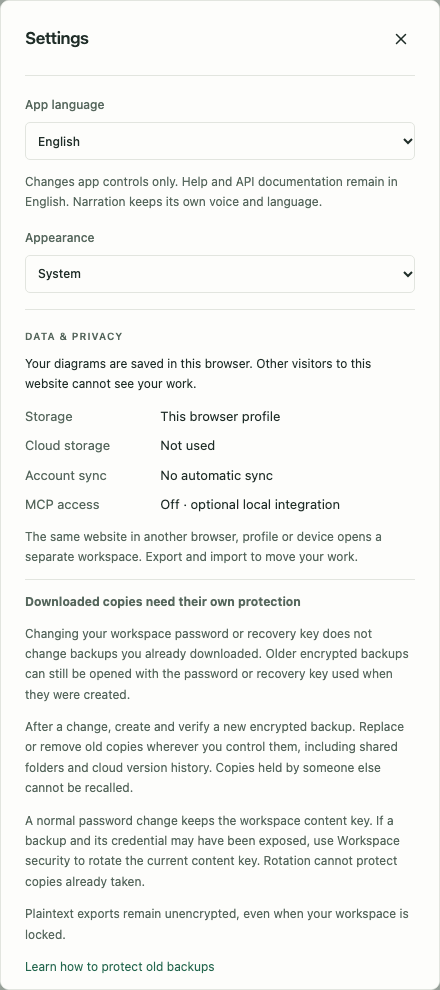
Open Settings on desktop or Diagram actions → Settings on a phone. Settings applies to this browser’s workspace. Some preferences update immediately; import size, ZIP source-file count, voice selection and connection details have their own save buttons.
Workspace address: the password-protected editor uses https://app.visualnerve.com/. The old public /app editor is retired and redirects there; /app on the app origin returns 404. The redirect does not delete or transfer older browser records. Earlier readable backups and records on other origins remain readable. Restore an existing backup or encrypted transfer explicitly; preserve any unexported older browser profile and contact hello@visualnerve.com before clearing site data.
Appearance
Under Appearance, choose System, Light or Dark.
| Choice | Result |
|---|---|
| System | Default; follows the operating system’s current light/dark preference, including later changes |
| Light | Keeps a light appearance regardless of the system preference |
| Dark | Keeps a dark appearance regardless of the system preference |
The choice saves immediately. Workspace, Help, Privacy, License, the error page and API reference on the same address follow the local preference. On a fresh browser without a saved preference, pages use System. Theme updates also refresh other open pages on that origin.
The public website and app.visualnerve.com keep separate appearance choices. On the isolated app address, a harmless light/dark/system preference can be read while locked so Help and the unlock screen remain consistent; those pages do not open private workspace records.
Appearance changes the interface, not your saved node colors, diagram geometry or simulation assumptions. Select Done to close Settings after making changes.
App language
Under Settings → App language, choose English, Dansk, Norsk bokmål, Svenska, Suomi, Deutsch, Español or Français. English is the default, regardless of the browser’s preferred language. The app uses the normal language codes en, da, nb, sv, fi, de, es and fr.
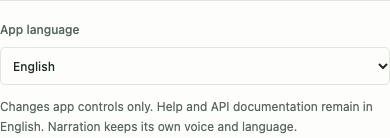
The choice applies immediately without reopening your workspace. Open form drafts, selected objects, the camera, undo history and simulation results stay in place. Other app tabs at the same origin follow the selection. You can also choose a language on the password and recovery screens before unlocking.
This translates the app interface and its controls, including accessible labels and security notices. Diagram names, descriptions, subtitles, narration text, imported data, code and SQL remain exactly as authored. Changing App language does not change the selected narrator; choose the voice separately under Presentation voice settings. Alan remains the default voice.
Help, API reference and website text are in English. This guide uses the English control names; you can temporarily select English when following a procedure.
The browser stores only an allowlisted language identifier outside the encrypted workspace, alongside its technical Appearance choice, so the locked screen can use it. It contains no password, key or workspace content. The language identifier is not copied into workspace backups or migration files. Help and policy pages remain in English and do not open private records to find this preference.
After offline app caching has completed, all eight interface languages can be selected offline. If a language file cannot load before that, the current interface and work stay usable; choose Retry. If browser storage is blocked, the language still applies in the current tab, and the app explains that it could not save the choice for your next visit.
What Saved means
Diagrams, objects, connections, owners, notes, templates, preferences and applicable imported data live in IndexedDB in this browser profile. Saved means the local transaction finished. It does not mean an upload or cloud backup completed.
| Workspace | Protection of saved private records | Complete workspace backup |
|---|---|---|
| Older website-origin records / local development | Readable records if created before encryption; retirement does not modify them | Readable visual-nerve-workspace JSON, format version 1 |
Isolated app.visualnerve.com |
AES-256-GCM encrypted records; opening private work requires a local password or recovery key | Authenticated encrypted visualnerve-backup container, version 1 |
The filename ends in .json in both cases. A JSON filename alone does not tell you whether a backup is encrypted. The existing address also offers a separate Export encrypted transfer, using the same encrypted container format as the isolated app’s backups. This protects that file, while its source workspace remains readable. Individual diagram exports remain readable on both addresses.
The public website supplies app files. Other visitors cannot see your browser’s work, and no account is required. The same address in another browser, profile, device or private window opens an independent workspace. Scheme, hostname and port are also part of the storage identity: changing the address can make a different workspace appear.
Use the same browser profile and address to return to your work. Restore backup imports a backup through Merge or Replace. For the complete move from the existing address to the isolated encrypted app, follow Transfer an existing workspace . Neither operation creates account sync. Getting started explains the required acceptance of local storage and offline app caching before using the workspace.
Protect the isolated workspace
On the isolated app address, password setup comes before creating or importing private work:
- In Protect your local workspace, enter a unique passphrase of at least 12 characters and repeat it in Confirm new password.
- Read the downloaded-copy warning. Automatic session lock is selected by default. Uncheck it if you want this open tab to stay unlocked until manual lock; this disables both automatic inactivity and maximum-session expiration. Then choose Create encrypted workspace.
- In Save your recovery key, save the displayed key in a trusted password manager or another protected location.
- Check I have saved my recovery key in a protected location, then choose Continue.
- Accept local storage when prompted and create or restore a diagram. To move the complete old workspace with its original identifiers and archives, use Transfer existing workspace as described below.
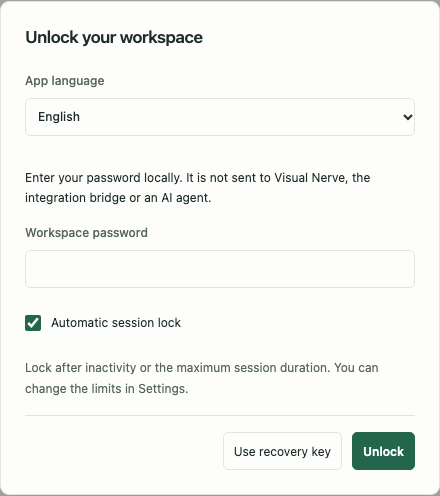
The password and recovery key are entered in the browser. There is no account-based password reset and no password field in the API or MCP. Keep the recovery key private; it can unlock the workspace. Do not include it in an agent prompt, support report, diagram description or unprotected document. Keep its protected copy separate from the backup file it can open.
After a lock or a new visit, enter Workspace password, choose whether Automatic session lock should be enabled, then choose Unlock. If you forgot it, choose Use recovery key, enter the saved key and set a new password. Recovery shows a new recovery key: save that replacement before continuing. Without the password or recovery key, Visual Nerve cannot reconstruct the encryption key or recover the saved private records.
Encryption protects saved records while locked. It does not protect readable content from malicious browser extensions, a compromised device or malicious code running in an unlocked app. It also does not encrypt exports already downloaded or information explicitly shared with another service.
Session limits and locking
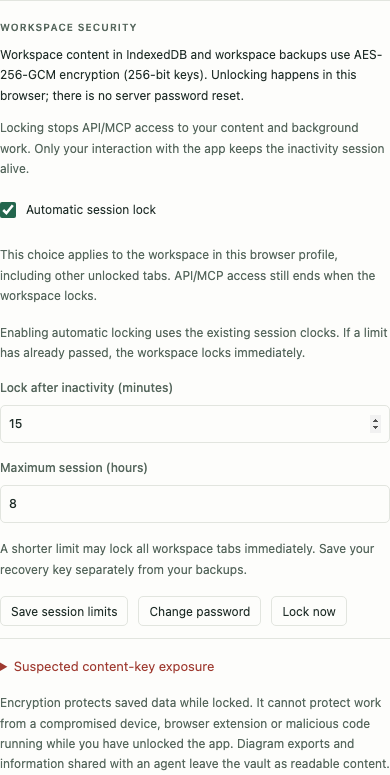
Open Settings → Workspace security on the isolated app address. Automatic session lock is enabled by default and can also be selected or unchecked on the startup password screen. Unchecking it disables both automatic inactivity and maximum-session expiration. Choose Save session limits to save a Settings change. The choice applies to this browser workspace, including its other unlocked tabs.
With automatic locking off, encryption still protects saved IndexedDB records. Reloading or closing a tab removes its in-memory key; a later visit still requires the password. Lock now, explicit API/MCP lock and cross-tab revocation still lock the workspace. Use this choice only when the device and open browser are controlled.
The following limits apply when Automatic session lock is selected:
| Control | Default | Allowed value |
|---|---|---|
| Lock after inactivity (minutes) | 15 minutes | Whole minutes from 1 to 240 |
| Maximum session (hours) | 8 hours | At least the inactivity limit and no more than 24 hours; fractions of an hour are allowed |
Choose Save session limits after editing. The inactivity timer follows your interaction with the app. API/MCP calls, an agent polling the workspace, simulations and background work do not renew it. The maximum session is an absolute deadline from unlock, even if you keep interacting. Saving a policy does not restart either clock; shortening a limit can lock the workspace immediately. Re-enabling automatic locking also uses the existing clocks, so a limit that has already elapsed locks immediately.
Use Lock now when you are finished. It waits for pending saves when possible, then locks the workspace tabs and stops private API/MCP access, playback, simulation and background work. If a save fails, the app explains the failure and offers Lock and discard unsaved changes. Use that option only when you accept losing changes that have not committed.
Automatic expiry locks without waiting indefinitely for drafts. Only the last durable saved version is available after unlocking. An edit, import, export or running simulation interrupted by a lock may need to be started again. Do not rely on an open form or pending save surviving expiry.
Unlocking does not restore an agent’s previous permission. After unlocking, return to MCP / API integration and explicitly choose a fresh access grant in the UI. Until then, workspace command access remains Off. An agent cannot unlock the workspace or send the browser password through the API.
Change the workspace password
Choose Settings → Workspace security → Change password. Enter the new password twice and enter Current workspace password, then choose Change password and lock. All workspace tabs lock after the change; unlock with the new password and grant an agent access again if you need it.
The change protects the current key envelope with the new password; it does not rotate the content key or modify old files. Read Downloaded copies and password changes before removing or replacing any backup.
Rotate an exposed content key
Use this incident-response option if the content key may have been copied, including an encrypted backup together with the credential that opens it. A normal password change rewraps the same content key. An older backup can therefore contain a key still used by the current workspace; changing only the password does not revoke that copied key.
- Save your work and open Settings → Workspace security → Suspected content-key exposure.
- Choose Rotate workspace content key. The editor closes after pending saves finish. Integration access switches Off and analysis, simulation, playback and video export stop.
- In Rotate the workspace content key, enter Current workspace password, then a different unique passphrase in New workspace password and Confirm new password. Choose Prepare new content key.
- Save the replacement recovery key in a protected location and check its confirmation. Preparing this key does not yet replace saved data.
- Choose Rotate content key and lock. Keep the tab open while all current records, source data and archives are authenticated, encrypted with a new content key and verified. The new records and key envelope activate together. All workspace tabs then lock.
- Unlock with the new password, inspect your work, and create and verify a new encrypted backup. Grant an agent fresh access only if needed.
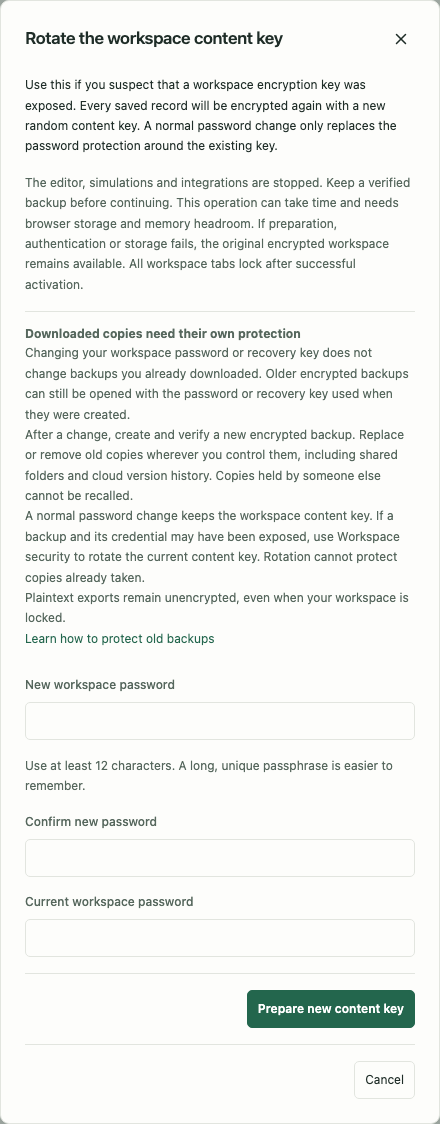
Before activation, Cancel discards the prepared replacement key. Once activation begins, wait for its result. A validation, storage or conflict error preserves the previously committed workspace rather than mixing old and new keys. Large workspaces require temporary memory and storage headroom; if rotation cannot finish, retain the original workspace and recovery copies and investigate the reported error.
Rotation protects the current saved workspace with a new key. It cannot recall older backups, readable exports or content already shared with an agent. Old files keep their original credentials and remain accessible to anyone holding those credentials. Follow your organization’s incident and retention procedures; investigate the source of exposure before trusting the device again.
Work offline and keep a recovery copy
After storage acceptance and a completed first visit, app files are cached for offline use. Diagrams remain in IndexedDB. App updates replace application files without intentionally resetting your diagrams.
Apply an app update when you are ready
An active collaboration lifecycle—including connecting or awaiting approval—blocks Update now. Leave/end the local room explicitly first; updating never silently discards live MLS keys. After reload a participant needs fresh approval, and an owner starts a new room.
The app checks for new application files in the background every 15 minutes while open, and when you reconnect, return to the tab or focus the window. You can see An update is ready without first reloading the page. A check requests the app’s own sw.js on the same origin; it does not upload diagrams, send analytics or require the workspace to be unlocked. Offline work continues when no connection or update is available.
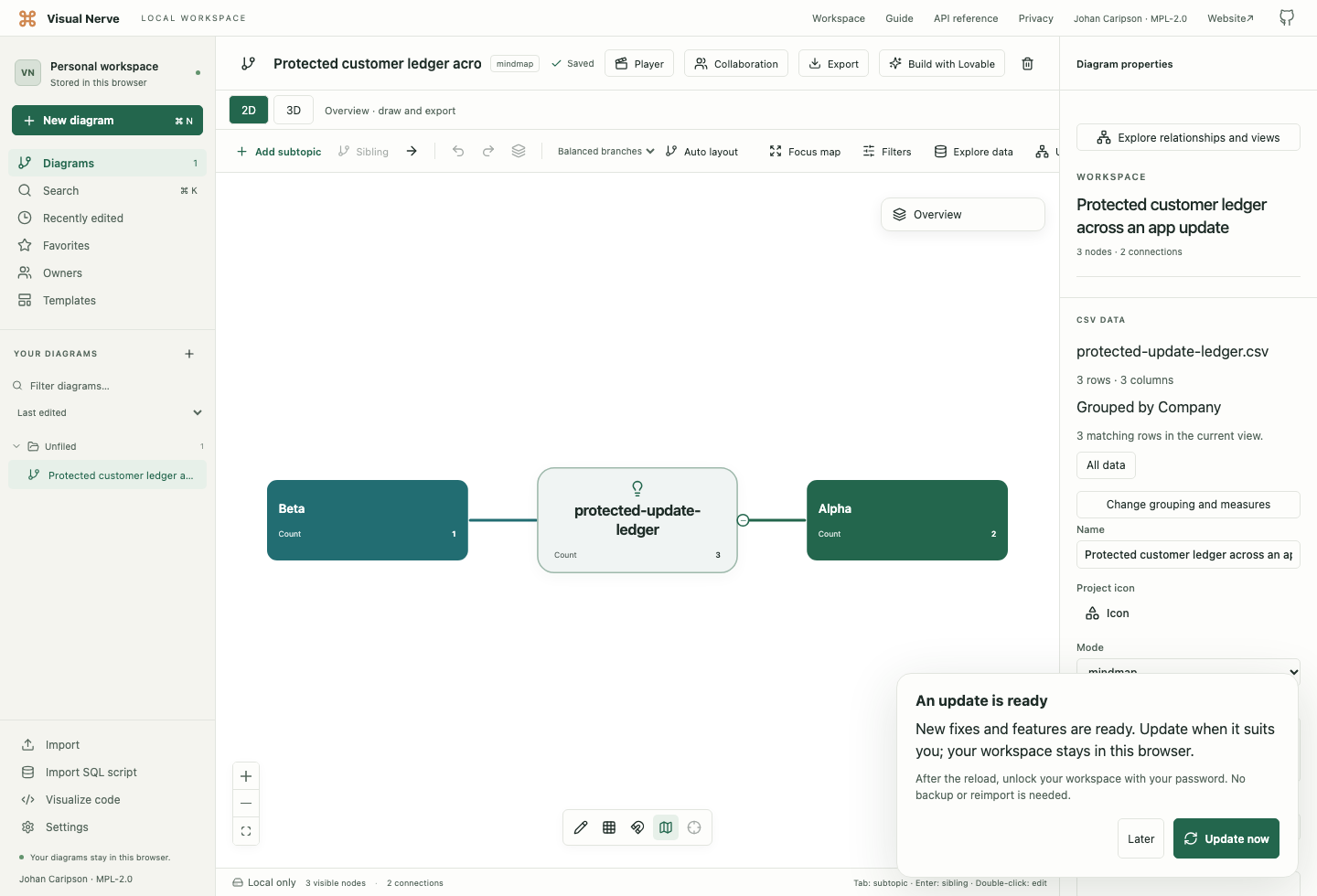
- Choose Later to keep working with the currently loaded app code. Nothing reloads automatically.
- Before choosing Update now, finish or cancel any open dialog, import or export. Let active simulations finish, or choose Stop to save their partial results. A paused simulation still keeps its execution state in memory, so pause alone does not make it safe to restart; stop that run too. This prevents a restart from interrupting work that is still in progress.
- Choose Update now. The app waits for pending local saves and verifies that completed or stopped simulation results have been saved before activating the prepared update and reloading this tab. If a save fails or a task still needs your attention, it explains the problem instead of forcing the update. Resolve it, then choose Retry update; failed simulation archive writes are retried, and activation remains blocked if they still cannot be saved.
- After the reload, unlock with your workspace password. Your saved diagrams, imported source data, history, simulation results and settings remain in IndexedDB. The password and recovery key do not change. Grant an agent fresh API/MCP access if you want to reconnect it.
Retrying a failed autosave keeps the normal version checks: if another tab changed the diagram, resolve that conflict before updating; the retry does not overwrite its changes.
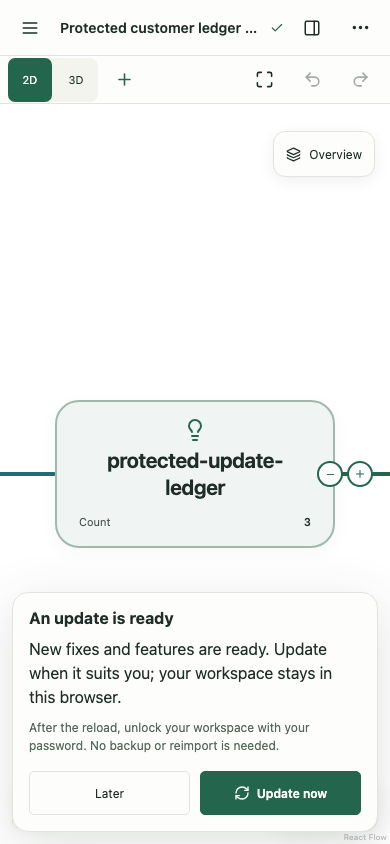
Another tab is not forcibly reloaded. If it reports that another tab installed an update, finish its current work before reloading it. Saved work stays in the same browser profile and origin throughout an ordinary update.
You do not need to clear the app cache, export and reimport a backup, or reset browser data to install an ordinary update. Those actions are separate storage and recovery tools. Keep independent backups for browser data loss, device changes and other recovery needs.
An already open tab running a version from before the update notice existed cannot show this new notice. To load the first release that includes it, finish and save your work, close all app tabs and reopen the app online if a normal reload still shows the older version. Keep browser data intact; do not delete IndexedDB or use backup restore as an update procedure.
On the isolated app, initial offline setup includes the editor, Help pages and screenshots, API reference, license inventory and primary project/runtime notices. Other individual dependency notice files are cached when opened online; an unopened notice may require a connection. Voice runtime and model downloads retain their separate, explicit audio controls.
Browser clearing, profile reset or browser removal can erase local work. Private/incognito data may disappear when its session ends. Export a backup to keep a copy independent of those browser records. Offline app caches and downloaded voices are separate from the diagram database and are not replacements for a backup.
A reminder appears after ten local diagrams when a complete export has not been recorded. Dismiss backup reminder hides it in that workspace; it does not export anything.
Export all local data
- Open Settings → Data & Privacy.
- Choose Export all data.
- Save the dated
visual-nerve-backup-YYYY-MM-DD.jsonfile somewhere you control. It is encrypted on the isolated app address. Backups from older or local plaintext workspaces remain readable unless explicitly protected. - Keep a separate protected recovery copy, then verify that you can read the backup before depending on it.
An encrypted backup needs the password or recovery key valid when that file was exported. Save the correct credential in a protected location; the backup is not useful for recovery if both credentials are lost. The export completes locally and does not upload the file.
The backup includes all projects, objects, connections, owners, custom templates, portable preferences, CSV sources and analysis settings. Named local history and applicable simulator models and retained run/replay archives are included.
It excludes integration credentials/tokens and grants, storage acceptance, local identity, last selection and the browser-local import-size and ZIP source-file limits. Cached app files, downloaded voice binaries, generated narration and temporary video buffers are also excluded. A restored voice preference may therefore require its model to download on first use.
Single-diagram JSON and PNG/PDF/SVG exports are separate choices. Sharing and exports explains which file to choose.
Transfer an existing workspace
Use this flow to restore an existing complete encrypted transfer file into the isolated app. A still-accessible local or source workspace can create that file through Export encrypted transfer. The retired public /app path is no longer an export entry; keep an older unexported browser profile intact and ask hello@visualnerve.com for guidance before clearing it. It is separate from Restore backup → Merge/Replace. A complete transfer preserves the original diagram, object and relationship identifiers, versions, CSV source rows, history and retained simulation archives. The destination uses its own encryption; it does not copy the source’s credentials or grant agents access.
The two addresses have independent browser storage. Exporting or transferring does not read across origins, delete the original workspace or start synchronization. Close other source tabs and stop connected agents before making the copy so you do not continue editing two different versions. If the destination already contains work, export and verify its own backup before replacing it.
1. Prepare the protected file on the original address
- Open the existing workspace and wait for Saved. Open Settings → Data & Privacy → Export encrypted transfer.
- In Encrypted transfer backup, enter a unique passphrase of at least 12 characters in Transfer backup password, then repeat it in Confirm transfer password. Save this password in a protected location.
- Choose Prepare encrypted backup and wait for the recovery key. This password and key protect the transfer file; they are separate from the destination workspace’s password and key.
- Save the displayed recovery key separately from the file. Check I have saved my recovery key in a protected location, then choose Download encrypted backup.
- Keep the dated
visual-nerve-encrypted-transfer-YYYY-MM-DD.jsonfile, its matching credentials and the original workspace until you have verified the destination.
Preparation and encryption run in the browser. The export does not upload anything or encrypt the original browser records. Cancel discards the unfinished export; an interrupted attempt may need to be started again. Older readable backups and exports remain readable.
2. Transfer into the encrypted destination
- Open the isolated app address after its release, set up or unlock its workspace, save its recovery key if prompted, and accept local storage.
- Open Settings → Data & Privacy → Transfer existing workspace and choose the transfer JSON file. Use this button for a complete move; Restore backup opens the ordinary Merge/Replace importer instead.
- In Unlock encrypted backup, enter the transfer password in Backup password. To use its recovery key, select Original export recovery key under Unlock backup with, then enter Backup recovery key. Choose Read backup. The entire container must authenticate before the transfer preview opens; the destination’s own password cannot unlock a file protected with different credentials.
- Review Move an existing workspace. Opening this flow waits for pending saves, switches API/MCP access Off, closes the integration connection and stops the editor, simulations, presentation, speech and background analysis. Keep the tab open while transferring.
- If the destination contains work, check Replace existing work in this destination, if any only after protecting that work with its own backup. Transfer replaces the destination rather than merging; existing work cannot be replaced without this confirmation.
- Confirm I have kept the source workspace and understand that the two copies do not synchronize, then choose Transfer and verify.
- Wait for Transfer verified, then choose Open transferred workspace. Open several diagrams, check their source data and archives, and create a new encrypted backup here before deciding whether to retire the original copies. Grant an agent fresh access in Settings if needed; transfer leaves integration Off.
What verification means
The app validates the complete input before saving. It then writes the destination as one transaction and reads the saved encrypted records again, decrypting and authenticating the full payload across all 14 workspace record groups, including source rows, history and simulation archives. It checks their contents and counts against the expected transfer. An object count or the ability to open one diagram alone is not considered a verified transfer.
If the tab closes after saving but before verification finishes, the destination keeps a pending-transfer marker. On the next unlock, it verifies that saved copy before initializing the editor or accepting private API/MCP work. Cancel also checks for a pending transfer before reopening the editor; it cannot bypass a failed verification. A verification failure keeps the editor closed and leaves the source workspace and transfer file unchanged. Keep those originals so you can investigate or retry without losing your only copy.
Browser-local storage acceptance, import limits and connection details remain destination choices. A transfer cannot unlock the destination, accept storage or grant tools permission on your behalf. The source and destination remain independent after success; later changes to either do not appear in the other.
Downloaded copies and password changes
Downloaded files are independent copies. Editing, locking or deleting a workspace does not update or remove backups and exports that you already saved or shared. Ordinary backups from the existing plaintext workspace, individual diagram JSON/Markdown exports, images, PDFs, SVGs and videos contain readable content; keep them in a protected location. Its optional encrypted transfer file keeps the separate password and recovery key chosen for that export.
If you use a password-protected encrypted workspace, changing its password or recovery key does not change previously downloaded encrypted backups. An old backup still uses the password or recovery material that protected it when it was created. A new workspace password cannot revoke that file or a copied older key envelope. Plaintext exports remain unencrypted.
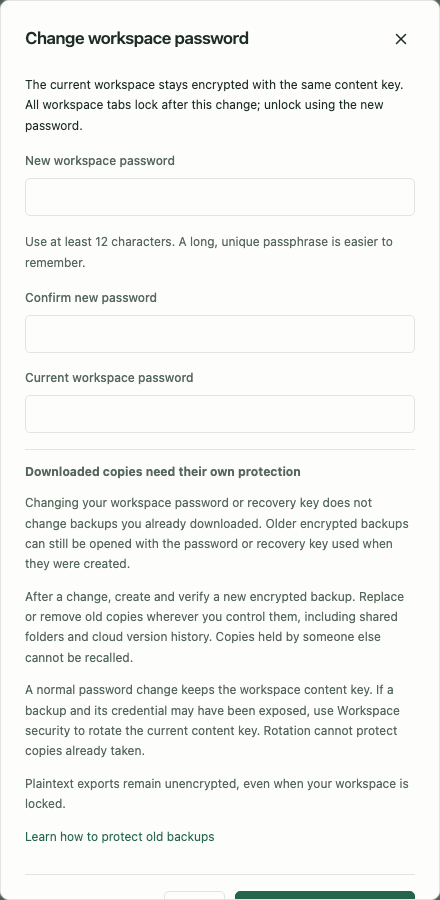
After changing a password or recovery key:
- Create a new encrypted backup and verify that you can restore it with the new credentials.
- Replace or remove older backups wherever you control them. Check shared folders, email attachments, cloud storage version history and device backups.
- Follow your organization’s retention rules. Do not discard the only verified recovery copy before its replacement works.
- Treat copies already held by someone else as still accessible to them. Visual Nerve cannot recall those files or guarantee their erasure.
If you suspect that someone obtained an encryption key or an old backup together with its password, treat that copied content as accessible to them. A workspace password change alone does not protect it. Use content-key rotation to replace the key protecting current records; Visual Nerve cannot recall older copies.
Restore a backup
- Choose Restore backup and select a complete Visual Nerve backup JSON file.
- For an encrypted file, Unlock encrypted backup shows Backup password. Enter the password valid when that file was exported, or select Original export recovery key under Unlock backup with and enter Backup recovery key. Choose Read backup. These credentials can differ from your current workspace password.
- Wait while the entire encrypted container is authenticated. A wrong credential or damaged file produces an error; no partially decrypted prefix is restored. Cancel backup import closes the attempt.
- Review the number of diagrams and export date shown in Import Visual Nerve backup. Readable legacy workspace backups skip the credential dialog.
- Choose Merge or Replace. For Replace, review the warning and check its confirmation box.
- Choose Restore backup and wait for completion.
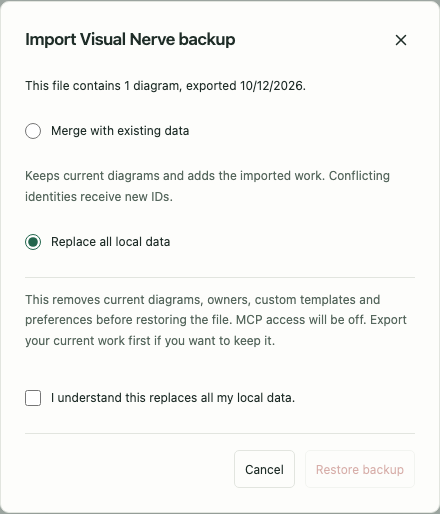
| Mode | What happens |
|---|---|
| Merge with existing data | Keeps current diagrams and adds imported work; conflicting identities receive new IDs with internal references remapped |
| Replace all local data | Replaces current diagrams, owners, templates and portable preferences; requires confirmation and leaves MCP access Off |
Both modes preserve the destination browser’s own storage acceptance and import limits. Backups cannot accept storage or grant external tools permission for you. Merge keeps destination connection choices; Replace starts a new local workspace identity and disables integration access.
Malformed or unsupported backup data rolls back the operation instead of partially replacing tables. Locking the workspace, cancelling or starting a newer backup read cancels the pending reader; late results cannot open a stale restore preview. A single-diagram JSON file is imported as a diagram, not as a full workspace backup.
This importer can remap conflicting identifiers and imports history and simulation archives through its normal import rules. For the complete move from the existing website to the isolated app with original identifiers, versions and archives preserved, use the separate Transfer an existing workspace flow. Importing either way cannot change or remove the original workspace or files on the other address.
Inspect storage and request retention
Clear app cache
Choose Settings → Data & Privacy → Clear app cache to remove Visual Nerve’s downloaded offline app files and voice models. Playback and video export stop before clearing, and active asset downloads are cancelled so they cannot write stale results back into the cache.
Your diagrams, imported sources, history, simulation results and settings remain in IndexedDB. Clearing app cache does not delete a workspace or change its password or key envelopes. Small technical coordination metadata is retained to prevent interrupted downloads from restoring stale cache content.
You may need an internet connection to download app files or a selected voice again. This button cannot clear the browser’s entire HTTP cache, browsing history, other websites or already downloaded backup/export files. If another tab or worker cannot stop safely, the app reports that clearing did not complete; close other app tabs and retry.
Storage details
Expand Storage details in Data & Privacy to see:
- Database and schema information.
- The current site address and Workspace ID.
- Estimated site storage usage, when the browser exposes it.
- Whether browser persistence has been granted.
The usage estimate includes app files kept for offline use; it is not only the diagram size. API/MCP clients can use the Workspace ID to target the right workspace when several are connected.
After creating a diagram, choose Ask browser to keep local data if the browser offers it. The browser can grant or decline persistence. A grant can reduce automatic eviction under storage pressure but cannot prevent manual clearing or guarantee retention. Export remains the independent recovery method.
Import file size
Under Import file size, set Maximum import file size (MB) to a whole number from 50 to 1024, then choose Save import limit.
- Default: 50 MB.
- Maximum: 1024 MB, shown as 1 GB. UI MB means MiB.
- Only imports up to 50 MB are supported and guaranteed.
- Larger imports are experimental and show a warning; browser memory, format complexity and timeouts can still cause failure.
This preference stays in the destination browser and is excluded from backup/restore. It applies to local file imports and relevant pasted inputs; raising it does not remove CSV row/cell limits, code object/line limits, SQL topology limits or archive expansion limits.
API/MCP JSON and WebSocket envelopes remain 32 MiB, independently of the local file-size preference. Base64 or escaped text makes a transferred payload larger than its raw file. For detailed format bounds, see CSV , SQL , code and diagram-file import .
ZIP project source-file limit
A ZIP project can contain many small files even when its total size is small. Settings → ZIP project source-file limit → Maximum analyzed source files in a ZIP project controls this separate count. Enter a whole number from 500 to 10,000, then choose Save ZIP file limit. The supported default is 500.
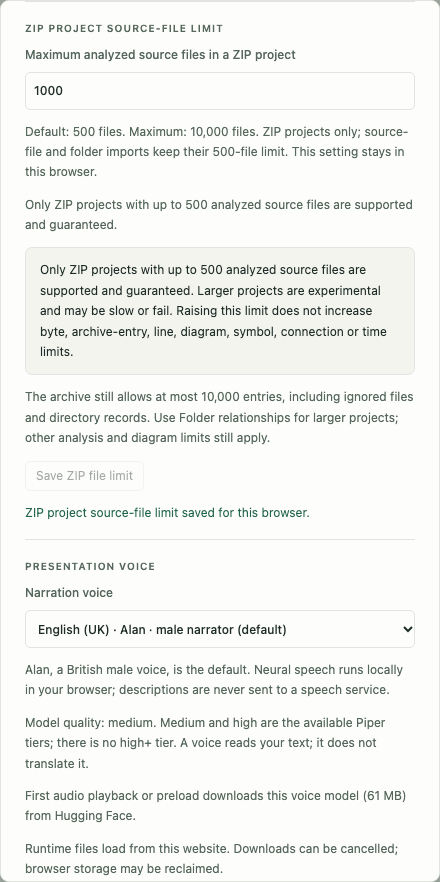
Only ZIP projects with up to 500 analyzed source files are supported and guaranteed. Raising the limit is experimental: larger projects may be slow or fail. Settings and the import dialog show this warning whenever a higher limit is active. Ordinary source-file and source-folder imports still allow 500 files.
The archive still allows at most 10,000 entries, including ignored files and explicit directory records. Consequently, fewer than 10,000 usable source files may fit. Byte limits are independent, and limits on lines, objects, symbols, connections and analysis time still apply. Prefer Folder relationships for large projects: a File overview still cannot exceed 5,000 diagram objects.
Each ZIP import captures the limit when scanning starts. Change Settings before loading the archive again to use a different limit. The import summary shows the captured count. Resetting Settings to 500 does not invalidate a saved larger diagram. This preference belongs to the current browser, is excluded from workspace backups, and is preserved when restoring into this browser.
API and MCP clients discover the independent limits through GET /code/capabilities, read this browser’s effective value through GET /settings/project-source-file-limit, and change it with Read + write access through PUT /settings/project-source-file-limit with { "value": 1000 }. Archive request payloads cannot override the setting.
Presentation voice
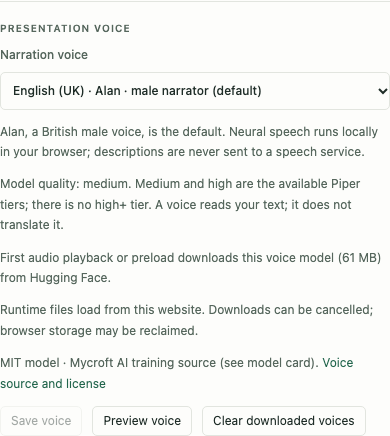
Choose Narration voice under Presentation voice, then Save voice. Alan, a British male Piper voice, is the default. There are 20 choices across US/UK English, Swedish, French, Spanish, Portuguese, Norwegian, Danish, Finnish and German. Quality labels are the actual medium/high Piper tiers, with no high+ tier. A selected voice reads narration; it does not translate your diagram.
Preview voice prepares and plays a sample; Cancel voice preview stops it. First explicit use may download approximately 60–131 MiB of model assets from the fixed model host. Speech runs locally, with descriptions kept in the browser’s speech worker. A cached model can be used offline; browser storage reclamation can require another download.
Clear downloaded voices removes those model assets. It does not delete diagram descriptions or reset the selected voice. Narration clips are temporary; full preloads can use encrypted local spill with a RAM-only key. Clear app cache removes these temporary copies too. See presentations for preload progress and film export.
MCP access and connection details
MCP is optional and Off by default. In MCP / API integration, choose:
| Access | Permitted behavior |
|---|---|
| Off | No workspace command access through the bridge |
| Read only | Inspect content and run supported unsaved previews/export/comparison requests |
| Read + write | Read plus create/edit content and control playback or simulations |
The page shows the website, API documentation and MCP server URL separately. Instructions for your MCP client gives a copyable setup note without the integration token or diagram records.
Expand Local connection details only when configuring the bridge address or optional session token, then choose Save connection. The browser’s WebSocket URL uses /bridge; a client such as Codex uses the local HTTP(S) /mcp address. The public website address identifies the app origin, not the process running on your computer.
Turning access Off closes the browser connection. The browser must remain open for commands, including headless simulations. This grant lets your chosen tool read content and optionally edit it; the tool handles received content under its own settings. See API and MCP setup .
Reducing access takes effect immediately. If that setting cannot be saved, the open workspace keeps the lower access level through refreshes. Select the desired access level again; access can increase once that change saves successfully. A failed save does not store the choice for a later reload.
Resolve a save conflict
Multiple tabs of the same browser/origin share the workspace. If another tab changes a diagram while you hold older edits, the conflict notice offers:
| Action | Result |
|---|---|
| Save local copy | Saves your current edits as a separate diagram marked (local copy) |
| Use saved version | Discards the pending local version and loads the saved content |
| Replace saved version | Saves your local graph over the latest saved graph |
Choose according to which content you want to retain. A local copy is useful when both versions contain work you need to inspect. API/MCP version conflicts likewise require a fresh read before another write; the bridge does not silently merge stale content.
Delete all local data
Expand Delete all local data, review its scope, check I understand this permanently removes my local data, and choose Delete all local Visual Nerve data.
This removes user projects, owners, custom templates, preferences and stored acceptance in this browser. It cannot be undone without an exported backup. Built-in templates are reseeded when the workspace initializes again, and local storage acceptance is required again. Deletion does not erase already downloaded exports or backups outside the browser; application/voice caches are separate.
In an encrypted workspace, this deletes logical workspace content; it does not reset the vault’s password, recovery envelope or session policy. Those controls remain needed to open that vault. Clear app cache only removes downloaded app/voice assets and never substitutes for deleting private workspace content.
To remove only one project, use Delete diagram. Local snapshots can retain removed source content until those snapshots or their project are deleted; deleting a current source alone is not the same as deleting its history.
The Privacy page explains retention and explicit sharing in detail. Use troubleshooting for failed saves, missing work, imports, narration and connection errors.