The diagram player guides an audience through your existing diagram. It moves between numbered objects or storyboard scenes in 2D or 3D, while narration and subtitles explain what they are seeing. You keep the editable diagram and can export a film of the same walkthrough.
Open Player on desktop. On a phone, use Diagram actions → Diagram player.
Choose numbered nodes or storyboard scenes
| Source | Best for | Text used for narration |
|---|---|---|
| Numbered nodes | Explain one object at a time | Each node’s description |
| Storyboard scenes | Explain a group of objects and connections together | The scene’s own narration |
The two sources coexist. Numbering does not become a storyboard until you explicitly add numbered nodes as scenes. Switching sources does not move or duplicate diagram objects.
Make your first numbered walkthrough
- Write a useful Description for each object you want to explain. For example:
The package counter shares one employee with normal store sales. At high demand, both queues compete for that employee. - Open Player and choose Numbered nodes.
- Choose Number all nodes, or select the desired objects first and choose Number selection.
- Open Order and arrange the steps. Automatic numbering uses the diagram’s object order; review it rather than treating it as a guaranteed process sequence.
- Enable subtitles if you want the descriptions visible, then choose Play.
Number all nodes and Number selection replace the numbered sequence with the chosen set. To insert one object into an existing sequence, select it and set Presentation number in Properties. Enter 1 for the first step or the next available slot to append it. Inserting a number shifts the other steps and keeps the sequence contiguous. Clear the field to remove that object from the walkthrough.
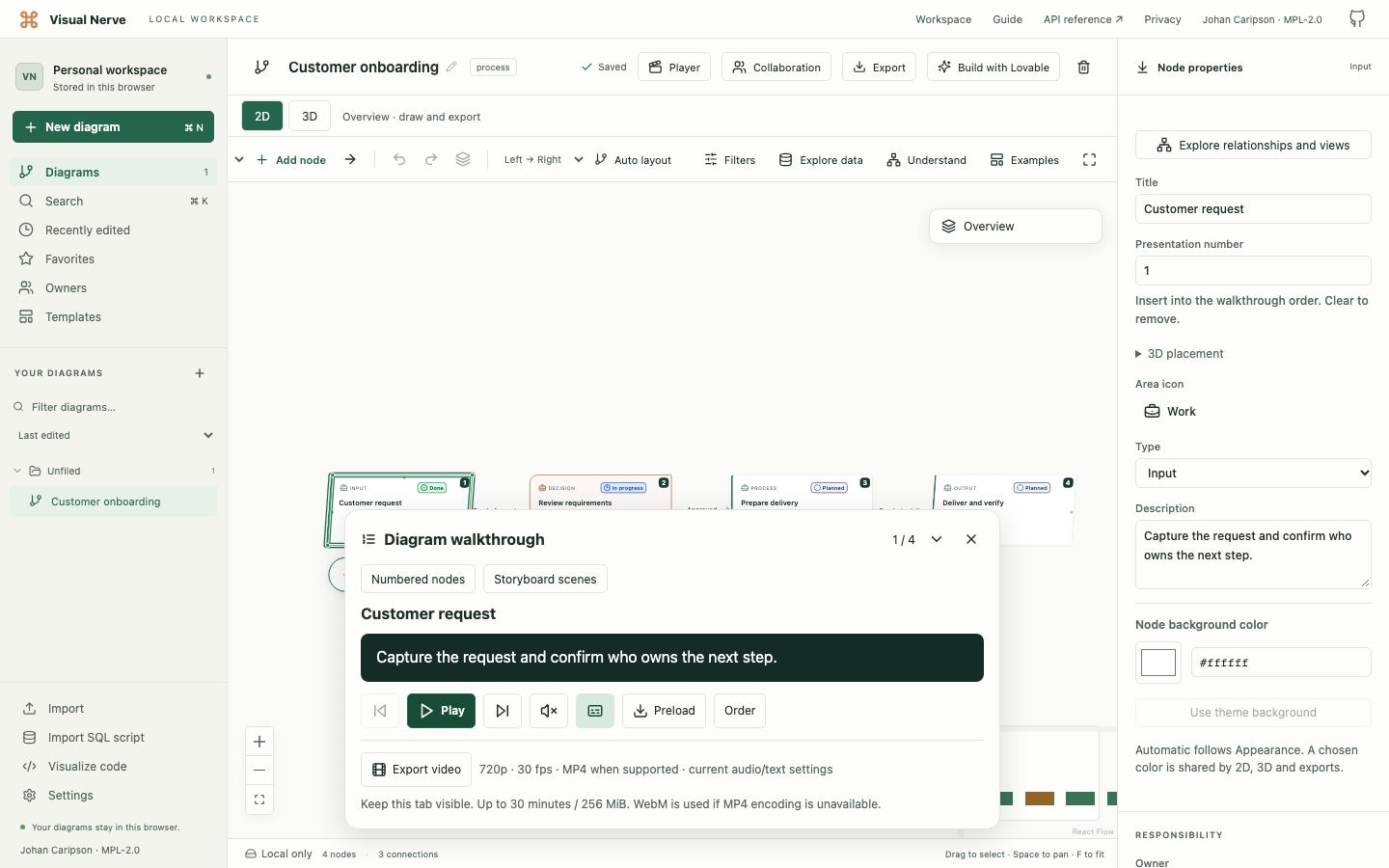
Numbering and timing save with the diagram and support undo. JSON and backups preserve them. Duplicating a diagram remaps its order to the new objects; copied and pasted objects start unnumbered. Deleting an object removes it from the sequence.
Make hidden or collapsed numbered objects visible before playing. A node without a description can still be framed, but it has no description to read aloud or display as subtitles.
Control the walkthrough
| Control | What it does |
|---|---|
| Play / Pause | Advance through the sequence, or freeze the current step |
| Rewind | Go to the previous object or scene |
| Forward | Go to the next object or scene |
| Audio | Read the current description or scene narration with the selected voice |
| Subtitles | Show that text without requiring audio |
| Preload | Prepare the selected voice and every step in the chosen walkthrough |
| Order | Edit the sequence and timing |
| Close diagram player | End the presentation and return to ordinary editing |
Numbered nodes default to 8 seconds per node and 1200 ms camera movement. In Order, Seconds per node accepts 2–600 seconds; Camera movement (ms) accepts 0–10,000. Spoken narration finishes before the player advances, even if it is longer than the minimum dwell time.
Camera movements use the current 2D or 3D diagram. In 3D, transitions route around diagram cards rather than treating them as empty space. Taking over the camera manually pauses live playback; choose Play to continue. Playback also pauses when the browser tab is hidden.
Minimize the player for a clearer presentation
Choose Minimize player to keep the diagram visible while playback continues. Play/Pause, previous/next, audio and subtitles remain available. Expand player brings back Order, Preload, source selection and video export.
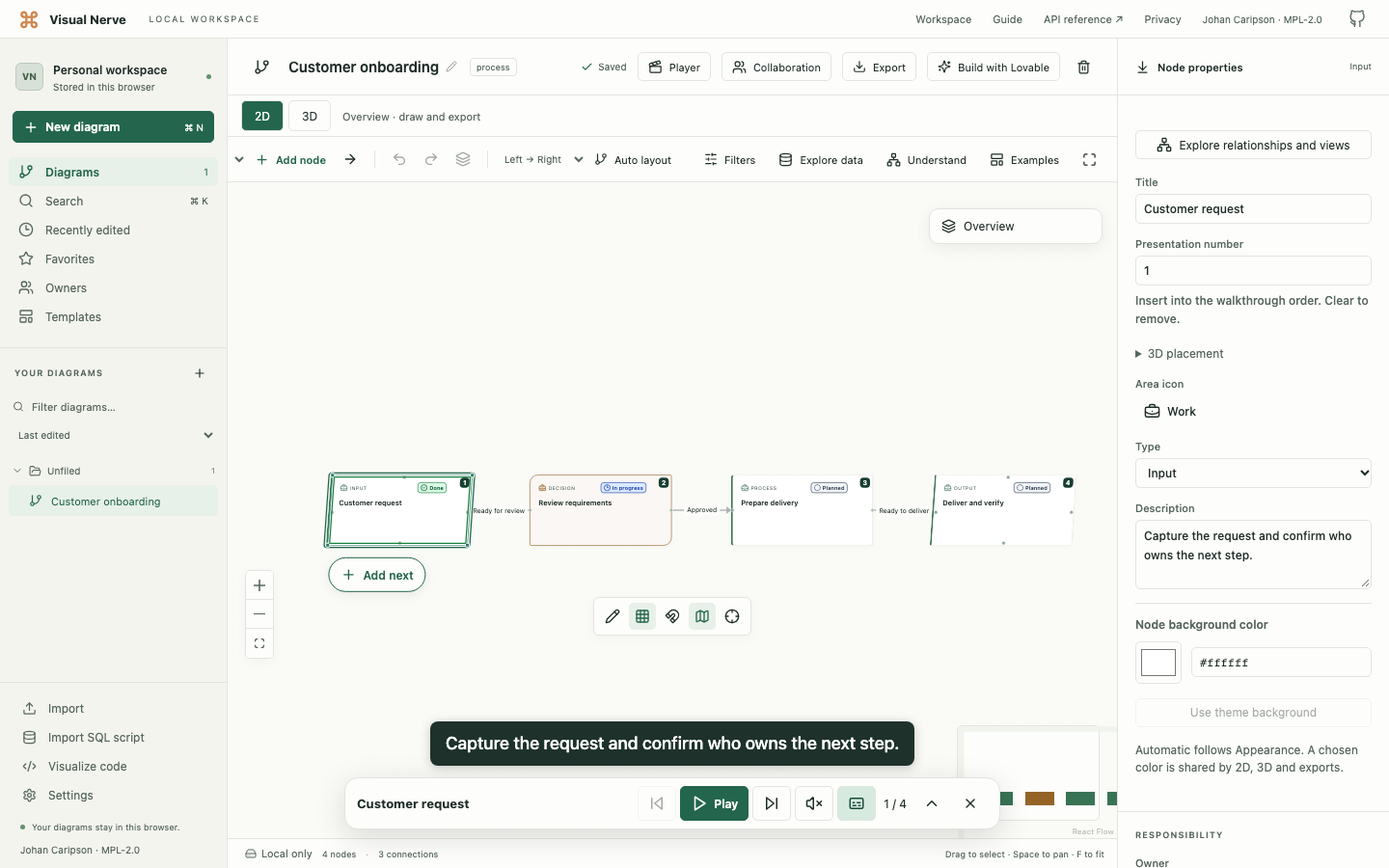
Desktop opens the player expanded. Phones and short landscape screens open it compact. Minimize/expand preserves playback, audio and subtitle options; the panel’s temporary size is not part of the saved diagram.
With subtitles on, compact playback shows separate video-style captions in both 2D and 3D. Long text uses short two-line pages. Pause freezes the current caption page. Expand the player to read the complete description, or turn subtitles off to clear the captions.
Captions follow the configured step duration and any longer narration duration. They are paged narration text, not word-level speech timing or a transcription of microphone audio.
Choose a narration voice
This section also covers the additional local narration languages.
Open Settings → Presentation voice, choose Narration voice, then Save voice. Alan, a British male Piper voice, is the default; English is the default language. The catalog contains 20 choices: several US/UK voices, plus Swedish, French, Spanish, Portuguese (Portugal and Brazil), Norwegian, Danish, Finnish and German. Medium/high labels reflect Piper’s actual tiers; there is no high+ tier. High options include US LJ Speech and LibriTTS, UK Cori, and German Thorsten. LibriTTS currently uses fixed speaker 0. Existing explicit saved choices stay selected.
Use Preview voice to hear a sample and Cancel voice preview to stop its preparation or playback. Choose a voice matching the narration language. A French voice reads French text; selecting it does not translate an English description.
Speech is generated locally in your browser. Descriptions are not sent to a speech service. On first explicit audio playback, Preload, voice preview, or video export with audio, the selected model may download from the fixed model host. Voice assets are approximately 60–131 MiB per voice. They use a separate browser cache; cached voices can work offline. Clear downloaded voices removes these model assets without deleting the diagram.
Generated narration clips remain temporary and are excluded from JSON and backups. Large preloads use encrypted temporary local storage beyond the 32 MiB prepared-clip RAM cache, with a 1 GiB ciphertext ceiling (including IV/tag overhead) and browser-quota limits. One clip during synthesis/decryption can temporarily add up to 32 MiB; this does not bound total browser or inference memory. The temporary key stays in RAM; closing the tour, changing its voice/content, or locking removes the clips. After a crash, Clear app cache can remove unusable ciphertext remnants. Each description or scene narration supports up to 12,000 characters; longer text produces an explicit error rather than silent truncation.
Use Preload and read its progress
Audio and Preload start off; subtitles start on. Enable Preload before a narrated presentation to prepare narration for every step in the selected numbered sequence or storyboard, starting at its beginning even if you are currently viewing a later step.
The preparation area reports overall percentage, ready narration count and download or synthesis progress. Engine initialization is labelled separately because it does not always expose a measurable percentage. 100% means all required narration in this walkthrough is ready. Blank descriptions need no audio; already prepared clips can be reused without warming the voice engine again. The displayed ready/total count includes the whole sequence; repeated narration can share one audio clip. An error or storage-limit failure never reports a completed preload.
If first preparation takes time, keep the tab open and watch the phase message. Repeated use should benefit from cached models. If a download failed or a voice cannot initialize, cancel preparation, check the connection and browser storage, then try Preview voice or Preload again. Clearing downloaded voices forces a fresh download. Shorter narration also reduces synthesis work.
Build a storyboard scene
Use scenes when one camera stop should explain several related objects—for example, a work node, its shared staff resource and the connection between them.
- Select the objects and optionally the relationships on the canvas.
- Open Player → Storyboard scenes → Order.
- Choose New scene from selection, or Add numbered nodes as scenes to start from your existing sequence.
- Set Scene name and Scene narration. Narration is independent of node descriptions.
- Set Seconds and Transition (ms). The same 2–600 second and 0–10,000 ms ranges apply.
- Use Use current selection or Choose scene objects to adjust the nodes and links. Referenced connection endpoints are included in framing.
- Choose a captured view or Auto-fit, then Save scene.
- Choose Preview saved scene. Save draft edits before previewing; the preview uses the saved scene.
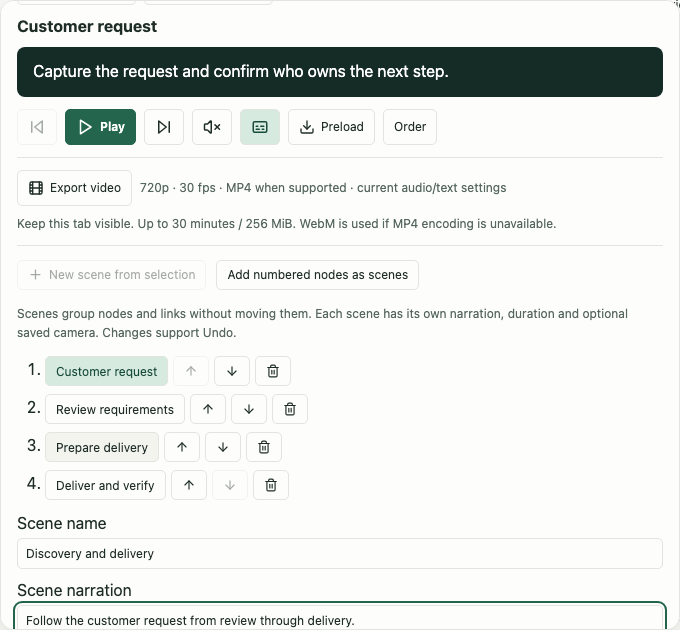
Reorder scenes with their earlier/later controls, or delete a scene from the sequence. Saved scene edits support undo. A storyboard supports up to 1,000 scenes, with bounded object/link references and 12,000 narration characters per scene.
Captured views versus Auto-fit
Capture current view saves the current 2D viewport or 3D camera for precise framing. It requires Details, with semantic overview off. Playing or exporting that scene requires the same 2D/3D mode used for capture.
Auto-fit objects removes the captured view and frames the scene’s objects in the current mode. Use it when a scene should work in either 2D or 3D, or in semantic Overview. If the player says Choose Details or use Auto-fit objects, return to Details and the matching mode, or edit the scene to use Auto-fit.
Scene playback highlights its selected content and temporarily reveals content needed for presentation. Closing the player, switching sources or finishing film export restores the prior selection and overview navigation. A completed live walkthrough keeps its final scene visible until you close the player or switch sources. None of these actions changes the original layout.
Export a film
- Choose Numbered nodes or Storyboard scenes and review the saved order.
- Set Audio and Subtitles as desired.
- Choose Export video. Export begins at the first step of the selected sequence, using the current 2D or 3D view.
- Keep the tab visible while preparation and recording finish. Narration is synthesized and inserted locally without playing through your speakers or asking for screen-recording access.
- Save the downloaded file. Save video again downloads another copy after completion.
Output is 1280 × 720 at 30 fps. MP4 is preferred; a supported WebM format is used when needed. The compact/expanded live-player setting does not change the exported film. Long subtitles use pages with at least three seconds per page, and narration can extend the timeline.
Use Cancel video to stop export. Manual camera movement, diagram edits or closing the player also cancel it. Other player controls stay unavailable until export cleanup finishes.
| Limit | Behavior |
|---|---|
| 30-minute final timeline, including transitions and narration | Longer films fail explicitly; shorten or split the walkthrough. |
| 256 MiB encoded file | Oversized output fails rather than dropping content. |
| 5,000 visible 2D cards per frame; 128 MiB card texture cache | Use a narrower view or filters if the rendering limit is reached. |
| Complete 3D view up to 8,000 objects / 16,000 relationships | A truncated projection cannot export as a complete film. |
| 120 detailed logical 3D card appearances | The normal face-detail limit remains; storyboard export prepares resident appearances. |
| Unsupported video/audio codec | An explicit error is shown; requested narration is not silently omitted. |
The file downloads in the connected browser. API/MCP can start, inspect and cancel export but receives state rather than video bytes. Temporary frames, audio and encoded buffers are not saved in IndexedDB or backups. The editable diagram and saved sequence remain intact.
Continue with 3D diagrams , sharing and exports or API/MCP presentation control .