Use IBM flowchart symbols in a blank diagram or any ordinary template, including Mind Map, Timeline, Process Map, architecture and responsibility diagrams. Each shape is an editable object with its own title, description and connections.
Add symbols to your diagram
- Open an existing ordinary diagram, or choose New diagram and start with Blank or another ordinary template.
- Choose IBM symbols in the editing toolbar to add an object with a chosen glyph. To change an existing object, select it and choose IBM flowchart symbol in Properties; on a phone, tap Edit.
- Check the preview and symbol name. Use stencil proportions applies the recommended width and height. Choose Default node appearance to return the object to its ordinary appearance.
The symbol changes appearance while retaining the object’s ordinary type and information. Mind map topics keep their branch structure, and timeline objects keep their dates. You can mix IBM symbols with ordinary objects in the same diagram.
Process Simulator and Time Series & Signal Analysis retain their own tools and do not show the IBM symbol toolbar. If an imported or previously saved object in one of those documents already has an IBM symbol, its Properties selector remains available to change or clear it.
Start from the template
Classic Flowcharting is based on the IBM GX20-8020 stencil. It provides an editable starting set with process, decision, document, card, tape, storage and communication symbols, including completed symbols formed by adding lines to the original cutouts. You can also add these symbols to your own diagram without using this template.
- Choose New diagram. On a phone, open Projects first.
- Select Classic Flowcharting and enter a name for your diagram.
- Choose Create diagram, then wait for Saved.
- Select an object. Double-click or double-tap its title to rename it in place, or edit Title and Description in Properties; on a phone, tap Edit.
- Choose its shape with IBM flowchart symbol. Use the preview and the symbol’s name to check your choice; Use stencil proportions applies the recommended width and height.
- Connect your steps and label decision paths, for example “Yes” and “No”. Use Fit diagram to review the result.
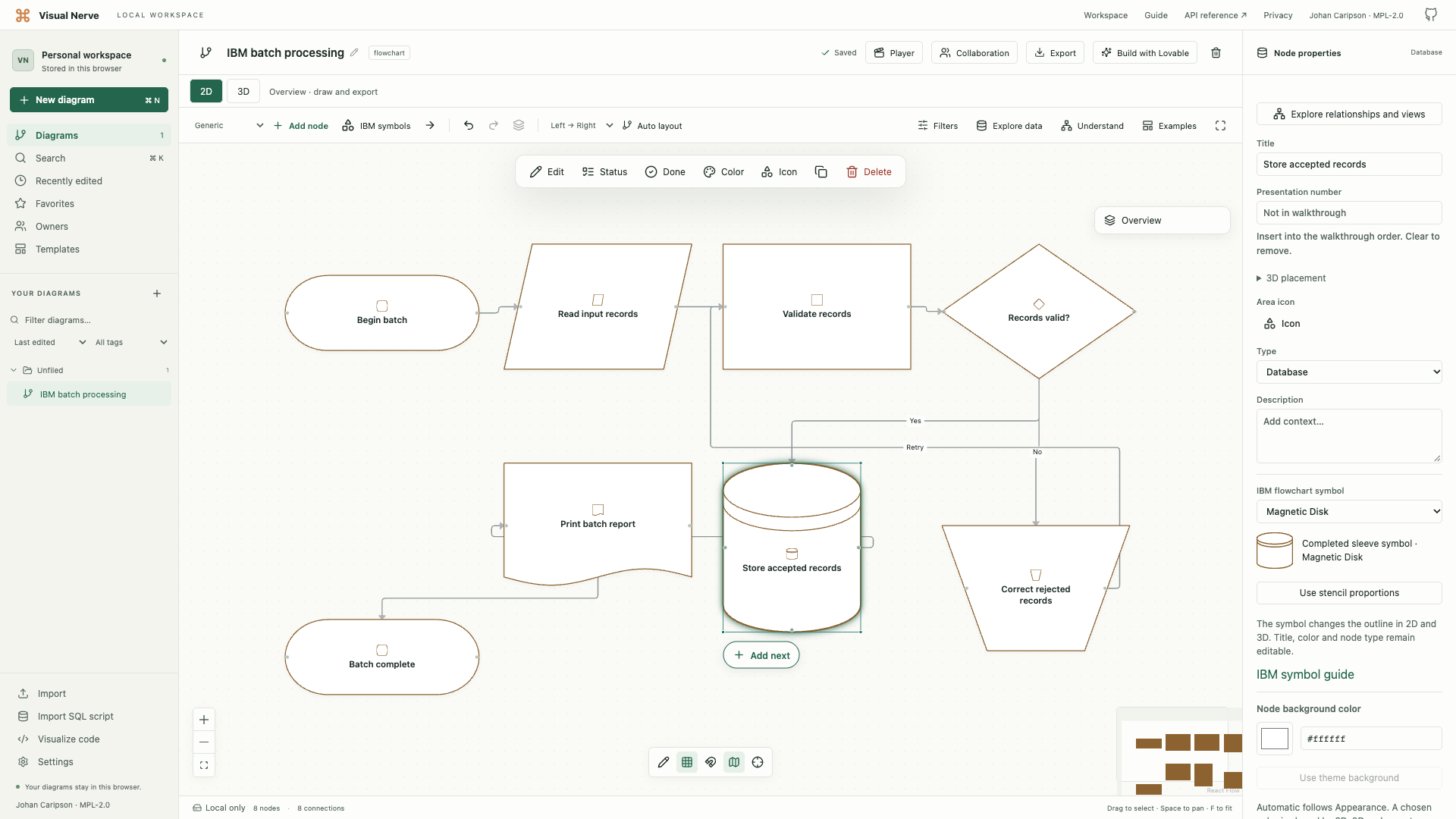
The upper part of the template shows all 43 catalog specimens. Below them is a connected batch workflow: read and validate input, store accepted records, print a report, and send rejected records back through manual correction. Edit that example for your own process, or remove unused specimens to make room for your flowchart. Object deletion and symbol changes support Undo.
Fit diagram gives an overview of the complete template. Scroll or pinch to zoom into the workflow when you want to read its titles and branch labels; selecting an object also opens its full text in Properties.
Titles and icons sit inside the selected symbol’s central area. Select one object and press F2 to rename it; Enter or moving focus saves, Escape cancels, and Undo reverses a saved rename. Use Node background color in Properties to set the fill while Color controls the outline and accent. Use theme background restores the current appearance’s fill.
Choose the completed symbol
See what every flowchart symbol means and when to use it for the complete visual reference, examples and distinctions between similar shapes.
| What you want to show | Choose |
|---|---|
| A processing step | Process |
| A conditional branch | Decision |
| A routine described elsewhere | Predefined Process |
| The beginning, end or interruption of a flow | Terminal / Interrupt |
| Information entering or leaving a process | Input / Output |
| A paper or printed result | Document |
| Stored information in a particular medium | Magnetic Tape, Magnetic Disk, Magnetic Drum or Core |
| A manual entry or operation | Manual Input or Manual Operation |
| Combining or ordering sets | Merge, Collate or Sort |
| A continuation on the same page or another page | Connector or Offpage Connector |
The revised physical stencil has 26 holes, including four arrowhead directions; the original has 25. This catalog provides 43 choices: 32 completed revised symbols, two raw outlines, four arrowheads and five original forms. Sort aperture and Magnetic Tape aperture reproduce the bare revised holes. For the completed meanings, choose Sort, which has a horizontal divider, and Magnetic Tape, which has the bottom-right tangent.
Use the selector’s Original X20-8020 forms group for the older I/O trapezoid, predefined-process hexagon, program-modification pentagon, clerical-operation parallelogram and perforated tape. Several shared outlines had different names in the earlier convention, so check the historical reference when reproducing an old chart.
Use normal connections to show flow between objects. The four standalone arrowhead choices reproduce the stencil pieces; they are separate objects and do not connect steps automatically. Create and label connections .
Explore the same flowchart in 3D
- Arrange the diagram in 2D and choose 3D above the canvas.
- Choose +10° or drag the empty canvas to inspect the symbols’ thickness.
- Select a shape to read or edit the same saved properties. Double-click or double-tap its face to rename it in place.
- Choose 2D or Return to 2D to return to the overview.
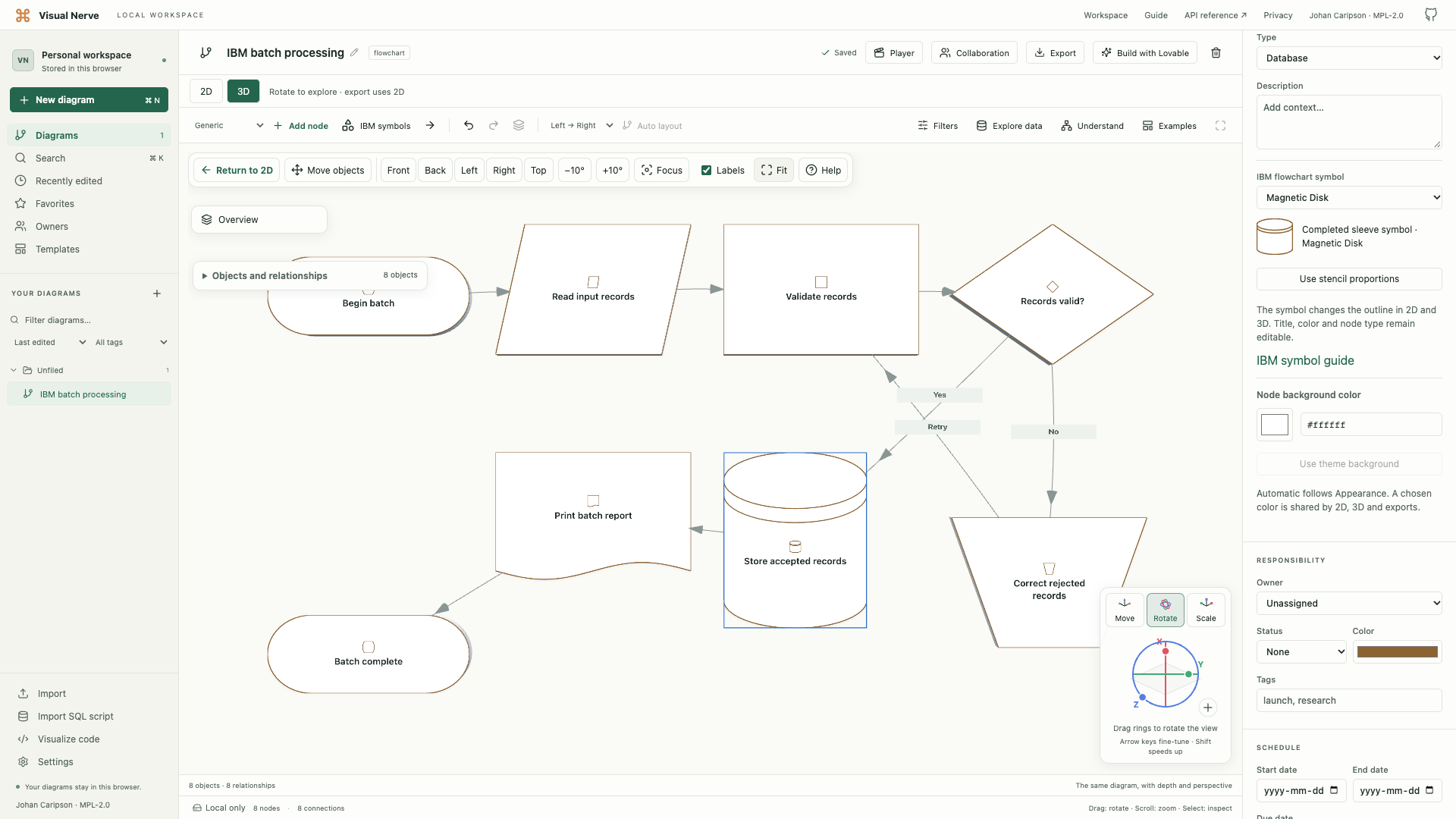
Colors, titles, status and connections remain shared between both views. To change depth, use 3D placement in Properties. Camera controls and object placement are separate; see 3D navigation and placement .
Save and share the result
Changes save locally in the current browser workspace. Export JSON for an editable copy, or include the diagram in a complete backup. PNG, PDF and SVG show the 2D flowchart; SVG retains the symbol outlines and internal lines as vector geometry. If you export while in 3D, the existing 2D export controls choose the 2D framing. Export formats and backups .
Editable Draw.io retains the titles, relationships and a chosen background, using the ordinary node type’s shape for IBM objects. Keep native JSON or use SVG when the exact stencil glyph matters.
These symbols explain the logic of a process. To calculate timing, queues, capacity or cost, configure a Process Simulator document with explicit assumptions.
Historical reference
The revised symbol family follows GX20-8020-1 / GX20-8020-2, with five additional original X20-8020 forms. Earlier stencils used different meanings for some shapes, including I/O and predefined process. The digital objects are resizable; they do not reproduce the plastic ruler’s measurements.
For original references, see the December 1970 template and sleeve scan , IBM Flowcharting Techniques and the Smithsonian template record .
IBM is a trademark of International Business Machines Corporation. The name identifies the historical source symbol family; Visual Nerve does not claim IBM endorsement.
The optional API and MCP connection can discover the same catalog and create or edit the same diagrams. IBM API examples .