Document work keeps profiles, comments, node tasks and activity inside one diagram; it works locally without a relay or account. Realtime collaboration is optional. When a collaboration relay is configured, the Collaboration panel lets an owner share one diagram with approved devices. Participants work on the same graph while keeping their own camera and workspace preferences.
This integration has not been independently audited. Evaluate it against your organization’s data and device policies before sharing sensitive material. It is not an enterprise identity service or a promise of regulatory compliance.
The Collaboration panel shows this review limitation before you create or join a room. Collaboration is a deliberate sharing choice: keep working locally when the diagram should not leave your browser. Self-hosting gives you control of the relay and deployment, but uses the same client/protocol and does not eliminate software defects or compromised participant devices.
Keep work beside the diagram
Open Collaboration → Document work. The four tabs are Profiles, Comments, Tasks and Activity. You can use them in your unlocked local workspace without starting a room. Nothing is sent to other people until you deliberately share the diagram.
Profiles and pictures
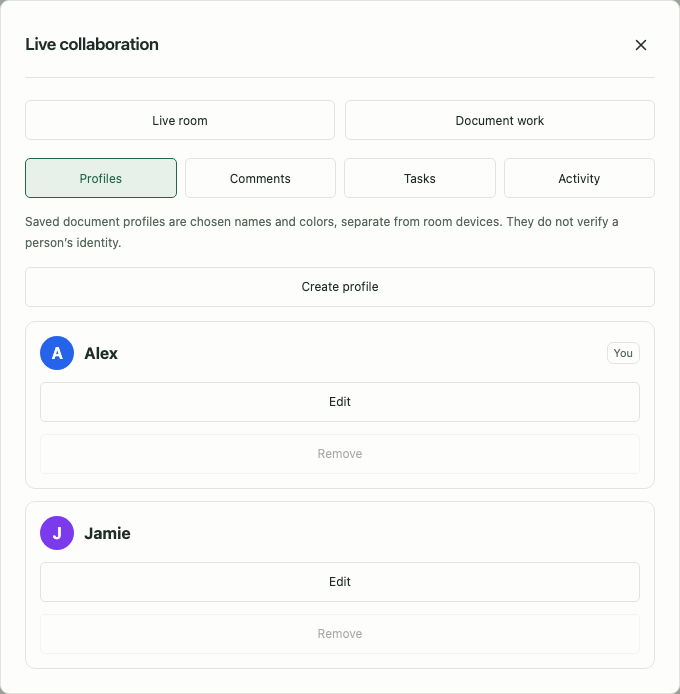
Create a document profile, then choose it as your Acting document profile. Comments and tasks you create use that profile. Give other contributors a profile so you can assign their work. A profile belongs to this diagram: it is not a login, an account or proof of a person’s identity.
Each new profile receives an available color. You can change it; initials and names remain visible so color is not the only identifier. In a live room, the owner chooses which document profile an approved device represents. A participant cannot gain access by creating a profile or choosing someone else’s name. Document profiles are separate from the workspace’s responsibility/owner profiles.
To remove an unused profile, select another acting profile first. Profiles referenced by comments, tasks or retained activity stay available so those records keep their meaning. Clear an assignment before removal when it is the only reference. A profile representing an approved live device also remains until that device leaves or is removed from the room.
An optional picture replaces initials. Upload a local PNG, JPEG or WebP up to 8 MiB, 32 megapixels and 16,384 pixels per dimension. The app checks these limits before decoding, resizes to at most 256 × 256, and re-encodes locally to remove source metadata. The saved image must fit 64 KiB; pictures together must fit 2 MiB. SVG and external image links are rejected. Use a picture you are allowed to share.
Comments and replies
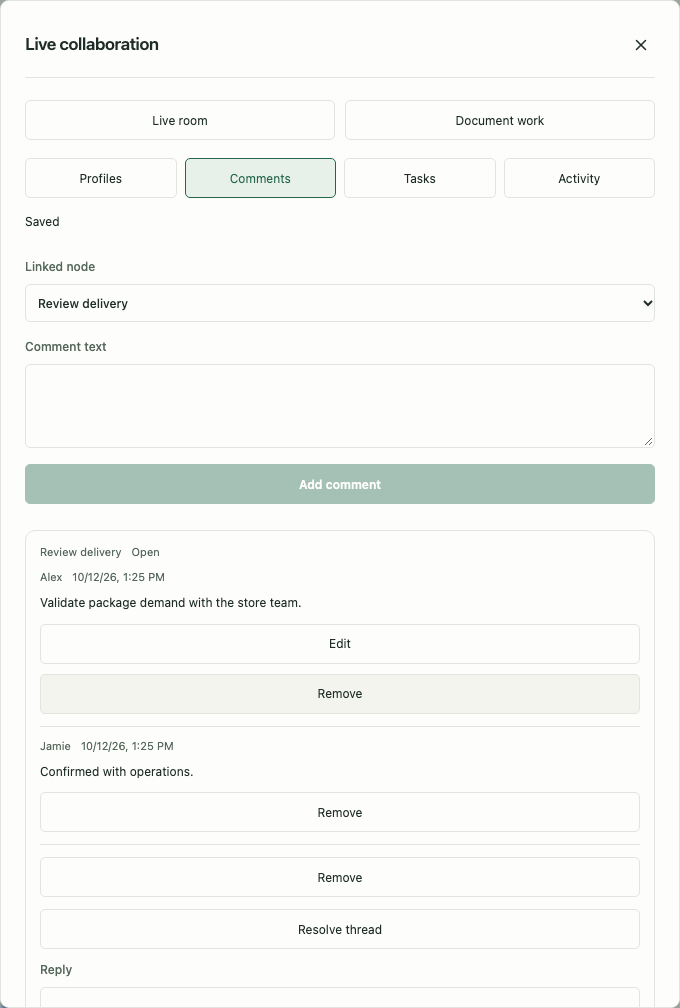
Select a node, open Comments, and choose that node in Linked node. Choose Whole diagram for a general discussion. Enter a comment and select Add comment. Each thread supports replies, editing your own text and resolution; resolved threads remain readable and can be reopened.
An author can resolve their thread. The room owner can also resolve or remove a thread for moderation, but cannot rewrite another person’s comment through these controls. Removal asks for confirmation. Viewers can read comments but cannot post, reply, edit or resolve them.
For example, attach “Validate package demand with the store team” to the package counter. A colleague replies with the assumptions you should use. Resolve the thread once those assumptions are agreed.
Node tasks
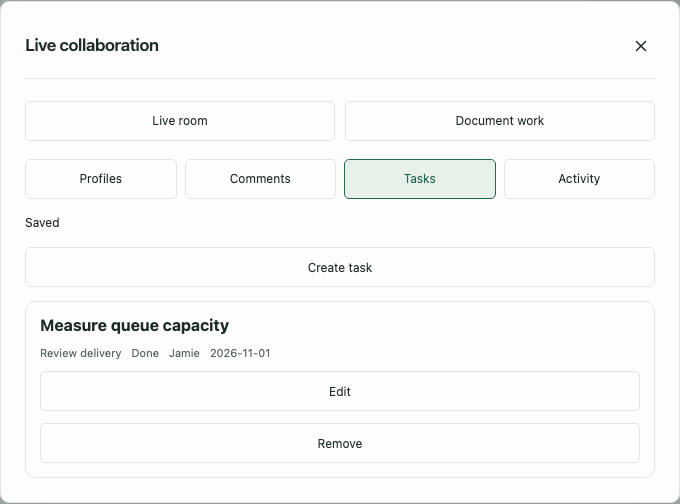
In Tasks, select Create task, choose a node, enter a title, and optionally add a description, assignee and due date. Use To do, In progress or Done to show progress. Editors can update tasks; viewers remain read-only. A task’s assignee does not change node responsibility, grant room access or limit who can edit it.
This is a compact action list beside the model. Due dates are descriptive: there are no email reminders, push notifications or automatic escalation. If you remove the linked node, its saved title remains with the task or comment so you can understand the orphaned work. Edit a task to link it to another existing node, or remove it deliberately.
Shared activity
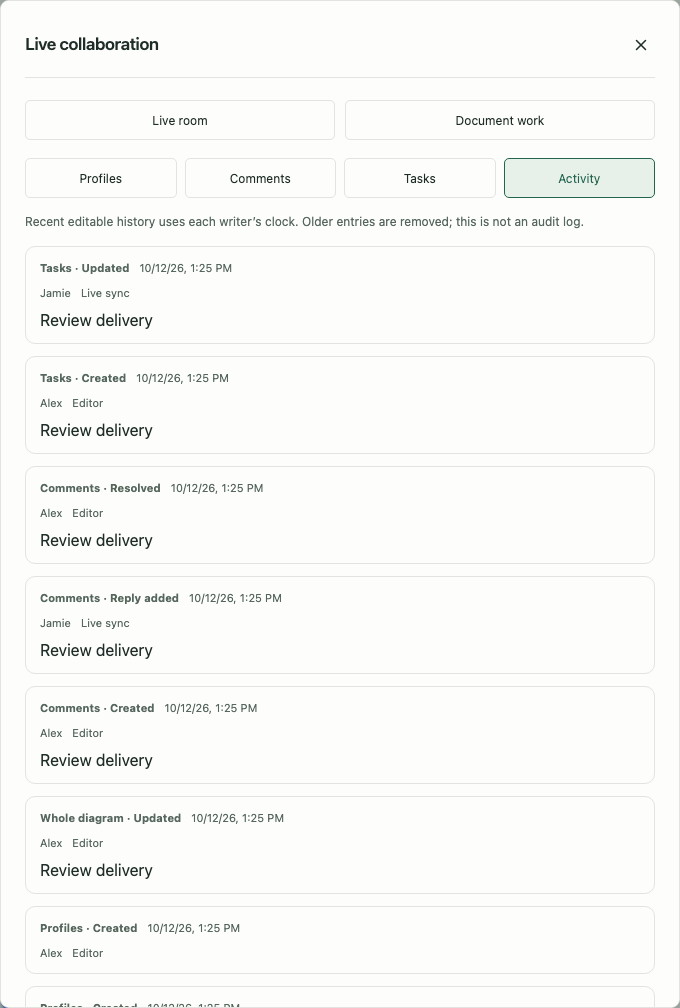
Activity summarizes meaningful model and document-work changes. Moving a node alone does not fill the feed with drag frames. The latest 500 entries are retained. A logical sequence orders entries independently of device clocks; concurrent entries use a stable ID tie-breaker. Displayed dates still come from contributors’ devices.
This is informational diagram content, not an immutable audit log. In a live room, the owner records accepted actions and checks their device-to-profile binding. Editors cannot publish fabricated activity or rewrite another person’s profile/comment through raw diagram updates. Person labels are still not independently verified, and imported local history is not evidence of verified authorship. Do not use this feed as regulatory or legal audit evidence.
Save, export and limits
Document work uses the same encrypted diagram record in IndexedDB. It survives normal save/reopen and follows native JSON exports and workspace backups. Exported readable copies include profiles, pictures, comments, tasks and activity; keep them appropriately protected. Room credentials and the browser’s chosen acting-profile preference are excluded.
One document supports 128 profiles, 2,000 threads and 2,000 messages in total, 1,000 tasks and 500 activity entries. Comment text and task descriptions allow 4,000 characters; task titles allow 300. These bounds limit memory, sharing and retained history. The API returns a structured error instead of silently accepting oversized content.
Start with a small example
- Unlock your local workspace and open a diagram containing invented data.
- Open the Collaboration panel. If collaboration is unavailable, the deployment needs a configured relay; enabling MCP does not configure that relay.
- Create a room and choose a name that other participants may see. Review the disclosure choices before continuing.
- Create an invitation and send it through a private channel to the intended participant. Treat it as an admission capability, not a public diagram link.
- The recipient unlocks their own browser workspace, opens the invitation and requests access. The owner reviews the pending device and approves it as an Editor or Viewer.
- Wait for synchronization to finish before editing. Confirm both devices show the expected participants and roles, then try changing one title and moving another node.
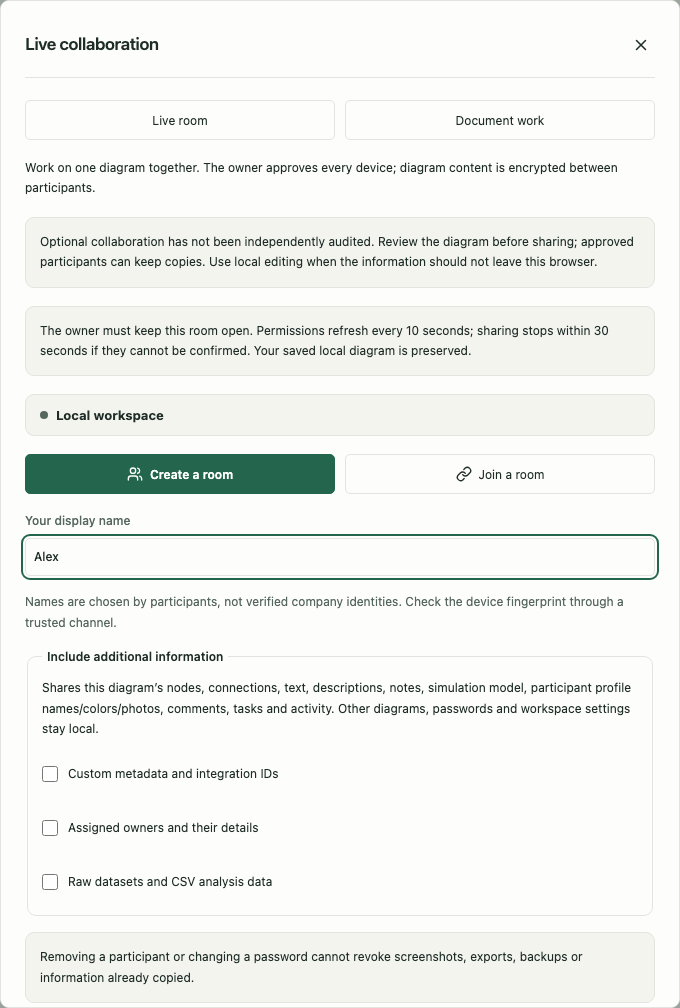
An invitation is not automatic approval. Version-2 links contain a separate one-use secret in the URL fragment; the owner checks a secret-bound proof of the intended device and sharing scope before displaying its admission request. The relay never receives that secret. Older invitation links are rejected; request a new link from the owner. The owner’s browser verifies the participant’s signed proof binding this room, the device fingerprint, the MLS public key and KeyPackage, and its expiry before adding that device. The owner’s approval binds access to the participant’s current device. A display name is a label chosen by a participant, not a verified legal identity. While waiting, the recipient sees Your device fingerprint. Compare that complete fingerprint with the owner’s pending request through a separate trusted channel before approval; comparing a name alone does not verify the device.
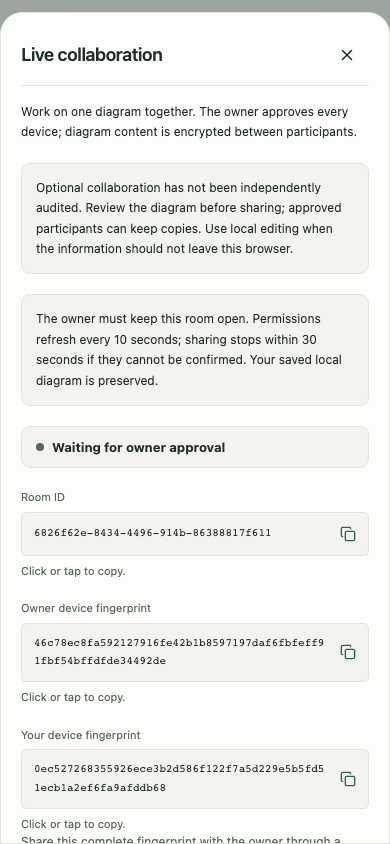
The pending participant can review exactly what the room includes before the owner approves access. The device fingerprints are public identity information; the invitation itself must remain private.
Copy a link or device identity
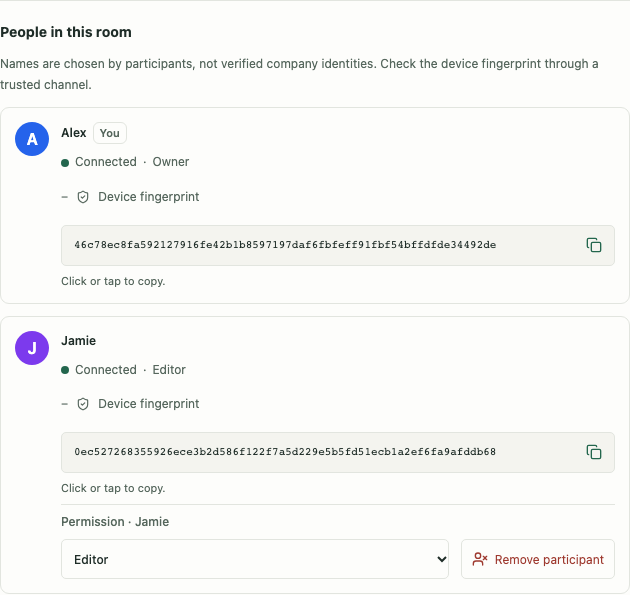
Click or tap a displayed Room ID, Device ID, or device fingerprint to copy its complete value. Open a participant’s Device fingerprint disclosure to reach that field. A copy icon shows the action, and Copied to clipboard confirms that it succeeded.
For a newly created invitation, click or tap the Private invitation link field or its adjacent copy button. With a keyboard, tab to a copy button and press Enter or Space. Focusing a field alone does not copy anything. If the browser blocks clipboard access, the field selects its full value and asks you to copy it manually.
Send invitations only through a private channel. Send fingerprints through a separate trusted channel to verify devices. Editable fields, such as your display name and a pasted invitation, keep their normal typing behavior.
Choose what you disclose
The default shared drawing includes titles, descriptions, relationships, geometry, styling, saved annotations, presentation/storyboard configuration, semantic process assumptions, and document profiles (including names, colors and pictures), comments, tasks and activity. These document-work fields are shared even when optional metadata and owner-profile disclosure are off. Text already shown in a diagram can contain customer names, code identifiers, paths, SQL-derived labels or summarized CSV values. Review it even when the optional disclosures are off.
| Choice | What it adds | Default |
|---|---|---|
| Metadata and integration IDs | Custom metadata, retained code/SQL evidence, integration external IDs and metadata on simulation entities/scenario overrides | Off |
| Referenced owner profiles | Assigned owner profiles and ownership references; unreferenced workspace profiles stay private | Off |
| CSV datasets | Original CSV datasets and their analysis configuration, allowing participants to explore those sources | Off |
Simulation semantic IDs, particle routing attributes and processing assumptions remain shared: participants need them to understand and run the same process. Excluded metadata and integration IDs already present in a recipient’s local diagram stay local during updates and approved rejoin. Native graph extension fields are part of the drawing; putting sensitive information in an arbitrary extension does not make it private metadata.
Turning a choice off does not anonymize titles or descriptions. A grouped node named after a customer still shares that customer’s name. Metadata can contain literals or secrets; raw datasets can disclose complete rows beyond the values visible on the canvas. Choose the room’s disclosure scope before sharing it. To change the scope, start a new room with the reviewed scope rather than assuming already received copies can be recalled.
Sharing has limits separate from ordinary local editing: up to 20,000 nodes and 100,000 relationships, 16 MiB of shared JSON, 32 MiB of CRDT state/full-state refresh and 8 MiB per incremental update. Reconnect and membership refreshes can resend the complete validated shared state without reducing that limit to the smaller incremental budget. Compressed application payloads must fit 3 MiB and decompress to at most 64 MiB. Large text or source evidence can exceed a payload limit even when the drawing has few nodes. If a limit is exceeded, reduce the shared scope or divide the diagram; content is rejected rather than silently omitted.
Camera position, zoom/view filters, workspace folder, favorites and local save/version timestamps are not shared. Existing private source evidence and owner assignments remain local when their disclosure choices are off. Private room records, invitation data and cryptographic credentials are absent from native diagram exports and workspace backups.
Read presence and roles
The panel shows approved participants, their roles and connection state. On the 2D canvas, shared selection outlines and pointer labels identify which objects a participant is examining. The live participant dock remains clear of zoom/Fit controls and does not intercept canvas gestures. Large groups use a bounded visible sample of remote markers. Activity uses the document profile associated with the approved human device; an API/MCP edit uses that same device and permissions, rather than appearing automatically as a separately approved AI participant.
| Role | Shared drawing access |
|---|---|
| Owner | Edit the shared model and review admission, participant roles and removal |
| Editor | Edit the shared model |
| Viewer | Inspect the model without changing it |
Each participant’s local vault must remain unlocked. MCP also needs its own explicit local grant. A Viewer with a local Read + write MCP grant still cannot edit the shared graph. An Editor with a Read only MCP grant cannot let that tool write. The two permissions are checked together.
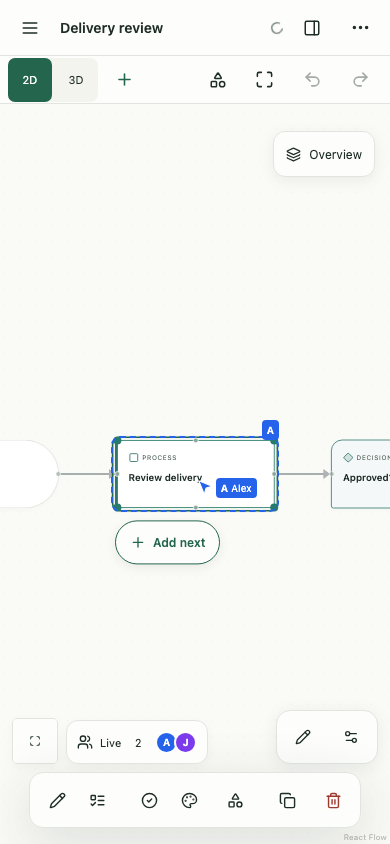
Keep the owner online
The owner must keep the room open in an unlocked browser. Each other participant requests a fresh, nonce-bound permission confirmation every 10 seconds. The confirmation is tied to the current room policy and encryption epoch and expires within 30 seconds of the recipient’s request. If the owner goes offline, traffic is withheld, or the policy cannot be confirmed, sharing stops with a visible message. Your already saved local diagram remains in your encrypted workspace.
Removal and downgrades are enforced when the updated policy arrives. The freshness limit also bounds an old session when the relay withholds that policy; it does not promise instantaneous revocation during a network partition. A compromised participant can retain anything already received. Removing a device, changing a password, closing a room or making a new invitation cannot erase screenshots, exports, backups or earlier plaintext copies.
Profiles, comments, tasks and activity use a separate owner-mediated action channel. The owner checks the authenticated device’s assigned profile and permission, saves the accepted action, then distributes its checkpoint. Your pending action is not shown as saved until acknowledged. If an acknowledgement times out, the action’s outcome is unknown: inspect the latest document before repeating it. Geometry and ordinary diagram fields still merge concurrently through Yjs. Local document work outside a live room continues to work offline.
Reload requires a fresh device invitation and approval. Local comment/task changes made after leaving are not silently merged into owner-authoritative work on rejoin; a recovered local copy preserves differing saved work. Unreleased older CRDT room formats need a new room. Ordinary diagram JSON and backup formats remain compatible.
Rooms containing HIPO, DFD, UML or BPMN notation require participants with the current notation collection support . If an older room rejects a notation edit, retain the local diagram, update every participant’s app and start a new room from that diagram. The owner must invite and approve participants again. Clearing notation from a room does not make that room compatible with an older client.
Understand saving and simultaneous edits
Edits are merged per field using Yjs. Two people can change different properties without replacing each other’s whole node. The accepted graph still undergoes Visual Nerve’s reference and model validation, and local saves use the existing encrypted transaction boundary.
Malformed presence and sync requests are rejected before changing the drawing or participant list. Known-invalid, cryptographically authenticated application framing or permissions are rejected without ending every recipient’s session. Assembly limits are isolated per participant. A rejected message shows a warning beside that participant and preserves the accepted local drawing; missing graph dependencies request a fresh state. Check the warning and coordinate recovery, or remove the device. This does not confirm that the rejected sender’s edits synchronized. Uncertain cryptographic state, invalid membership policy and persistence failures still stop the local session safely.
Some simultaneous changes cannot form a valid model—for example, deleting an object while another participant creates a relationship to it. Removing an unused profile while another participant assigns a task to it is another conflicting reference change; keep the profile until assignments are agreed. A conflict stops normal synchronization rather than silently deleting evidence or accepting a broken graph. Inspect the visible conflict, keep your local diagram, and coordinate a reviewed recovery or a new room. Do not treat an offline or conflict indicator as confirmation that all edits reached everyone.
While a room is active, leave it before deleting its shared diagram, clearing/replacing the workspace, or editing/deleting a global owner profile referenced by that diagram. Those operations return a conflict rather than diverging from other participants. Create/edit the owner profiles before joining; assigning an existing owner through the shared node still follows the chosen scope.
Undo tracks your own local operations rather than undoing another participant’s edit. An undo that would invalidate newer shared relationships is rejected. Saved confirms a local commit; the collaboration status separately shows synchronization progress. Keep backups of the graph you need to retain.
Encryption and the relay
If several participants fill the shared receive buffer, Visual Nerve treats this as temporary congestion rather than blaming the next participant. It requests recovery after incomplete messages expire. Small permission and synchronization controls retain separate bounded space. Repeated requests for the whole drawing are coalesced and spaced according to the response size. A necessary large refresh can take longer; keep the tab open and watch the collaboration status. Saved still confirms only your local copy.
An invalid, expired or revoked join request does not close the owner’s room and cannot reach approval. Issue a fresh invitation if a link expires while it is being checked, and check device clocks. Network or relay flooding can still interrupt collaboration; encryption does not guarantee availability.
Local saved records use the workspace’s AES-256-GCM encryption in IndexedDB. Collaboration messages use MLS (Messaging Layer Security, RFC 9420) between approved devices, with 256-bit ChaCha20-Poly1305 message encryption, X25519 key agreement, Ed25519 message authentication and owner-signed membership policy. These are separate boundaries: the vault password and recovery key are never the room-sharing key and must never be placed in an invitation or sent to a participant.
The configured Cloudflare relay delivers encrypted messages. It receives normal request metadata, room and device identifiers, public admission/membership data, connection state, message sizes and timing. It is not anonymous communication. Approved participants decrypt the deliberately shared model and can retain a readable copy.
Removing a device or changing its role affects future authorized access after the membership change. It cannot erase content that participant already received, downloaded, copied or photographed. Closing a room and changing a password also cannot recall those copies.
Reconnect, reload and lock
This release keeps MLS ratchets and private signing keys only in the live unlocked tab’s memory. It does not restore them from a backup or saved room record. That avoids reusing cryptographic sender state from an older restored copy.
| Event | What to do |
|---|---|
| Temporary network loss while the same tab stays unlocked | Use Reconnect live session to reconnect the existing live device and let it synchronize; exact encrypted retransmissions do not create a new edit |
| A participant reloads, closes the tab or locks/unlocks | Request access as a fresh device and obtain owner approval again |
| The owner’s live tab is lost, reloaded or locked | Start a new room from the retained local diagram and invite participants again |
| Invalid authenticated update, incompatible shared graph or another failed session | Inspect the error or conflict, then use End local session and coordinate a reviewed recovery or a new room |
Reconnect live session is available only for an ordinary offline session while the same tab stays unlocked. An error or conflict offers End local session instead. This ends only the failed session in this browser and retains your saved local diagram. It does not close the relay room or disconnect other participants. The owner creates a new room from the retained diagram and invites participants again; other participants need a fresh invitation and approval to collaborate again.
The local graph and encrypted CRDT association can survive a reload; they are not permission or private key material to resume the old room. A restored workspace backup contains the graph, not room access, MLS keys or private collaboration records. Keep the owner tab open and unlocked for the duration of an active session, and choose your session timer deliberately.
When a returning participant is approved as an Editor into the same room and disclosure scope, the app reconciles locally saved, previously unsent changes with the current shared drawing. Review the result before continuing. A returning Viewer receives the owner’s current drawing and cannot publish former editor changes. If its local drawing differs, those changes are retained as a separate recovery diagram in Projects; the panel shows its name. This copy is local and does not alter the room. The owner should remove the previous device after approving the replacement so the participant list reflects the devices still in use.
Update now is blocked while the room lifecycle is connecting, awaiting approval, live or reconnecting. Leave/end the local room explicitly before applying an app update; update preparation never discards live room keys silently.
Leave room leaves a participant’s live room session while preserving its local diagram. It does not remove another participant’s copy. While the owner’s session is active, Close room for everyone closes the room and disconnects all participants; saved local diagrams remain. Owners can also remove individual devices through the panel. Locking or clearing the app runtime ends the local live session; a later unlock does not revive old grants, jobs or room keys.
Use an AI agent with an approved session
Create and approve the room through the human UI first. An agent can then inspect semantic collaboration status and edit through the existing graph endpoints when both its MCP grant and your room role allow it. Profiles, comments, tasks and activity are available through the versioned document/action endpoints, including local-only diagrams. Live actions derive their author from the approved device profile; local actions use the selected local profile. Read the current base version before writing. There are no MCP endpoints to issue invitations, approve participants, retrieve private room keys or unlock a vault.
See collaboration through API and MCP , privacy , and security .