Visual Nerve saves locally. Export creates a file you control; it does not automatically publish the diagram. Choose a format based on whether the recipient needs to edit the model, read an explanation or see the picture.
Open Export on desktop or Diagram actions → Export on a phone.
Older records and backups created on the website origin may remain readable; retiring its /app editor does not encrypt or delete them. The separate encrypted workspace at app.visualnerve.com protects private records with a local password. On that isolated address, only Export all data / backup produces an encrypted workspace file. Individual diagram JSON/Markdown, Draw.io documents, images, SVG, PDF, video and copied text remain readable. Review them before sharing, even if the workspace itself is password protected.
Choose the right output
| Output | Use it for | What it preserves |
|---|---|---|
| JSON · complete graph | Reopen or move one editable diagram | Current objects, connections, referenced owners, metadata, hierarchy, settings, geometry and applicable data/model content |
| Markdown · semantic outline | Read or share a text explanation | Headings, descriptions, process steps and relationships |
| PNG · rendered diagram | Put a visual in a document or message | A locally rendered picture of the selected area |
| SVG · vector diagram | Scale a diagram for print or edit its visual elements | Text, shapes, icons, connections and visible drawing as vector elements in a 2D view |
| draw.io · editable diagram | Continue editing in Draw.io | Basic editable text, shapes, colors, groups and attached connectors in the saved 2D layout |
| PDF · printable diagram | Print or share a paged visual | A 2D rendering on A4/A3, fitted or tiled |
| Export all data / backup | Keep or transfer your whole workspace | All projects, owners, templates, portable preferences, source datasets, local history and retained simulation archives |
| Export video in Player | Share a narrated walkthrough | A film of the saved numbered sequence or storyboard |
| Build with Lovable | Turn a workflow into an app-building brief | Reviewed text describing the chosen diagram scope and requirements |
An image, PDF or video is not a restorable graph. Draw.io files are editable drawings with simpler content than the original model. Keep JSON or a full backup for a faithful editable copy. Locking the app later does not encrypt or recall any downloaded file.
Continue editing in Draw.io
- Open Export on desktop or Diagram actions → Export on a phone.
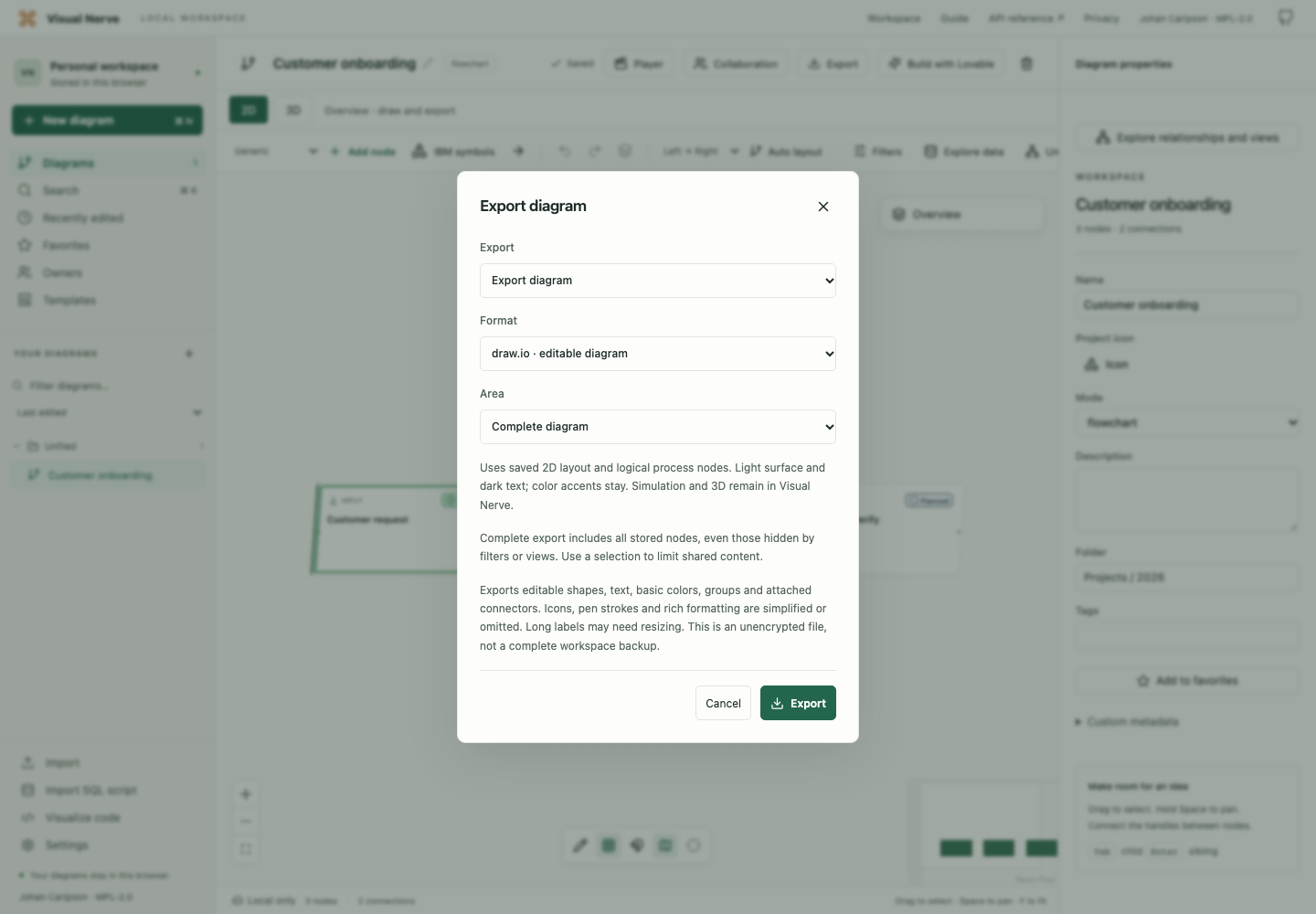
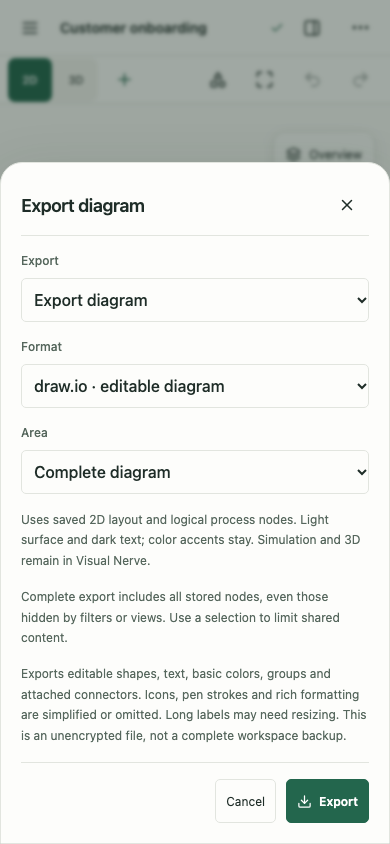
- Choose draw.io · editable diagram.
- Choose Complete diagram or Selected nodes. Select both endpoints to keep their connection. Selecting a process group in the app includes its actual descendant steps.
- Read the format notes. The drawing uses the saved 2D layout, even when you are viewing 3D.
- Choose Export. Preparation runs locally with percentage progress and cancellation; it does not send your model to a conversion service.
- Open the file in the destination editor and check its labels, groups and connectors.
Text and basic shapes stay editable. Owner/status labels and simple process assumptions are included as text. Icons, custom stencils, pen strokes, rich formatting and 3D relief may be simplified or omitted; long descriptions can need resizing in the destination editor. Complete diagram includes stored nodes hidden in temporary CSV/overview views. Use Selected nodes when you intend to share only particular content. Source datasets, original source files and full simulation execution/scenarios are not part of these documents.
Editable Draw.io documents use a light drawing surface, even if the app uses Dark or follows a dark system appearance. White base fills and dark text, connection labels and base borders keep the exported drawing readable; your saved node, connection and mind-map color accents remain. The exported document does not copy the app’s dark theme. Native JSON preserves full stored styling, and workspace backup includes portable appearance settings. SVG still follows the app’s current appearance.
Draw.io files are useful editable drawings; JSON or encrypted workspace backup preserves the complete Visual Nerve model.
HIPO, DFD, UML and BPMN exports to Draw.io use generic editable shapes and report a simplification warning. Their structured sections, named ports and specialized relationship ends are not preserved. Use JSON to retain the complete notation model, or native SVG to preserve its vector appearance. These files do not provide UML XMI or BPMN XML interchange.
Editable exports support up to 20,000 scoped nodes, 100,000 internal connections, 5,000,000 exported characters and a 64 MiB file, with a two-minute execution deadline. Selection can come from a source graph of up to 100,000 nodes/500,000 connections. Exceeding limits gives an explicit error; reduce the selection or export separate diagrams. Two editable jobs can run at once. Temporary results expire after 15 minutes and are removed by workspace lock, reload, cancellation or app cache clearing. API/MCP jobs also disappear when their original integration grant is changed or stopped. UI export works independently of MCP being enabled.
Downloaded documents are readable even when your workspace is encrypted. Review descriptions and scope before sharing. API/MCP users can perform the same export through editable diagram jobs ; binary chunks must be decoded separately before joining the bytes.
Export one diagram
- Open Export and keep Export → Export diagram.
- Choose Format.
- For PNG/PDF/SVG, choose Area. PNG/PDF also offer Resolution.
- For PDF, choose paper, orientation and whether to tile across multiple pages.
- Choose Export and save the downloaded file.
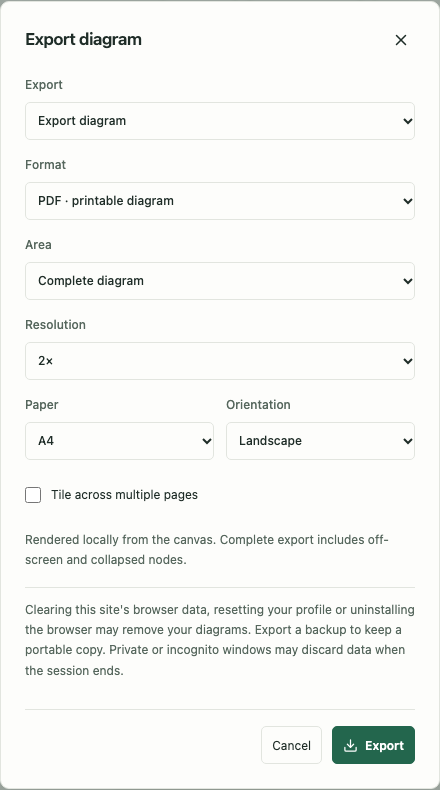
For PNG/PDF/SVG, the areas mean:
| Area | Result |
|---|---|
| Complete diagram | Includes off-screen and collapsed objects in an isolated export rendering |
| Current viewport | Captures the visible 2D crop |
| Saved 2D viewport for SVG or while viewing 3D | Uses the saved 2D pan/zoom; fits the 2D diagram if no usable saved crop exists |
| Selected nodes | Includes selected objects and connections whose endpoints are both selected |
Choose 1×, 2× or 4× resolution. Higher resolution makes a larger bitmap and uses more browser memory. PDF supports A4 or A3, Landscape or Portrait. Enable Tile across multiple pages when a large diagram would become unreadable on one page; tiles include page-coordinate captions.
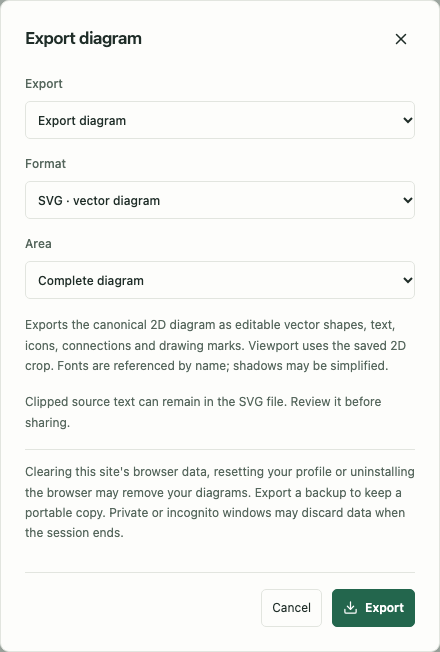
SVG keeps text and geometry as vector elements, so you can enlarge it without a bitmap becoming pixelated. Open the .svg file in a browser or a vector editor. It uses the current Light or Dark appearance. There is no resolution setting: the chosen area sets the document’s dimensions. The receiving application may substitute fonts that are unavailable on that device, and decorative shadows may be simplified.
An SVG is a visual export rather than the complete editable Visual Nerve model. Card content is clipped to its saved size. Enlarge a card before exporting if you need more of its content to be visible; keep JSON for reopening the diagram. Saved 2D viewport crops the complete scene without reducing its object or text budgets. Content outside that visible crop can remain readable in XML. Selected nodes reduces the scene to the selected objects and their internal connections. Review source text before sharing a cropped SVG.
Larger SVG exports are prepared in a local background worker. The dialog shows percentage progress and remains cancellable. You can continue using the browser while geometry and text are generated; no rendering service or server upload is required. The exported diagram is a snapshot of the saved scene when the export starts. Locking the workspace or clearing app assets cancels the job and removes its temporary readable result.
Background exports support up to 20,000 rendered nodes, 100,000 rendered connections, 5,000,000 source text characters and a 64 MiB SVG, with a two-minute execution limit. A selection can come from a source graph of up to 100,000 nodes and 500,000 connections; the smaller rendered limits still apply to the selected scene. Small DOM-based exports retain their existing 100,000-element, 250,000-character and 16 MiB limits. Source graphs over 100 nodes or 20,000 title/description/metadata characters use the background path automatically, even for a small selection. Exceeding a limit gives an error rather than silently dropping content. Choose selected nodes, a semantic overview or separate diagrams to reduce an oversized scene. Viewport cropping does not bypass these budgets. A clipped source panel can still have its complete source in an SVG description: review XML text before sharing.
For a large Process Simulator, select a process group and choose Selected nodes. The export includes its actual steps and descendants, with the connections between them. Export separate subprocesses when a complete model is too large to render within the browser’s time or memory budget. For API/MCP, use POST /exports/svg with scope: "selected" and nodeIds read from the model or process hierarchy, then poll the job and retrieve its result in chunks. The older POST /export string response remains available for small scenes. Keep the complete JSON model as well; a cropped vector image does not contain the whole simulation.
Ordinary canvas filters do not remove content from a complete diagram export. CSV visual exports show the current analysis view, with its current measures and visible relationships, rather than every retained historical group. If you explicitly select an older CSV group revealed by exploration, the export labels it Outside current data view.
An active semantic Overview can export its summary projection. Choose Details before exporting if you want the original cards. Visible pen strokes are included in their native 2D layout; hidden strokes and unfinished gestures are excluded. A drawing-only diagram can also export.
PNG, PDF and SVG always use the canonical 2D diagram, including when 3D is active. JSON and backups preserve the saved 3D camera and independent object placements for later use. For an animated 3D presentation, use video export .
Process Simulator complete exports show the full real flow with the same readable capacity cards as Show all steps, using the selected run’s scenario and current capacity when a run is selected. Selecting a capacity card exports that logical object’s bank; selecting a process group exports its actual steps and descendants. These visual cards do not add work to the saved model.
Keep a lossless JSON copy
Diagram JSON includes current CSV source strings and analysis choices when the diagram owns those sources. It retains recognized SQL schema/query metadata, code structure, drawing layers, presentation definitions and applicable Process Simulator semantics. Hidden retained objects are preserved.
Original imported code, complete raw SQL scripts and original draw.io/Visio XML or ZIP files are not retained by their importers, so export cannot reconstruct those original source files. Recognized names, expressions, identifiers and other retained metadata remain in the exported diagram. Source rows are included for CSV; SQL query expressions can include literal values. Review a file before sharing it.
To reopen one exported diagram, choose Import or drop the JSON onto the workspace. The complete graph is validated before saving. If identities collide with existing content, IDs and internal references are remapped together rather than overwriting unrelated work. Shared owners are reused only when their content agrees.
Single-diagram JSON contains the current diagram, not its entire workspace history or all other projects. Use a full backup for those.
Read or exchange Markdown
Mind maps export as a semantic heading hierarchy, with descriptions, notes and owner labels. Process diagrams use dependency order and numbered steps; branches include explicit next links. Other diagrams use object sections and relationships. The text describes modeled meaning rather than deriving hierarchy from canvas coordinates.
Markdown import recognizes headings and indented ordered/unordered lists. It is useful for starting a diagram from an outline, but it is not a lossless substitute for native JSON geometry, metadata or source datasets.
Back up the whole workspace
Choose Export → Export all data / backup → Export all data, or use Settings → Data & Privacy → Export all data. The downloaded file is named visual-nerve-backup-YYYY-MM-DD.json.
It includes all diagrams, owners including unassigned ones, custom templates, portable settings, CSV sources, named views, history and applicable simulation models/results/checkpoints. It excludes credentials, integration tokens and grants, storage acceptance, local identity, last selection and the browser’s import-size and ZIP source-file preferences. Cached app files and voice models are separate from the backup.
Nothing is uploaded. Keep the downloaded file somewhere independent of this browser if you want a recovery copy. Settings and local data explains Merge, Replace, moving to another device and retention.
| Backup source | File protection | Reading it later |
|---|---|---|
| Existing plaintext workspace | Readable visual-nerve-workspace JSON, format version 1 |
Review the restore preview; no backup password is required |
| Isolated encrypted workspace | Authenticated visualnerve-backup container, version 1 |
Unlock the destination workspace, then use this file’s original export password or recovery key in Unlock encrypted backup |
Both use a .json filename. Your current workspace password is not automatically tried on an old encrypted backup. Choose Original export password or Original export recovery key, then Read backup. The complete container is verified before its contents become a restore preview; cancelling or a workspace lock cancels the reader. Keep the original credential securely and verify a backup before depending on it.
Restoring a readable old backup into the isolated workspace encrypts the destination records. It does not alter the original file or transfer browser data automatically between www.visualnerve.com and app.visualnerve.com.
Downloaded copies keep their own protection. Changing a workspace password does not re-encrypt or revoke an older encrypted backup, and it does not encrypt a plaintext export. Protecting old backups explains what to replace, retain and verify after a credential change.
Prepare an app brief for Lovable
Build with Lovable turns your modeled workflow into a clear prompt. You can generate, edit, copy and download the brief locally without an account, API key or MCP connection. Lovable handles its own account and build process after you explicitly open it.
- Draw the desired workflow, label decisions and write useful descriptions.
- Choose Build with Lovable on desktop, or Diagram actions → Build with Lovable on a phone.
- Write App instructions: who uses the app, what they should accomplish, important screens, rules and preferences.
- Choose Include: Entire diagram, Current CSV groups, or Selected objects.
- Expand Review the app specification and refine the sections and open decisions.
- Read Exact build prompt in full, including object, relationship and boundary counts.
- Choose Open in Lovable, or copy/download the brief. In Lovable, review the prefilled prompt and press Send to start building.
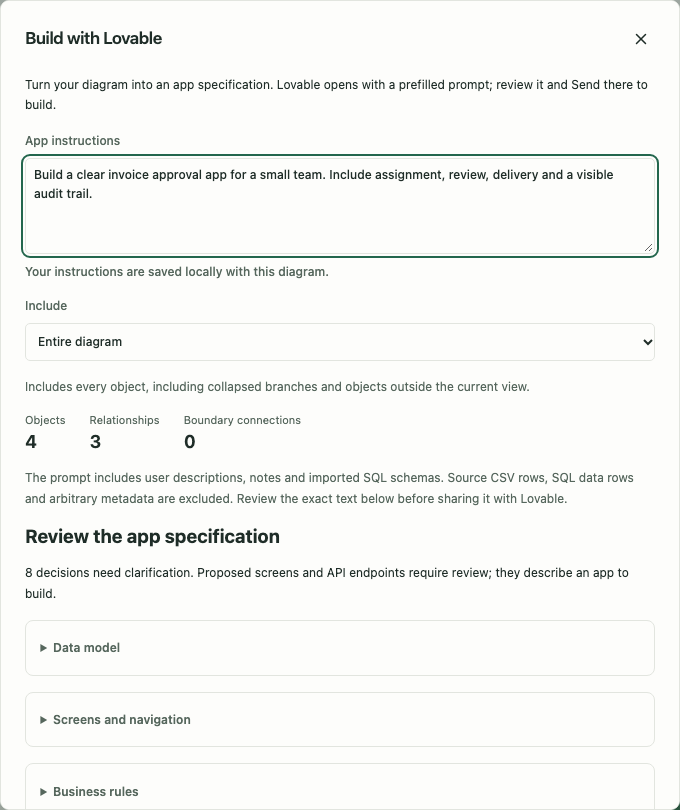
For example, App instructions could say:
Build an order-tracking app for warehouse staff. Each order has an owner and status. Dispatch may start only after payment is confirmed. Managers can see blocked orders. Define who may change payment status and show an error when dispatch is attempted too early.
Descriptions of concrete inputs, permitted actions and failure cases make the brief more useful than a list of screen names alone.
Choose scope deliberately
| Scope | Included content |
|---|---|
| Entire diagram | All canonical objects, including collapsed/off-screen content and retained CSV groups |
| Current CSV groups | Current generated CSV view plus manual objects; default for data diagrams |
| Selected objects | Exactly the selected objects; crossing connections identify outside objects as boundary context |
Duplicate titles remain distinct references. Connections keep their direction, type, label, description, loops and branch conditions. Parent relationships describe hierarchy. Done means progress on your plan, so a completed planned feature is still included in the app request.
The brief can include CSV column schema, cleanup/grouping/filter choices and calculated summaries, but not original CSV rows. Parent/child aggregates may overlap; the brief explains that totals must not be double-counted. SQL schemas contribute recognized columns, keys and foreign keys. SQL queries contribute aliases, expressions, JOINs and clauses, including retained literals. Code diagrams contribute identifiers, paths, source locations and confidence rather than original source.
Arbitrary custom metadata, owner emails, bridge credentials and complete raw source scripts are excluded. User-written descriptions, notes and retained schema/grouping names are included as shown. Review those values before sharing. Explain important freehand pen marks in App instructions; the textual handoff does not upload the drawing.
Review facts, proposals and open decisions
The app specification has six sections:
| Section | What to review |
|---|---|
| Data model | Observed fields, types, keys and unknown definitions |
| Screens and navigation | Candidate user journeys and screens |
| Business rules | Conditions, permitted actions and exceptions |
| Proposed API contract | Proposed endpoints and operations for the app to build |
| Acceptance criteria | Concrete behavior to verify with inputs, results and failure cases |
| Decisions and assumptions | Choices that the diagram does not resolve |
Use Your requirements and corrections under a section and Answer open decisions to refine it. Changes save with the diagram and support undo; instructions, scope and reviewed additions travel with JSON and backups.
Observed SQL definitions are source facts. Proposed screens and APIs are design suggestions that need review. A diagram’s layout, hierarchy or Done status does not prove execution order or permission rules. Missing identities, authorization, storage, writes, errors and ambiguous relationships stay as questions instead of invented behavior.
Each reviewed text field supports up to 30,000 characters; the complete reviewed draft is capped at 180,000. The preview shows up to 200 decisions. If more are omitted, choose a smaller scope to review them.
Share the complete prompt without truncation
Open in Lovable opens an unsent prompt at lovable.dev using its URL-fragment handoff. Visual Nerve does not start a build automatically. Opening the brief dialog sends nothing; explicitly opening Lovable shares the previewed text with that service.
The handoff permits up to 50,000 prompt characters and an encoded link up to 60,000 characters. If the brief exceeds either limit, it is not truncated. Choose Copy build prompt or Download build brief, then Open Lovable and paste the prompt. If clipboard permission is unavailable, the complete preview is selected for manual copying.
Share a live diagram with approved people
For simultaneous work, use optional realtime collaboration when the deployment has a configured relay. The owner creates a room, reviews the disclosure scope and approves each current device as an Editor or Viewer. Invitations are admission capabilities; send them privately and verify the participant rather than posting them publicly.
Collaboration shares the selected diagram’s text, structure, geometry, styling and process assumptions. Raw CSV datasets, metadata/source evidence and referenced owner profiles require separate explicit choices. Text and summarized values may already be sensitive when those choices are off. Cameras and local view filters remain private.
The network messages use MLS encryption; local private room/CRDT records use the encrypted vault and are absent from every diagram export and workspace backup. The integration has not been independently audited. Private MLS keys exist only in the live unlocked tab: reload or lock requires fresh admission, and owner reload needs a new room. Participant removal cannot recall earlier content. This is a live sharing workflow, not a cloud backup.
Resolve export problems
If a bitmap exceeds browser canvas limits, lower resolution, use selection/viewport, choose SVG, or tile a PDF. A tiny printout usually needs a narrower scope, larger paper or tiling. If 3D exports appear in 2D, that is the PNG/PDF/SVG contract; use Player video for perspective motion. If you need to reopen objects rather than view a picture, export JSON.
See presentations for film controls, settings for backup restore and API/MCP for programmatic exports and unsent brief previews.