Choose a symbol for what a step does, then give the object a short, specific name. A rectangle labelled “Calculate invoice total” says more than a shape labelled “Process”. Use labelled connections to show what happens next; label decision branches with their condition or result.
This reference explains all 43 choices in Visual Nerve: 32 completed revised symbols, two raw apertures, four arrowheads and five original forms. The miniatures use the same outlines and internal lines as the editor. They follow your Appearance setting; they show shapes, not a separate executable model.
For adding, resizing, renaming, colouring and connecting these objects, use the IBM flowchart editing guide . Symbols work in blank diagrams and ordinary templates; Classic Flowcharting provides an optional starting set based on the IBM GX20-8020 stencil. You can start with just Terminal, Process, Decision, Input / Output and Document, then use the more specific symbols where their distinction helps the reader.
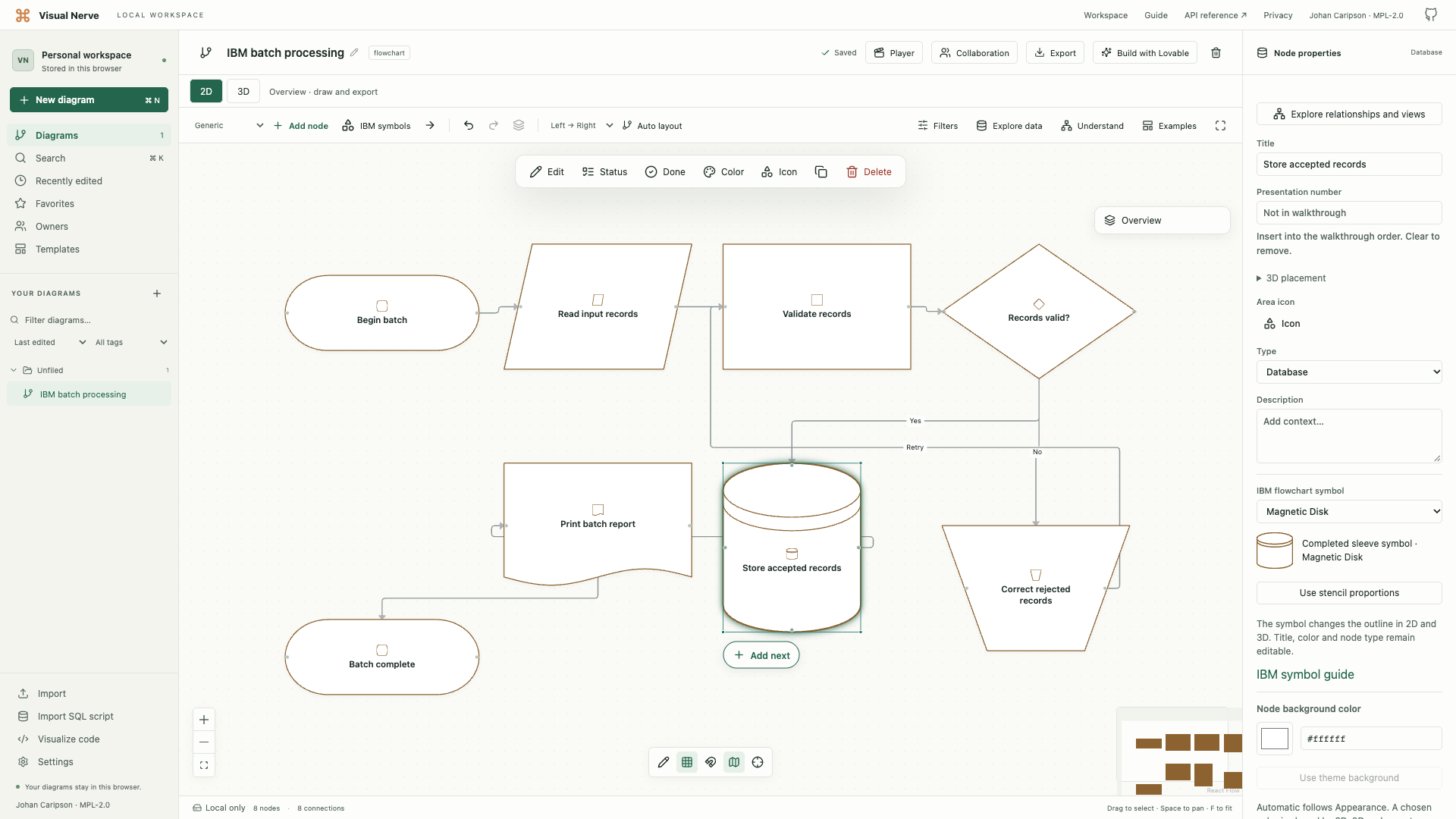
A small workflow to try
Draw this order-checking example with ordinary connections:
- Terminal: “Order received”.
- Manual Input: “Enter order details”, if a person types them; use Input / Output for a general incoming data feed.
- Process: “Check required fields”.
- Decision: “Details complete?” Label the outgoing connections “Yes” and “No”.
- On “No”, return to Manual Input: “Correct missing details”. On “Yes”, continue to Predefined Process: “Calculate delivery charge”, whose rules you describe in another diagram or note.
- Document: “Order confirmation”, then Terminal: “Order accepted”.
The shapes explain the workflow. They do not execute the check, store an order or generate the document. For a runnable model with queues, resources and timing, use Process Simulator .
Basic flow and explanations
Process
Use for a processing action that changes information, calculates a value or performs a defined operation. Write a verb and its object.
Example: “Calculate invoice total”. Choose Predefined Process when the detailed routine is defined elsewhere.
Comment / Annotation
Use for an explanation, assumption or comment beside the flow. Connect it to the relevant step with a clearly labelled leader or an appropriate connection; it is not another processing step.
Example: “Prices exclude VAT”, attached to the calculation.
Input / Output
Use for information entering or leaving a process when the particular medium is unimportant or unspecified.
Example: “Receive customer data”. Choose Manual Input for human entry, Document for a paper/report record or a specific storage symbol when the medium matters.
Connector
Use to continue the flow at another position in the same chart, avoiding a long or tangled connection. Give both ends a matching, unique label.
Example: an exit marked “A” and a corresponding entry marked “A”. A connector does not mean start or finish.
Offpage Connector
Use to continue onto another page or diagram. Show the destination and matching label so the reader can find the next step.
Example: “B - Dispatch diagram”, paired with entry “B” there. This label documents a continuation; the shape does not automatically create a link or navigate to another diagram.
Decisions, routines and concurrent work
Decision
Use when a condition selects one of several possible paths. Put the question in the object and the answers on the outgoing connections.
Example: “Payment approved?” with “Yes” and “No” branches. Testing a condition is different from setting up the values used by that test.
Preparation
Use for initialization or a control/instruction change before subsequent processing. In the historical convention this includes setting switches, changing an index or initializing a routine.
Example: “Set retry count to zero”. Use Decision for “Retries remaining?”; preparation changes the state, while a decision chooses a path.
Predefined Process
Use for a named operation or sequence whose detailed steps are defined in another routine or flowchart. Tell the reader where that definition is.
Example: “Validate address - see Address rules”. A normal Process describes the action here; Predefined Process deliberately refers to another definition.
Terminal / Interrupt
Use for a boundary or terminal point: commonly start or end. IBM also used this shape for halt, delay, interrupt or an exit from a closed routine; label that meaning explicitly.
Example: “Start: order received” or “End: confirmation sent”. Do not rely on the outline alone to distinguish a temporary halt from completion.
Parallel Mode
Use to mark the beginning or end of simultaneous operations. Connect the branches clearly and state whether the following work needs every branch or a different condition.
Example: “Prepare equipment” and “Check site access” run concurrently before “Arrange installation”. This is flowchart notation: it does not create Process Simulator fork/join semantics, capacity or timing. Configure those separately in a simulation model.
Human work, devices and communication
Manual Input
Use for information supplied directly by a person through an online keyboard, switch or pushbutton.
Example: “Enter delivery address”. The input is the point: use Manual Operation for human work performed outside the computer rather than data entry.
Manual Operation
Use for an offline human operation. The IBM sleeve describes human processing without mechanical aid; label the actual task rather than using it for every task involving a person.
Example: “Check the signed paper form”. Entering the resulting information into a system is a separate Manual Input step.
Keying
Use when the operation of a key-driven device matters: historically punching, verifying or typing. This IBM-specific convention describes the device operation, while Manual Input describes information entering an online system.
Example: “Verify punched-card entries” in a historical data-entry workflow. For an ordinary web form, Manual Input is usually clearer.
Auxiliary Operation
Use for equipment operating outside the direct control of the central processing unit. It is not a general synonym for an optional task or a human task.
Example: “Run standalone card sorter” before computer input, where that equipment distinction matters.
Display
Use for information presented to a reader or operator. A current example may use a screen; IBM’s historical definition also included console printers and plotters.
Example: “Show validation errors”. Choose Document when the lasting paper/report record is the important output.
Communication Link
Use to identify information transmitted over a telecommunications link. Connect and label its endpoints and direction; the zigzag shape identifies the medium, not a processing action.
Example: “Transmit order to remote warehouse”. Use an ordinary graph connection for direction; the glyph does not open a network connection.
Combining, selecting and ordering sets
These four shapes answer different questions about records. Label the input sets and intended result.
Merge
Use to combine two or more sets into one set. A merge is not a decision and does not by itself promise that records are sorted.
Example: “Combine Monday and Tuesday orders into one batch”.
Extract
Use to remove or select particular items or subsets from a set. State the selection rule and where the selected and remaining records go.
Example: “Extract orders requiring manual review” from the complete order batch.
Collate
Use for merging and extracting that produces multiple sets from multiple input sets. Explain the grouping or matching rule instead of using it for any simple join.
Example: “Combine regional order batches and separate them into delivery-route batches”. Use Merge if the result is simply one combined set.
Sort
Use to arrange a set of items into a specified sequence. The completed symbol has a divider across the diamond.
Example: “Sort orders by delivery date, then order number”. Sorting changes the sequence; extracting selects items, and merging combines sets.
Stored information and historical media
Use a storage symbol when the medium helps explain the system. These names come from historical computing practice, not a claim that every modern service must use one particular shape. Label the actual resource and explain any modern analogy in a note.
Online Storage
Use for information on a storage medium available to the running system when the specific medium is not the focus. IBM included tape, drum and disk under this general online input/output convention.
Example: “Order records available to the program”. It is a broad online-storage symbol, not specifically a relational database symbol.
Magnetic Disk
Use when disk storage specifically matters, rather than using the shape for every saved value.
Example: “Orders on magnetic disk” in a historical system diagram. In a modern workflow, a label such as “Order database” may be a useful documented analogy; the historical name does not define the database technology.
Magnetic Drum
Use for the particular historical magnetic-drum storage medium when the hardware distinction matters.
Example: “Drum-resident working file” when explaining a legacy system. Use Online Storage or a clearly labelled contemporary representation when that hardware distinction is irrelevant.
Magnetic Tape
Use for information on magnetic tape. The completed symbol includes the short line at the circle’s bottom right; a bare large circle is only its drawing aperture.
Example: “Nightly archive on magnetic tape”. Distinguish it from punched paper tape and from a small continuation connector.
Core
Use for the historical core-memory medium. Its internal top and left lines distinguish the completed form from a plain process rectangle.
Example: “Working totals in core memory” in a historical program explanation. It is not a generic name for a core business function; a modern memory analogy needs an explicit label or note.
Offline Storage
Use for stored information that is offline, regardless of its recording medium. The stripe distinguishes it from Merge.
Example: “Archive held offline until requested”. Offline Storage describes the storage’s availability; Magnetic Tape describes a medium, which can be used online or offline.
Documents, cards and paper tapes
Document
Use when a document or paper/report record is the important input or output. Name the record rather than the act of preparing it.
Example: “Printed order confirmation”. Show “Prepare confirmation” as a Process if that action also needs a separate step.
Punched Card
Use for input or output on punched-card media, including the varieties represented by the historical convention.
Example: “Customer detail card”. Use the dedicated collection forms when a deck or file is the distinction you want to show.
Card Deck
Use for a collection of punched cards. The perspective stack makes the collection visible.
Example: “Today’s input card deck”. A deck emphasizes a collection of physical cards; Card File emphasizes related punched-card records.
Card File
Use for a collection of related punched-card records. This is a historical card-record convention, not a general modern computer-file icon.
Example: “Customer master card file”.
Punched Tape
Use for information recorded on punched paper tape. It is distinct from magnetic tape; the revised convention inverted the earlier Perforated Tape outline.
Example: “Machine instructions on punched tape” in a historical equipment workflow.
Transmittal Tape
Use for proof/adding-machine tape or other batch-control information in the IBM-specific convention. Despite the name, this is not a general network-transmission symbol.
Example: “Adding-machine tape with batch control totals”. Use Communication Link for information sent over telecommunications.
Raw apertures and arrowheads
These six choices reproduce drawing components. For a workflow, prefer the completed meaning or a real labelled connection.
Sort aperture
Magnetic Tape aperture
Arrowhead Up
Arrowhead Down
Arrowhead Left
Arrowhead Right
Original forms and changed meanings
Choose these five forms when documenting or reproducing the original X20-8020 / GX20-8020 convention. The original stencil had 25 apertures; the revised -1/-2 stencils have 26. Do not silently mix the old and revised meanings in one chart: name the convention in a note.
Input / Output (original)
The original I/O trapezoid shows information entering or leaving processing. The revised convention gives I/O the parallelogram and uses this trapezoid for Manual Operation.
Example: reproduce an older “Read customer details” I/O step. For a new revised flowchart, choose Input / Output.
Predefined Process (original)
The original hexagon denotes a routine defined elsewhere. In the revised convention the hexagon means Preparation, while Predefined Process becomes the rectangle with two internal vertical lines.
Example: retain an old “Payroll routine” reference while transcribing a historical chart.
Program Modification (original)
The original pointed-right form denotes program modification. The revised convention drops this separate name and form and uses Preparation for the function.
Example: reproduce “Set processing switch” in an original chart; use Preparation in a new revised chart.
Clerical Operation (original)
The original parallelogram denotes clerical work. The revised convention calls this Manual Operation and uses a trapezoid; the parallelogram instead becomes Input / Output.
Example: preserve an old “Check paper records” step without relabelling it as revised I/O.
Perforated Tape (original)
The original paper-tape form. The revised convention changes the name to Punched Tape and inverts the wave orientation.
Example: reproduce the media in an original machine-input chart; use Punched Tape in a revised chart.
Some original meanings use outlines shared with revised entries: the old Offline Storage File is the unstriped triangle now called Merge; Online Keyboard becomes Manual Input; Processing/Annotation becomes Process; and Disk/Drum/Random Access File becomes Online Storage. The original large circle covered Magnetic Tape/Sorting/Collating. Use the revision’s historical label when reproducing those charts. IBM source and revision details
explain the scope; API/MCP GET /flowchart/stencils also supplies the original labels in symbolLabels.
Keep the meaning when exporting
Native JSON preserves the exact editable symbol, title, connections and saved fill. PNG/PDF/SVG preserve the native 2D glyphs. Editable Draw.io preserves titles, relationships and an explicitly chosen background, with a light default drawing surface, but approximates IBM silhouettes using the ordinary node type’s shape and reports a fidelity warning. Choose native JSON or SVG when the exact stencil glyph matters. See sharing and export choices .
Sources and a final reading check
The completed meanings above follow the December 1970 IBM stencil sleeve and IBM Flowcharting Techniques , printed pages 2-7: revision changes, sleeve definitions, composite forms, checklist and stencil. The workflow labels here are new illustrative examples. These are historical IBM conventions; they do not establish a required modern notation or standards certification. See the full source/revision guide .
IBM is a trademark of International Business Machines Corporation. The source attribution does not imply IBM endorsement of Visual Nerve.
Before sharing a chart, check that each title names a specific action, question or record; every decision path is labelled; connectors identify their destination; historical media are explained; and the shapes do not imply execution rules that you have not actually configured.