Use diagram-file import when the layout already exists in draw.io or Visio. Visual Nerve reads the file locally, lets you review its pages, and creates a native diagram from the page you choose. You can then move objects, edit text, reconnect lines, add status, draw annotations, switch to 3D and export.
Choose the right file
| File | Supported input | What opens |
|---|---|---|
| draw.io | .drawio diagram files |
A page selector and native layout preview |
| Visio | .vsdx diagram files |
A page selector and native layout preview |
| Older Visio | .vsd |
Unsupported; export or save as .vsdx in the source application first |
| Macro-enabled Visio | .vsdm |
Unsupported |
For a Visual Nerve JSON file or workspace backup, use sharing and exports instead. CSV, SQL and programming-language files have their own analysis previews.
Import a page
- Drag one
.drawioor.vsdxfile onto the workspace, or choose Import and select it. On a phone, open Projects to reach Import. - Wait for Import diagram file to finish reading the pages. Nothing is saved during this preview.
- Choose Diagram page. Each option shows its object and connection counts. Changing the page also updates the proposed diagram name.
- Edit Diagram name if you want a different project title.
- Inspect the preview and expand Import notices. Read any warnings about shapes, links, groups or connectors before creating the diagram.
- Choose Create diagram. The selected page opens on the normal canvas and saves in this browser.
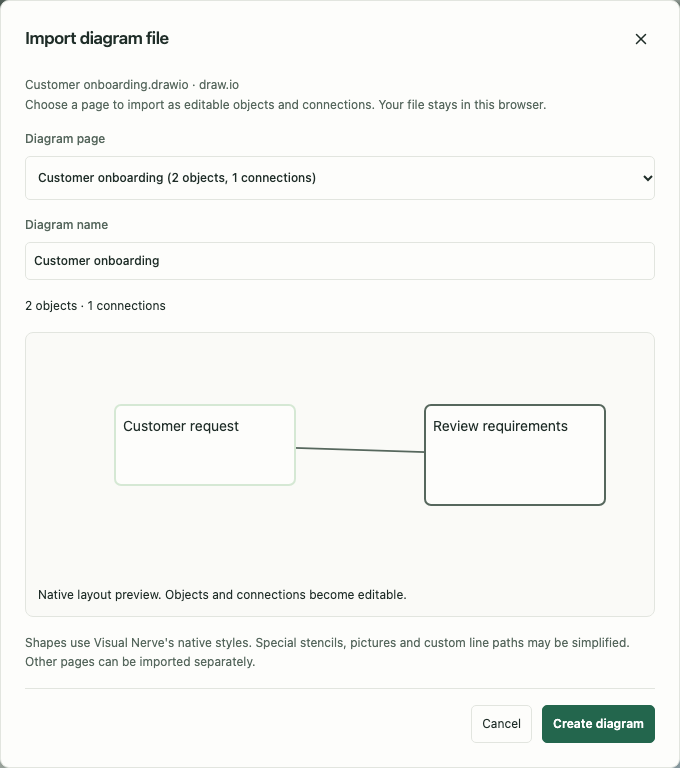
Only the selected page becomes a project. To import a second page, open the same file again and choose that page. Cancel discards the temporary preview and stops pending analysis; it does not delete an existing project.
For a large page, the thumbnail shows the first 200 objects and a bounded set of connections. Its caption explains this limit. Import still retains every supported object within the file’s structural limits; the thumbnail is a review aid rather than the complete canvas.
What stays editable
Imported shapes become normal Visual Nerve nodes and relationships. Text, supported hierarchy, positions, dimensions, connector directions, labels and supported styles are translated to the native model. Safe absolute HTTP(S) links may be retained. Selecting an object or connection opens its normal Properties.
Try this after importing a delivery workflow:
- Select Dispatch and correct its description.
- Select its connection to Delivery and add a label such as
Ready for collection. - Mark completed steps Done.
- Select a card and drag a corner handle to make it larger.
- Use 3D to inspect the same diagram in relief, then return to 2D for the overview.
Undo and redo work with these native edits. The import does not leave the diagram embedded as a picture or require the original application to remain open.
Understand visual differences
The result uses Visual Nerve’s native styles. Advanced stencils, pictures, rotations, special connector waypoints and custom line paths can be simplified. Review Import notices and compare important relationships with the source file. A diagram’s relationships and readable text matter more than expecting an exact reproduction of every source-app effect.
Embedded images, macros, scripts and external content are not fetched or executed. Complete XML, ZIP archive entries and image bytes are not saved with the project. The selected native graph retains recognized names, text, links and import provenance; review those fields before sharing an export.
Size and safety limits
The browser’s default import limit is 50 MB. Settings lets you raise it to 1024 MB, with an experimental-use warning. UI MB means MiB. Only imports up to 50 MB are supported and guaranteed; raising the limit does not remove other limits or guarantee that the browser has enough memory.
Diagram-file analysis also limits the file to 100 pages, 20,000 objects and 40,000 relationships across all pages, with a 30-second worker deadline. ZIP files have a 2,048-entry limit. Expanded content defaults to 100 MiB and is bounded by the selected input limit, up to 1 GiB. Excessive or malformed input produces an error before any project is saved.
API/MCP has a separate 32 MiB request/response envelope. Base64 increases Visio payload size, so a .vsdx file sent through the bridge must be below roughly 24 MiB, and its preview response must also fit. Browser file import and bridge transfer therefore have different practical ceilings.
If import fails
| What you see | What to do |
|---|---|
| Unsupported file | Check the extension; save older .vsd as .vsdx first. |
| File exceeds the configured limit | Import a smaller file, or review the warning before increasing the local limit in Settings. |
| Expanded-content or object limit | Split the source diagram into smaller files or pages in the source application. |
| A stencil or line looks different | Read Import notices, then adjust the native object or connection. |
| Analysis times out | Reduce the source file’s complexity and try a smaller file. |
| You only see one page after creation | Creation imports the selected page; repeat import for the remaining pages. |
For programmatic previews and selected-page imports, see API and MCP . Use JSON export to preserve your resulting editable Visual Nerve diagram.