Open the workspace · Detailed setup guide · API reference
Visual Nerve uses the Model Context Protocol, rather than a vendor-specific agent integration. Codex, Claude Code, Cursor, Gemini CLI and other compatible local clients discover the same tools, documentation and semantic workspace model. Choosing a different client does not create a separate diagram or simulation engine.
The website and the MCP service have different jobs
The website delivers the application files. Your browser stores the workspace. The optional Go bridge is a separate process running on your own computer; JavaScript can connect to it but does not install or start it.
MCP client → local bridge → open Visual Nerve browser → IndexedDB
The bridge forwards commands to the browser. It has no independent workspace database and no second simulation engine. The UI, REST API and MCP use the same validated model and local persistence.
| Address | Role |
|---|---|
| The Visual Nerve website origin | Where the app was loaded; the exact origin trusted by the bridge. |
ws://127.0.0.1:47417/bridge |
Browser connection to a local service, with wss available for trusted TLS. |
http://127.0.0.1:47417/mcp |
Streamable HTTP MCP endpoint for a local client, or HTTPS with trusted TLS. |
http://127.0.0.1:47417/api/v1 |
REST commands to that same local service. |
127.0.0.1 means the computer making the connection. It does not become a public server because the website is public. A phone’s loopback address does not point to a laptop.
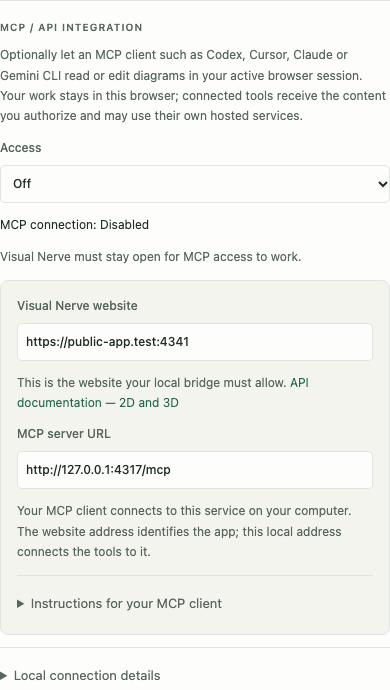
Start a bridge and grant access
Open the encrypted workspace and unlock it in your browser. Copy Settings → MCP / API integration → Connection instructions to your local client. The instructions identify the selected address and link to a small setup script. Download and inspect that script, then run the command from Settings. On a new Linux/WSL or macOS installation, it downloads a checksum-verified private Go toolchain and bridge source ZIP, builds the bridge with its matching API schema, and starts it. Existing Go, git, Node, npm, Hugo and unzip are not required.
Setup needs an HTTPS downloader and internet for the initial build. If curl, wget and Python are all missing, the client must first install a downloader using the operating system’s package manager and required administrator permission. The script never unlocks the browser or grants access. It leaves unrelated listeners running and reports port conflicts. Installation, restart and troubleshooting .
Developers with a confirmed source checkout can instead build manually with Go 1.26+:
./scripts/build-bridge.sh
./bin/visual-nerve --static ./bin/bridge-docs --bridge \
  --addr 127.0.0.1:47417 \
  --allowed-origin https://app.visualnerve.com
Open Settings → MCP / API integration, choose an access level and check that the connection is Connected. The bridge uses the app’s exact origin: scheme, host and port, without a path. The public product website is not the app origin. Its former /app path redirects to the app root; the isolated app does not serve a duplicate /app editor.
For a separately reviewed preview app, use the origin displayed in that app’s Settings. A local source-development build can retain /app/ for tests; it has separate browser storage and is not the production address. Browser local-network rules can require permission or trusted local TLS. The bridge supports --tls-cert and --tls-key; configure matching wss/HTTPS addresses when required. It remains loopback-only.
The app encrypts saved IndexedDB records with AES-256-GCM. Unlock in the browser, then grant tool access there. Other origins’ records do not move automatically; restore an existing backup or encrypted transfer explicitly. Transfer and recovery steps .
Choose your local MCP client
Start the bridge first. Configure the client with its local HTTP(S) /mcp address, using the same hostname, port and TLS choice as the browser’s saved connection. The browser’s WebSocket /bridge address is not an MCP client endpoint.
New setups use 47417, Visual Nerve’s product default rather than an official MCP port. Saved 4317 connections stay unchanged; 4317 is registered for OpenTelemetry and may run its gRPC service. Before sending commands or tokens, verify real Visual Nerve JSON health and identify the listener . An empty response or HTTP/0.9 error is not bridge health. A custom port must be approved by the app build and response policy before changing connection addresses.
Bridge 0.11.1 introduces compatibility startup: without an address override it also attempts legacy 4317 alongside primary 47417, sharing one service and permission model. A busy legacy port is skipped with a warning; a busy primary port stops startup. An explicit --addr or nonempty VISUAL_NERVE_ADDR selects one listener. The browser never scans or silently changes ports. For a deliberate move, Use port 47417 in Settings turns access Off and clears the session token before changing the port; update your client and grant access again. Safe upgrade steps
.
| Client | Local connection example |
|---|---|
| Codex | HTTP command and TOML settings |
| Claude Code | HTTP command |
| Cursor | Local IDE mcp.json
|
| Gemini CLI | HTTP command and settings.json
|
| Claude Desktop | Local stdio adapter |
These examples follow each client’s official configuration documentation. They are not a claim that every installed version or vendor interface has been tested. A cloud agent runs on a different computer and cannot reach your laptop through its own 127.0.0.1. Gemini CLI is the local command-line client; these instructions do not describe the Gemini website.
Visual Nerve also offers visual-nerve --mcp-stdio --mcp-url http://127.0.0.1:47417/mcp for a client that launches local stdio processes. Replace the URL with the exact MCP address saved in Settings, including legacy 4317 or HTTPS where used. It forwards to the same existing loopback HTTP bridge; it does not start another browser service or create a vendor-specific implementation. Stop that adapter without stopping the shared bridge. The browser’s /bridge WebSocket and older SSE transports are not MCP alternatives exposed by this server.
The isolated app permits only explicitly approved loopback WebSocket ports. This release prepares 47417 for new setups and retains 4317 for existing connections. Both the app package and its HTTP response policy must allow a port; changing Settings alone cannot override CSP. An older live release may still allow only 4317 until the coordinated manual app/policy deployment. Existing saved addresses are preserved; switch the listener, browser connection and client together only after that rollout.
Choose what a connected tool may do
| Access | Capabilities |
|---|---|
| Off | Default. The browser does not expose workspace commands. |
| Read only | Inspect data and use supported exact unsaved previews, exports, questions and comparisons. |
| Read + write | Additionally create/edit diagrams and control presentations or simulation runs. |
Turn access Off to disconnect. Tokens and grants are not imported from backups. If the executable uses VISUAL_NERVE_BRIDGE_TOKEN, enter the same token for the browser session and configure the client’s authorization header. Keep it out of copied prompts and issue reports.
On the encrypted app, every client needs the same human unlock and a fresh Settings grant. Unlock does not reactivate a prior grant, and agent requests do not extend session time. An already-authorized live connection may retain safe control status while locked; content returns 423 WORKSPACE_LOCKED. A cold locked page does not connect, and a lost connection remains 503. Explicit Off closes the transport. No client can submit a workspace password, recovery key or programmatic unlock. Exact lock and access behavior
.
Tools receive the content returned by their authorized requests. Their own hosting, logging and AI settings govern what they do with that content afterward. A local bridge does not make a remote AI client private.
Let the client discover the contract
The bridge exposes standard MCP tools and resources through JSON-RPC 2.0. Your client handles initialization and discovery; the browser applies the same permissions and validation regardless of the client vendor.
Ask it to call visual_nerve_api_docs first:
{ "document": "guide" }
Use { "document": "openapi" } for the complete contract. These bundled documents are discoverable without a browser content grant. Workspace requests need the connected browser and the appropriate access.
Clients can also read the standard MCP resources visual-nerve://docs/guide and visual-nerve://docs/openapi. They do not need to infer capabilities from screenshots or canvas coordinates.
Then use visual_nerve_request for a command:
{ "path": "/diagrams", "method": "GET" }
Paths omit /api/v1. When distinct workspaces are connected, pass workspaceId explicitly. Stable semantic IDs and version checks let the client work with actual diagram content instead of guessing from rendered coordinates.
Plan infrastructure with the same simulation engine
Bridge/browser 0.10.0 advertises infrastructure-resources-v1. CPU/RAM demand, shared network payloads and generation/grid/battery supply use the existing simulator routes and tools. Model version 2 explicitly opts in; legacy models stay version 1. Read the practical guide
and /simulation/capabilities before editing. Live collaboration rooms currently reject infrastructure models.
Analyze time series through the same engine
After reading the bundled guide, discover GET /analytics/capabilities with visual_nerve_request. List analysis documents using /diagrams?analytics=true; inspect their datasets, units, saved measurements, rules, signal history and reviewed scenarios semantically.
Pure measurement, detection, validation and scenario previews are available with Read only. Import commits, definition changes and saved archives require Read + write. Bounded jobs expose progress, cancellation and paginated results. All operations use the browser’s numerical implementation and encrypted workspace; the bridge has no separate analysis database.
Use an open, unlocked browser with a current grant. Analysis does not extend the idle session, and there are no background server alarms after the browser closes. An older bridge must be updated separately to advertise analytics-v1.
Complete REST and MCP workflow · Analysis semantics and limits
Useful requests to give a client
- “Read the API guide, list my diagrams and explain the relationships in this process.” Start with Read only.
- “Preview these source files and show which dependencies are unresolved before creating a diagram.”
- “Create a mind map in 3D using native cards, preserving a readable 2D arrangement.” Creation needs write access.
- “Inspect this simulator’s shared resources, run demand multipliers 1.0 to 1.5 with a fixed seed and compare the results.” Execution needs write access.
Presentation controls, source previews, semantic questions and simulation metrics all use the browser’s implementation. Headless simulation removes the animation requirement; it does not remove the need for an open, connected browser.
Connect your local client · Copy API examples · Review the security boundary